AdPlexity Social Review: Meta Ads Research, Done Right!
Last updated on September 15, 2026 30 min read
You have a campaign to launch.
You know your vertical, you have a rough idea of your angle, but before spending a single dollar on testing, you want to know what is already working.
So you open the Meta Ad Library. You search around.
You find a few ads — maybe.
But there’s no performance data, no way to tell if an ad has been running for three days or three months, the landing page is nowhere to be found, and half the time, the specific ad you’re looking for just isn’t there.
Of course, the Meta Ad Library was never really built with affiliate marketers in mind, so this makes sense.
But it does leave a pretty big gap.
That gap is exactly what AdPlexity Social was built to fill.
It claims to give you the full picture behind Meta campaigns and help you find what’s working so you can build your own campaign around it.
But is it the right tool for you?
Read this full AdPlexity Social review and let’s find out together.
What Is AdPlexity Social?
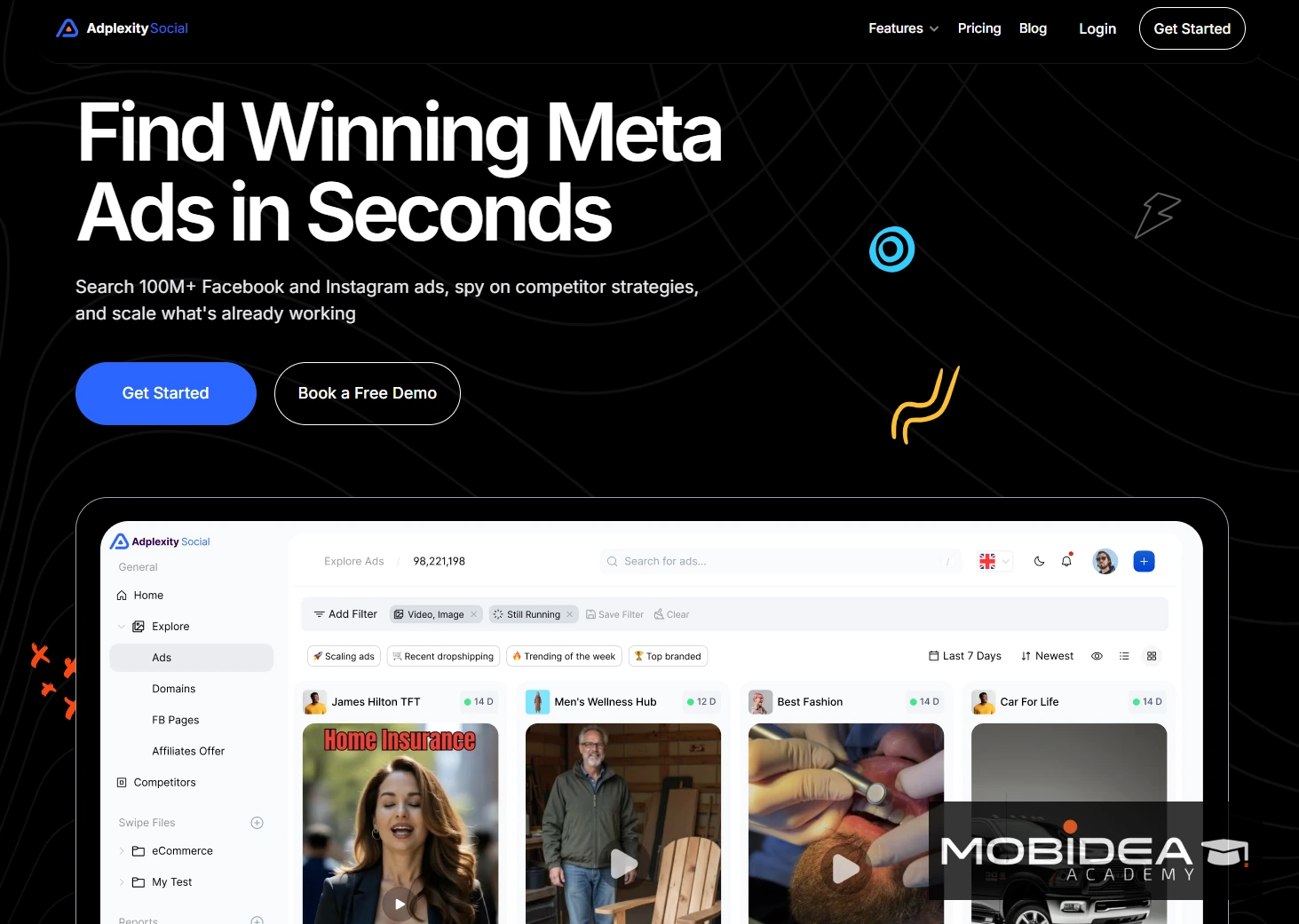
AdPlexity Social is a Meta ads spy tool built for performance marketers.
It focuses on Facebook and Instagram only, tracking ads, landing pages, and full campaign funnels across 16 countries and 90 niches every day.
It is not just a tool for general social media research.
It is built for affiliates and media buyers who want to know what is actually working on Meta right now.
The tool is part of the AdPlexity family, which has been in the ad intelligence space since around 2014.
AdPlexity Social is the newest addition.
If you want to learn more about the other tools in the suite, we recently updated our full AdPlexity review which covers all of them in detail.
AdPlexity Social works well for e-commerce and dropshipping research too.
But where it really shines is for affiliates running performance campaigns.
If you promote ClickBank or BuyGoods offers, run lead gen for verticals like insurance or finance, or test angles in nutra or AI dating on Meta, this tool was built with you in mind.
The same goes for agencies managing multiple clients and verticals at the same time.
Key Features of AdPlexity Social
AdPlexity Social has a lot going on under the hood.
Here is a breakdown of every major feature and what it actually does for you as a marketer.
Redirect Chain Tracking
Most spy tools show you the ad and maybe a screenshot of the landing page.
AdPlexity Social goes deeper.
It traces the full path from the ad all the way to the final offer, including every redirect in between.
That means you can see the pre-lander, the tracker link, the affiliate network, and the actual offer URL.
Not just the surface. The whole funnel.
This is very useful when competitors use link cloaking.
Even when the ad itself hides the destination, AdPlexity Social can still map out where the traffic ends up.
For affiliates promoting CPA offers, this is the feature that makes everything else possible.
You are not guessing at the offer anymore.
You get it directly from the redirect chain.
Advanced Search and Boolean Filtering
The search system in AdPlexity Social is built for media buyers who need precision.
You can run searches with up to 15 rules per query, organized into groups, using AND/OR Boolean logic.
That sounds complicated, but in practice it means you can build very specific searches without getting flooded with irrelevant results.
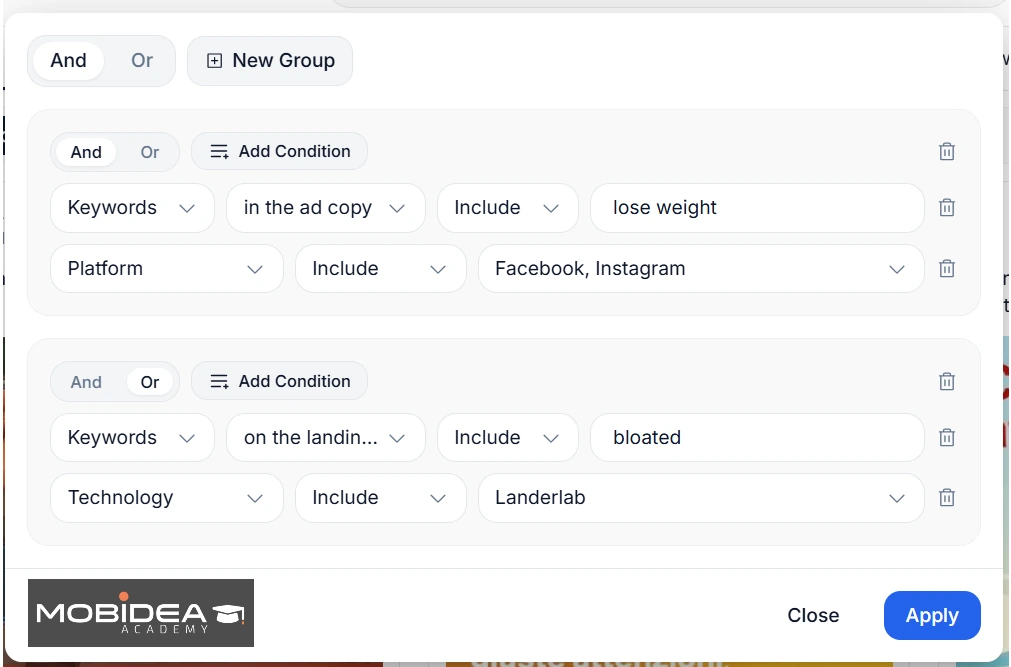
You can filter by:
- Keyword in the ad copy
- Keyword on the landing page text
- Destination domain or landing page URL
- Affiliate networks (ClickBank, BuyGoods, Digistore24, ClickDealer, and more) — not all Meta ad spy tools offer this filter
- Tracker domain (Voluum, ClickFlare, Redtrack, Ringba, and others)
- Tech stack (Shopify, ClickFunnels, Apple Store, Google Play, WooCommerce, and more)
- Lead gen specific filters (TrustedForm, LeadConnectorHQ, Ringba — useful for pay-per-call and lead gen campaigns)
- Arbitrage networks (Sedo, Tonic, Visymo, System1, and others)
- Days running (set a minimum to filter out failed tests and see only survivors)
- Vertical/niche categories (Lead Gen, E-commerce, iGaming, Dating, and 88+ more)
- URL parameters and affiliate IDs
- Outgoing URLs from the landing page
There are also Industry Filter presets that do the heavy lifting for you.
Pick a vertical like Lead Gen, App Downloads, E-commerce, or Affiliate and the tool automatically applies the most relevant filter combinations for that niche.
Useful when you are exploring a new vertical and not sure which filters to start with.
Creative Grouping
AdPlexity Social groups identical ad creatives together using a creative hash.
A creative hash is simply a unique fingerprint assigned to each image or video.
It allows AdPlexity Social to recognize the same creative across thousands of different ads, even when they are running on different pages or under different advertisers.
Instead of seeing the same image or video repeated across hundreds of individual ads, you see it once with a count of how many ads, landing pages, and advertisers are using it.
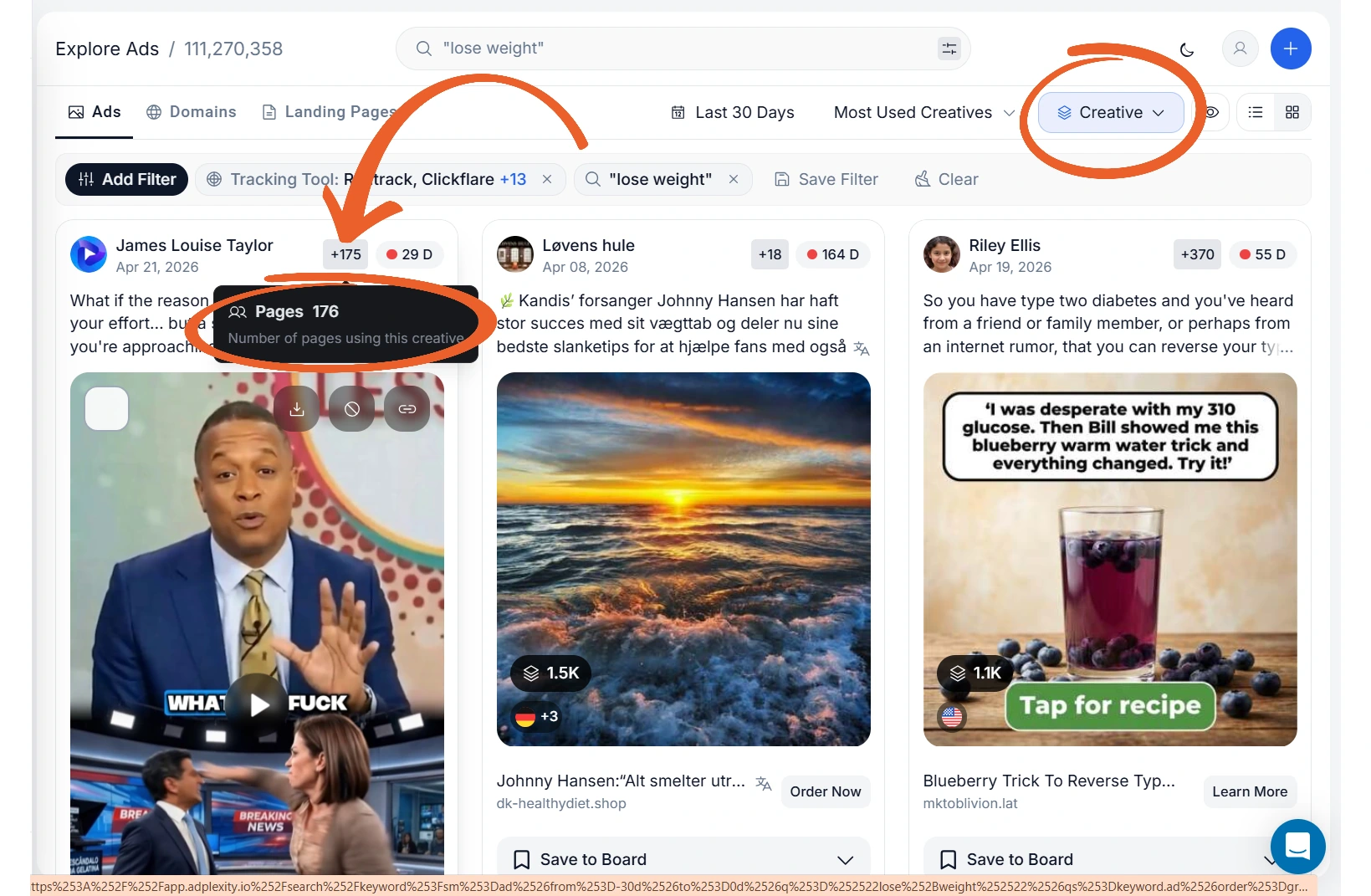
This is one of the most reliable signals the tool gives you.
If the same ad creative has been running across 40 or 50 campaigns over 90 days, that is a strong sign it is converting.
It is also a sign that the creative may be getting oversaturated in the market.
But if several different advertisers are all running it and it all leads back to one offer, that is a very good signal that the offer itself has been paying out well.
You can group by creative alone, or by creative plus ad copy together.
The second option is useful when you want to find campaigns that are using the exact same angle, not just the same image.
Domain Dimension
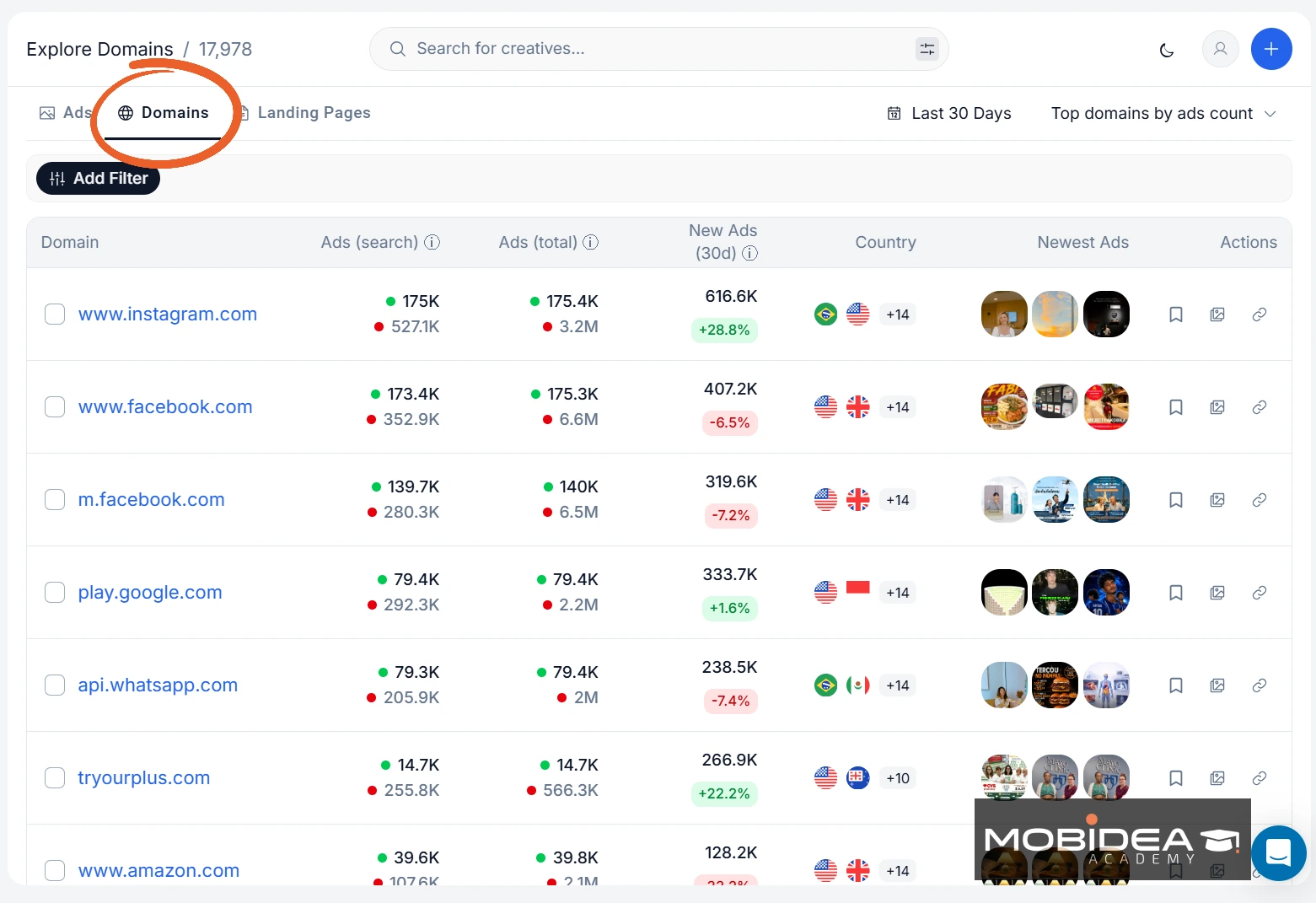
The Domains tab lets you research at the domain level rather than the individual ad level.
Instead of browsing through thousands of ads one by one, you can look at which domains are most active in your niche and work outward from there.
For each domain, you can see the total number of ads, how many are currently active, and how many new ads have launched recently.
This gives you a quick read on who is scaling aggressively versus who is just maintaining.
In verticals like Nutra or finance, a small number of big players usually dominate the spend.
Spotting an emerging domain early can give you a real head start.
Boards
Boards is a research workspace inside AdPlexity Social where you can save and organize everything you find.
And when I say everything, I mean not just ads, but also domains, Facebook pages, and Instagram profiles, all together in one place.
You can organize boards into folders by vertical, by competitor, by client, or however your workflow is structured.
And the best part is boards can also be shared with team members or clients, with control over what they can see.
You can share the full board, just the ads, just the domains, or just the pages.
If you’re using this tool for clients, boards are also great for sharing your ad campaign plans for their project.
This is more useful than a standard favorites or swipe file.
When you are researching a vertical, the context around an ad matters as much as the ad itself.
Keeping the domain, the pages, and the creatives together in one board makes it much easier to build a full picture before you launch.
Automated Monitoring and Reports
With the help of AdPlexity Social’s Automated Monitoring, you can watch what your competitors are doing.
Once a competitor launches a new ad, changes geos, or pauses a campaign, you will receive a notification.
All you need to do is add a domain or a Facebook page to make this work. More on how this can be done later.
You can save searches and have them run automatically, with updates delivered to your email or Slack.
Daily reports mean you are never starting your research from scratch.
The new activity is already waiting for you.
For agencies or anyone managing multiple verticals at once, this feature alone saves a significant amount of time every week.
Trending Intelligence
Don’t know where to get started?
The sheer volume of ads causing you to have analysis paralysis?
Then head over to the Trending section to get you kicked into full gear.
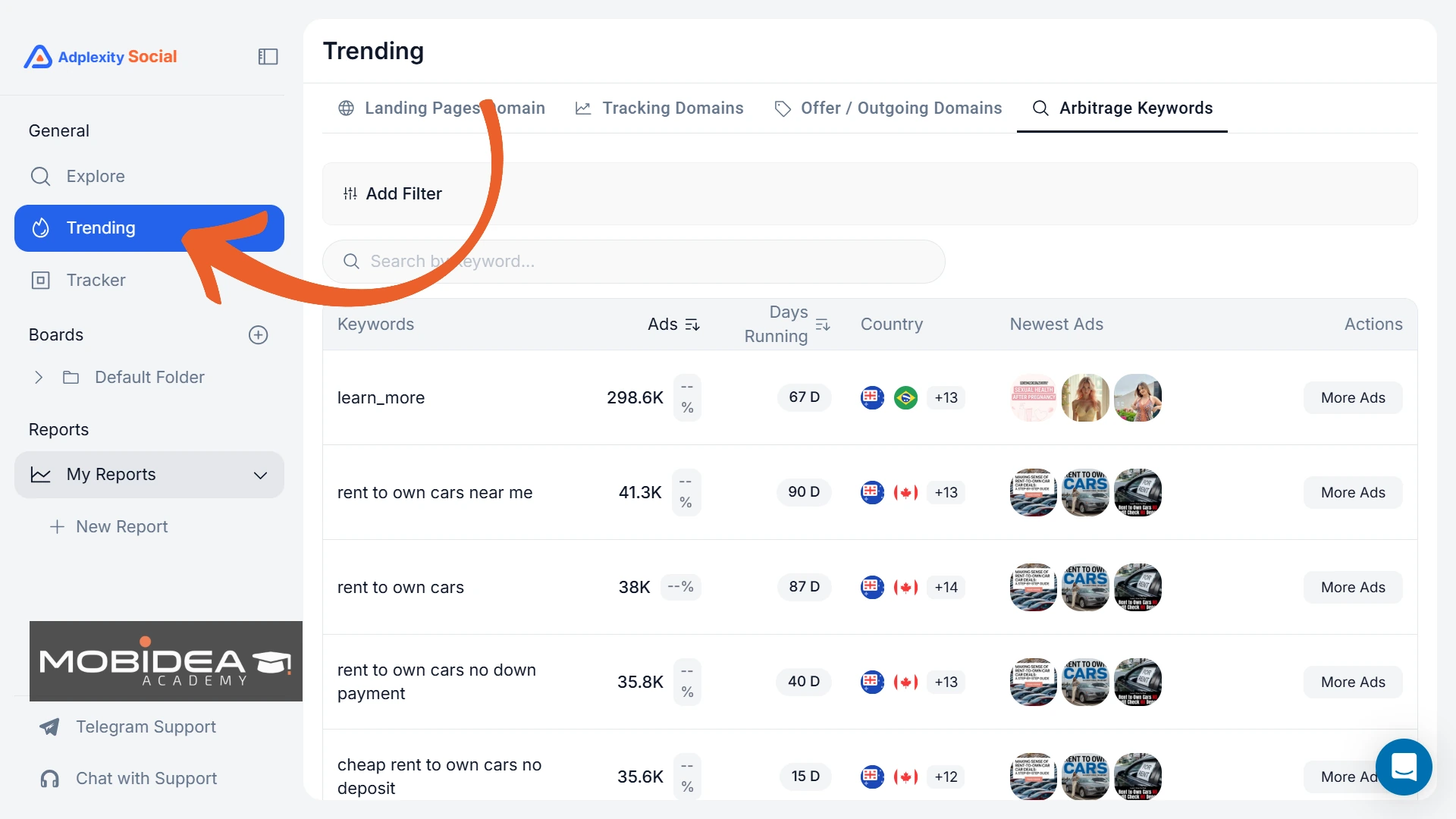
The Trending section shows which advertisers, domains, offers, trackers, and arbitrage keywords are gaining momentum right now.
It is not historical data.
It is a near-real-time view of what is picking up steam.
This matters most in fast-moving verticals.
In AI dating or weight loss, being two or three weeks ahead of everyone else can mean the difference between a profitable angle and a saturated one.
Trending gives you that early signal.
Landing Page Download and LanderLab Integration
When you find a landing page worth studying, AdPlexity Social lets you download the full page as a ZIP file.
This is not a screenshot. It is the complete HTML, CSS, and JavaScript, ready to deploy.
For users of LanderLab, there is a one-click import option.
The page goes straight into LanderLab’s editor where you can change headlines, swap images, adjust CTAs, and push it live. No manual file handling needed.
If you want to learn more about LanderLab, check out our comprehensive LanderLab review.
The download and import feature removes a lot of the manual work between finding something useful and actually testing it.
Deleted and Banned Ad Archive
Are you trying to find an ad that worked well a few months or even a year ago?
Do you want to study ads that have been banned so you can avoid making the same mistakes?
While some spy tools remove archived ads from their database entirely, AdPlexity Social keeps a record of ads that have been removed from Meta, including ads that were banned or pulled by advertisers after they burned out.
A banned ad tells you what angles Meta’s review system is sensitive to.
A pulled ad usually means the advertiser found something better or the angle got saturated.
Either way, there is information in ads that no longer exist, and AdPlexity Social keeps them accessible.
Video Hook Extraction
For video ads, AdPlexity Social has a feature called Request Hooks.
Click it on any video ad and the platform extracts the opening hook from the video without you having to watch it.
The first 3 seconds of a video ad are the most important.
That is the window where you either stop the scroll or lose the viewer completely.
Being able to scan hooks across hundreds of video ads quickly is a real time saver, very useful when you are doing angle research across a whole vertical.
Instant Ad Copy Translation
AdPlexity Social covers 16 countries.
A lot of the ads you will find are not in English, but one toggle in the interface translates all visible ad copy in your results to English at once.
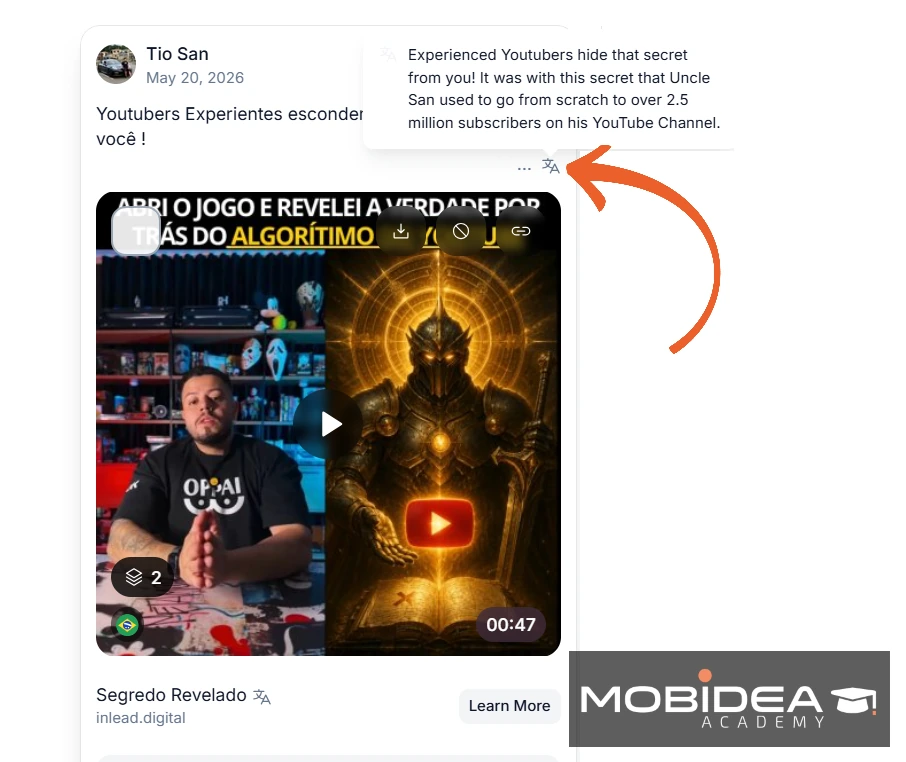
This makes international research practical.
You can look at what is working in Germany, Brazil, or France without needing to speak the language.
Angles that are winning in one market often travel well to others.
Sort by Most Used Creatives and Fan Pages
Beyond the standard sort options, you can sort your results by which creatives are being used most across the database, and by which fan pages are most active.
This surfaces what is actually getting traction at scale, not just what is newest.
It pairs well with Creative Grouping.
Use the sort to find the highest-volume creatives, then drill into the group to understand the full picture behind them.
Block Page from Search
Sometimes a specific page or advertiser clutters your search results without being useful to you.
The Block Page from Search option lets you remove them from your results permanently.
It is a small quality-of-life feature, but it makes a noticeable difference when you are doing research in a crowded vertical where a few dominant pages keep appearing in every search.
AdPlexity Social vs. Other Meta Ads Spy Tools: Quick Comparison
AdPlexity Social Plans and Pricing
AdPlexity Social keeps things simple.
There are only two plans to choose from, and both give you full access to everything the platform offers.
The only difference is how you pay.
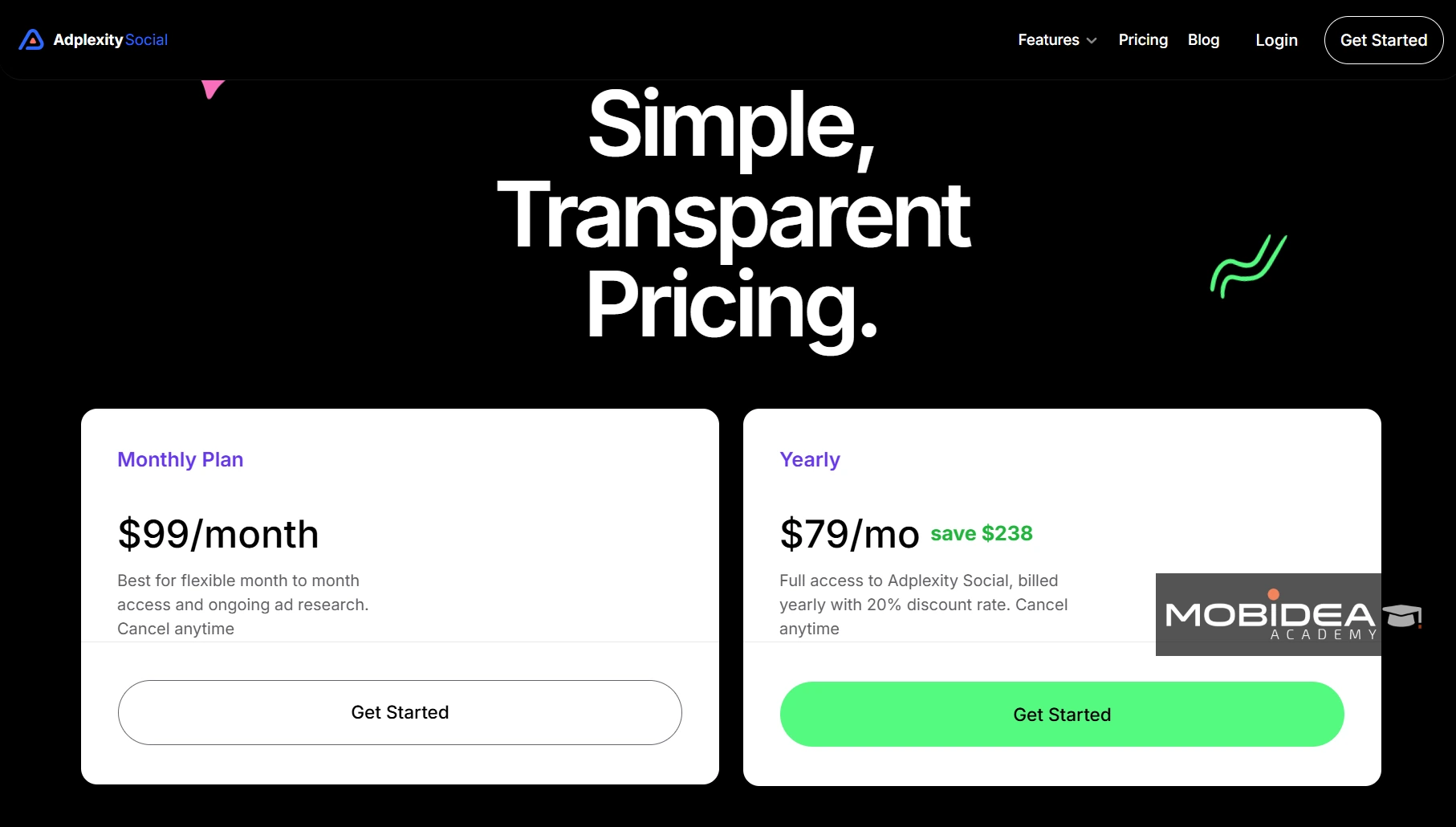
Monthly Plan — $99/month
The monthly plan is best if you want flexible access without a long-term commitment.
You get full access to all features and can cancel at any time.
This is a good option if you are testing the platform for the first time or if your ad research needs vary month to month.
Yearly Plan — $79/month (billed annually)
The yearly plan gives you the same full access at a 20% discount.
At $79 per month billed annually, you save $238 compared to paying monthly.
If you plan to use AdPlexity Social as a regular part of your workflow, this is the better value.
You can still cancel at any time.
No Free Trial
AdPlexity Social does not offer a free trial.
However, there is a 24-hour refund window after your first payment if you decide the tool is not right for you.
You can also book a demo if you want to see the platform before committing.
We’ve got something special for our Mobidea Academy readers, though!
Get your first month at 50% off when you sign up through this exclusive link.
Payment Options
AdPlexity Social accepts all major credit cards and debit cards through Stripe.
All other payment options that are available in other Adplexity tools are not yet available here.
Take note that AdPlexity Social is the most affordable tool in the AdPlexity suite.
The other tools, like AdPlexity Native and AdPlexity Desktop, start at significantly higher price points.
If you are focused on Meta traffic and want to start with one tool, Social is your natural entry point.
How to Use AdPlexity Social
Now that you know what AdPlexity Social can do, let’s walk through how to actually use it.
The platform is fairly straightforward once you get your bearings, but there are a few things worth knowing before you dive in.
Getting Started
To get started, head over to the AdPlexity Social website, sign up for an account, and select the best plan for you.
|
⚡Click this link to get the 50% discount on your first month. |
Once you have signed up and paid your plan, you will get immediate access to the platform.
Dashboard Overview
When you first log in, you will see the main navigation on the left sidebar.
The two main sections are:
- Explore — where you search and browse ads, domains, and landing pages
- Trending — a live feed of what is gaining traction right now
Under that is the Boards, and then Reports.
Note: We’re showing Tracker in the menu of our image below, but based on our testing, this section will be removed and merged with Boards in the future.
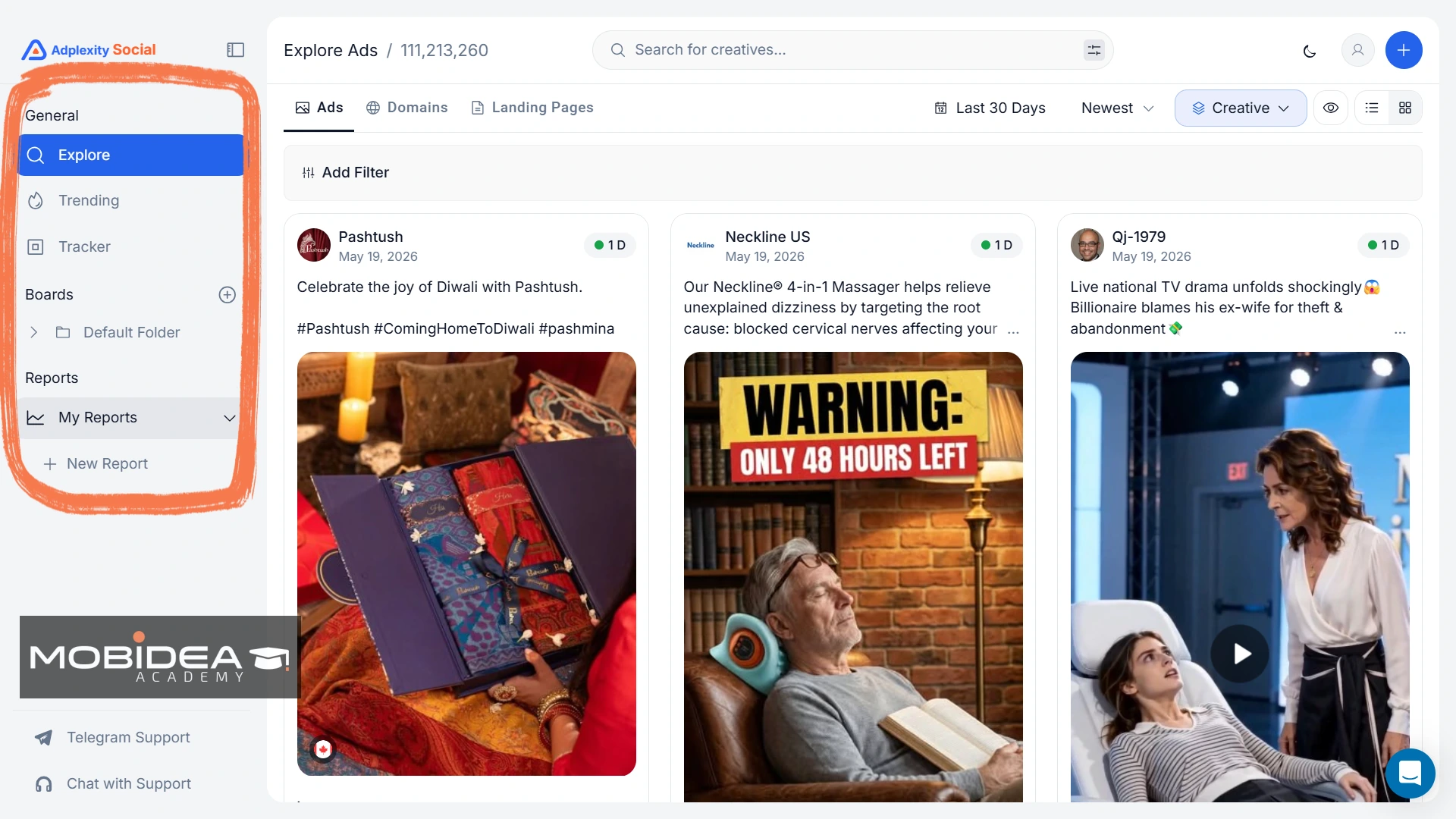
As you can see in the image above, AdPlexity Social has compiled more than 111.2 million Meta Ads as of this writing.
That’s pretty impressive.
Inside Explore, you can switch between three dimensions at the top of the page:
- Ads — individual ad creatives with full details
- Domains — domain-level research view
- Landing Pages — browse and analyze landers directly
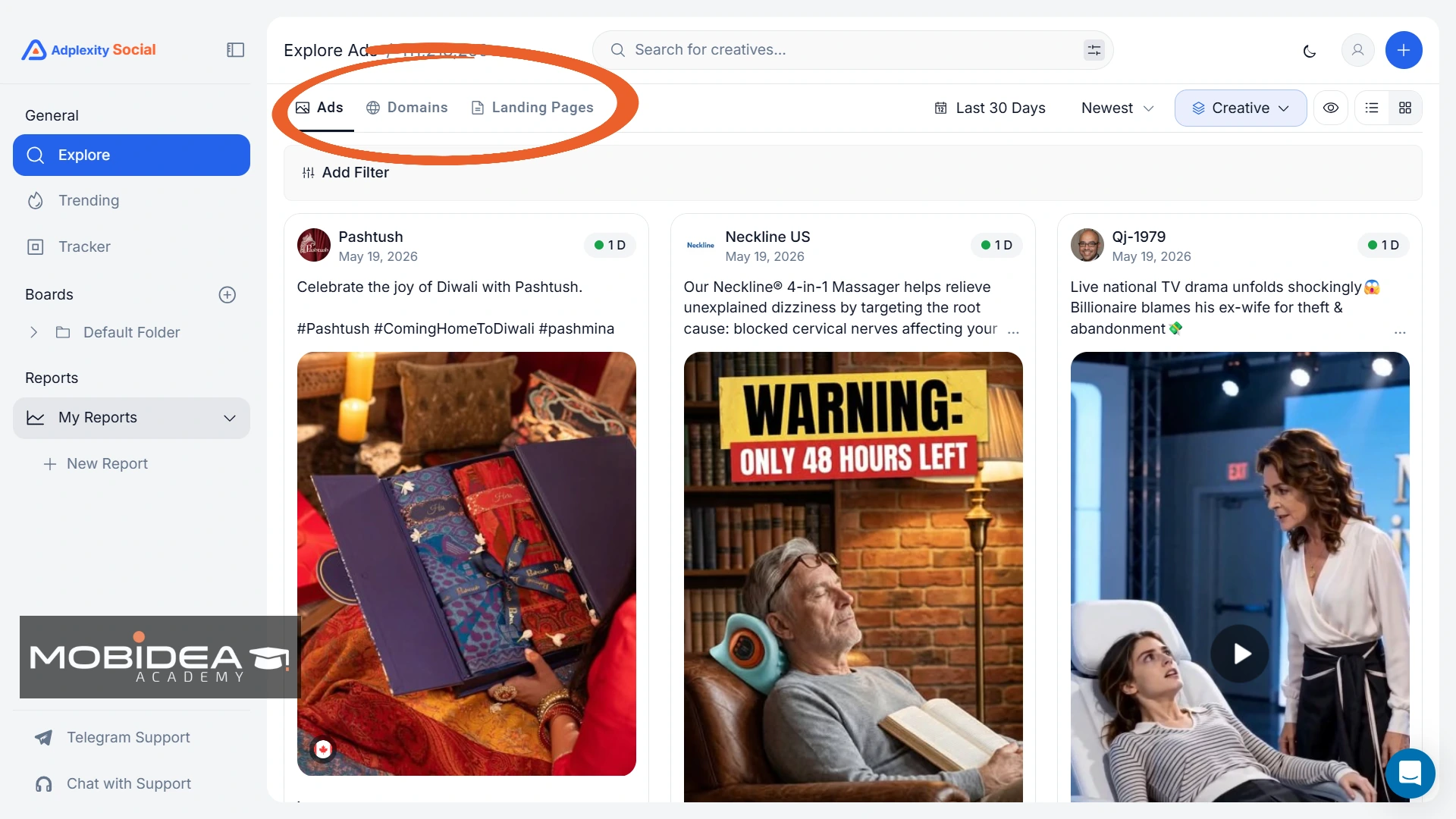
This setup means you can approach your research from different angles depending on what you are looking for.
Running Your First Search
Let’s stay with the Ads tab first.
At the top of the Explore section, you will find the search bar.
The process is simple: type your query first, then choose how you want to search.
Your options are:
- Keyword — searches ad copy or landing page text
- URL — searches by destination domain or full URL
- Fan Page — searches by a specific Facebook or Instagram page
You can also select where you are searching these keywords from.
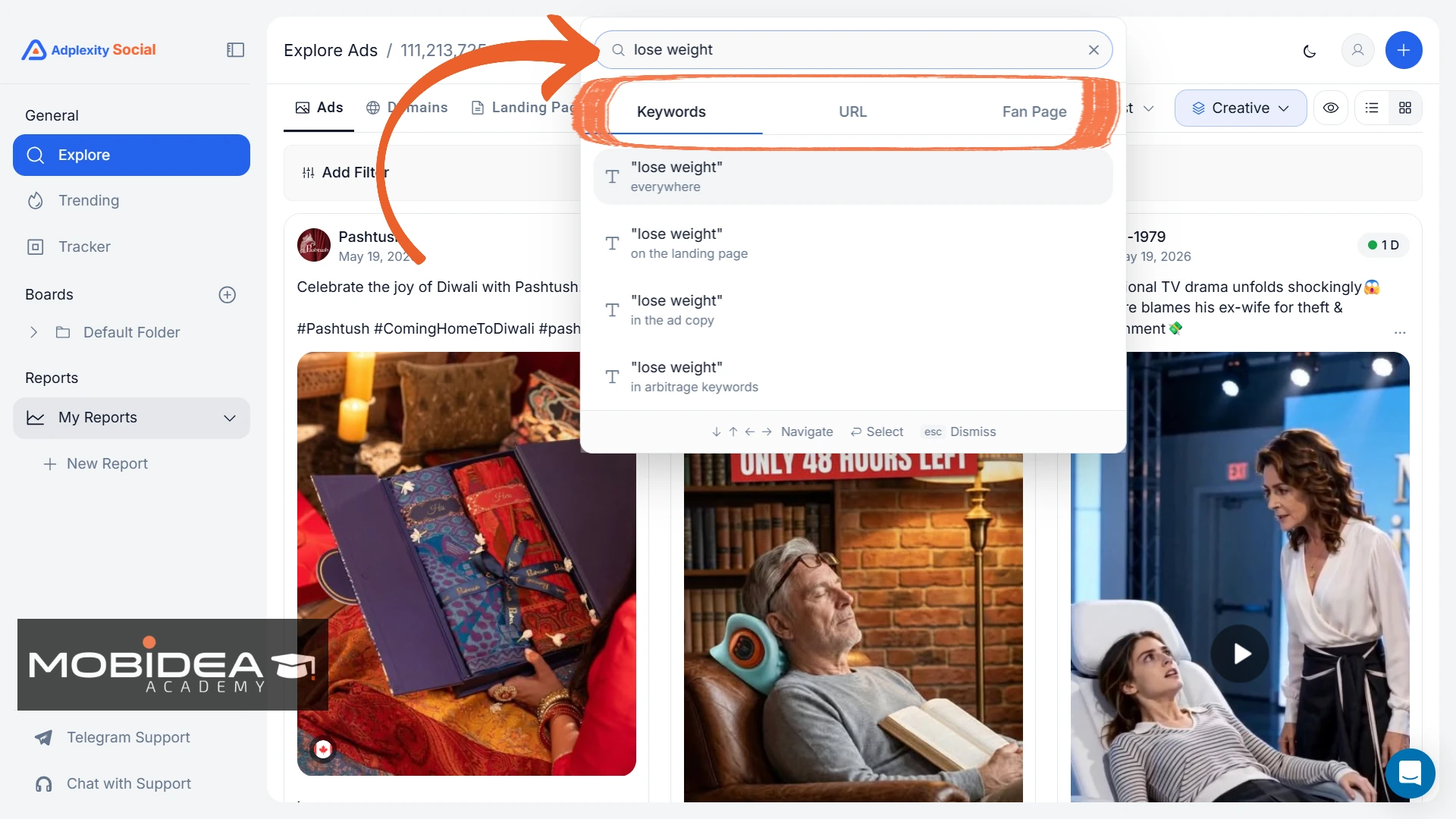
If you choose Keyword, your choices are:
- Everywhere
- On the landing page
- In the ad copy
- In arbitrage keywords
If you go for URL:
- In the landing page URL
- In the landing page domain
- In the landing page redirect chain
- In the landing page outgoing URLs
- All of the above
Finally, choose Fan Page gives you a list of different fan pages that use your keywords in their names.
For more precise searches, use the Advanced Search with Boolean logic (that button that looks like settings right at the end of the search bar).
This lets you combine multiple conditions using AND and OR operators across different filter groups.
For example, you could search for ads running 30 or more days that use ClickBank as the affiliate network and have a Shopify landing page, all in one query.
It can be as precise as you want, which is a big advantage when searching for specific ads.
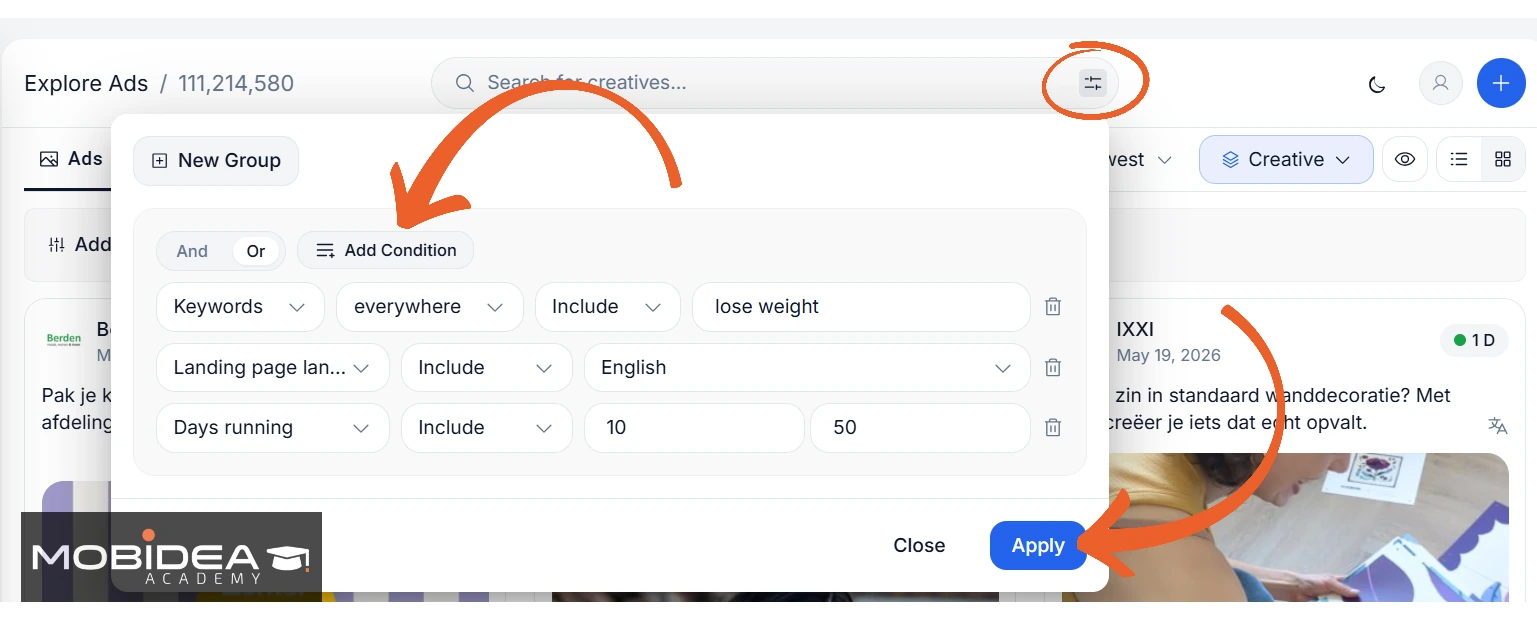
Once you have typed your query and selected the search type, it is time to apply filters.
Click the Add Filter button to open the filter panel on the left pane.
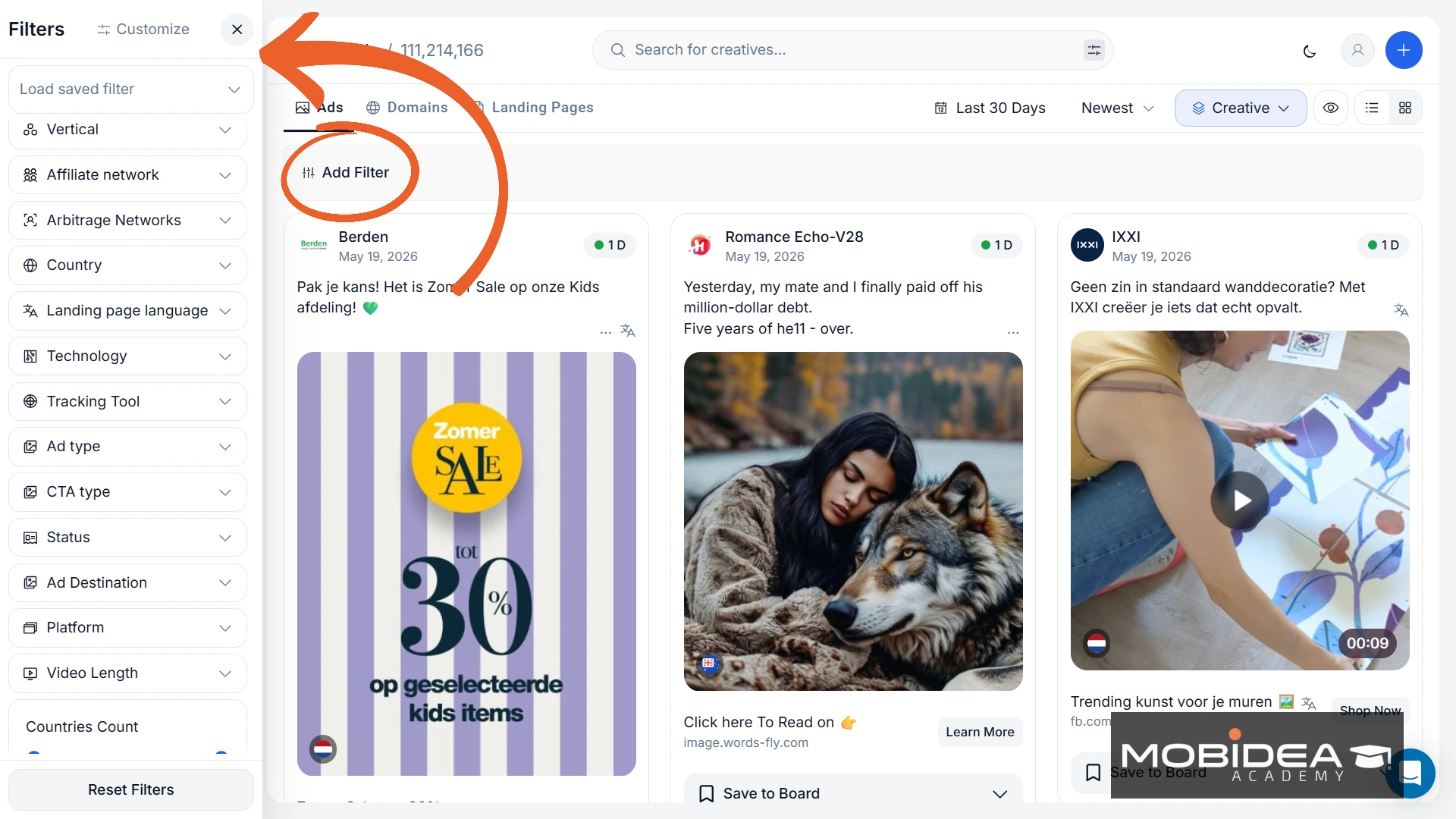
There are 15 filters in total, plus 2 sliders.
You can reorganize these filters and even show/hide some of them, only showing those that you actually use. Neat.
So the arrangement (and presence) of filters is based on how you set it.
For now, I’ll discuss them all based on the default arrangement.
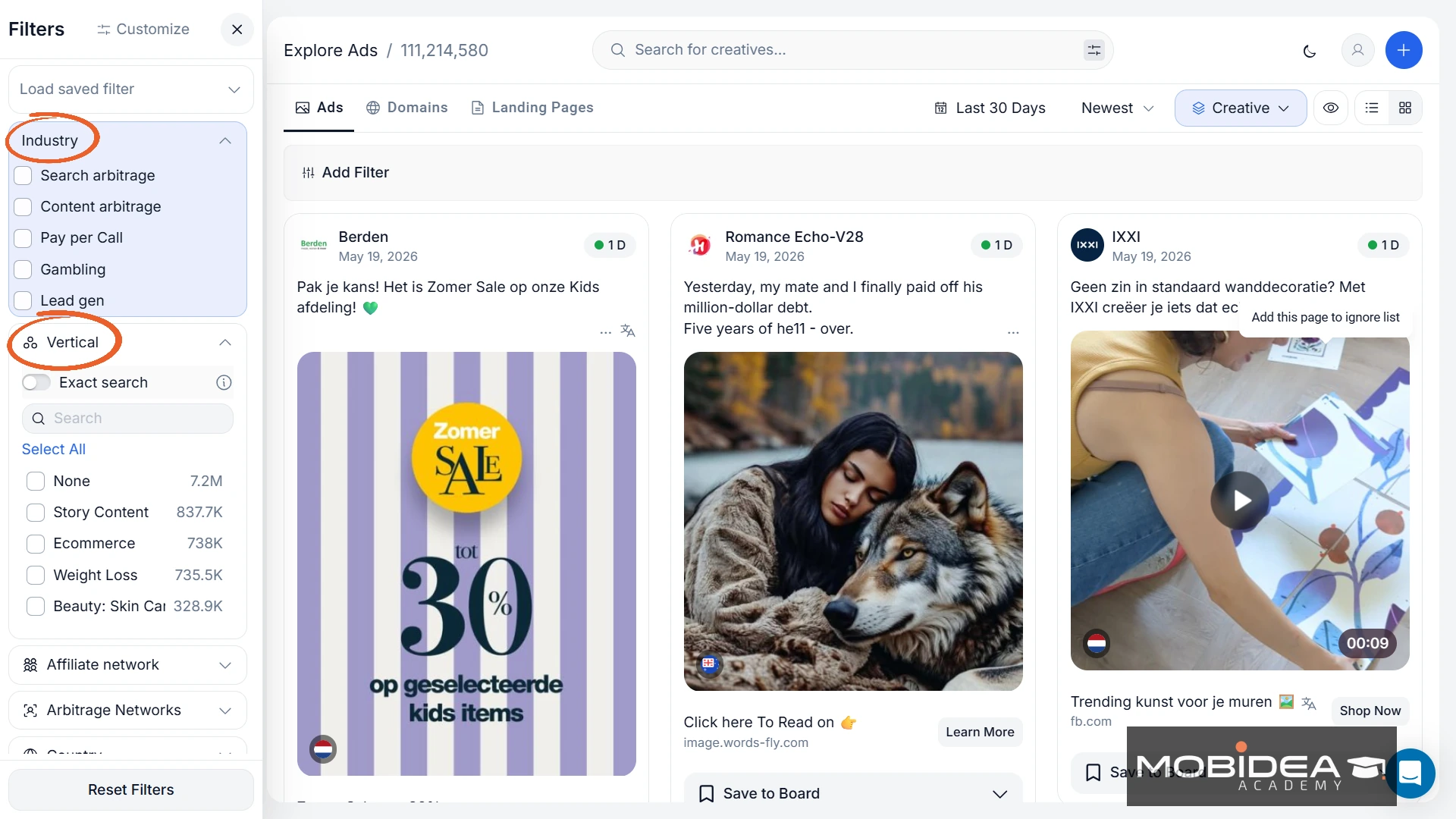
First slide is the number of days running, followed by the Industry Filter.
If you are new to a vertical and not sure which filters to use, the Industry Filter can give you a headstart.
Your options here include:
- Search arbitrage
- Content arbitrage
- Pay per call
- Gambling
- Lead gen
- App downloads
- Ecom
- Affiliate
- telehealth
Both of these options are a good way to get meaningful results fast without having to configure everything manually.
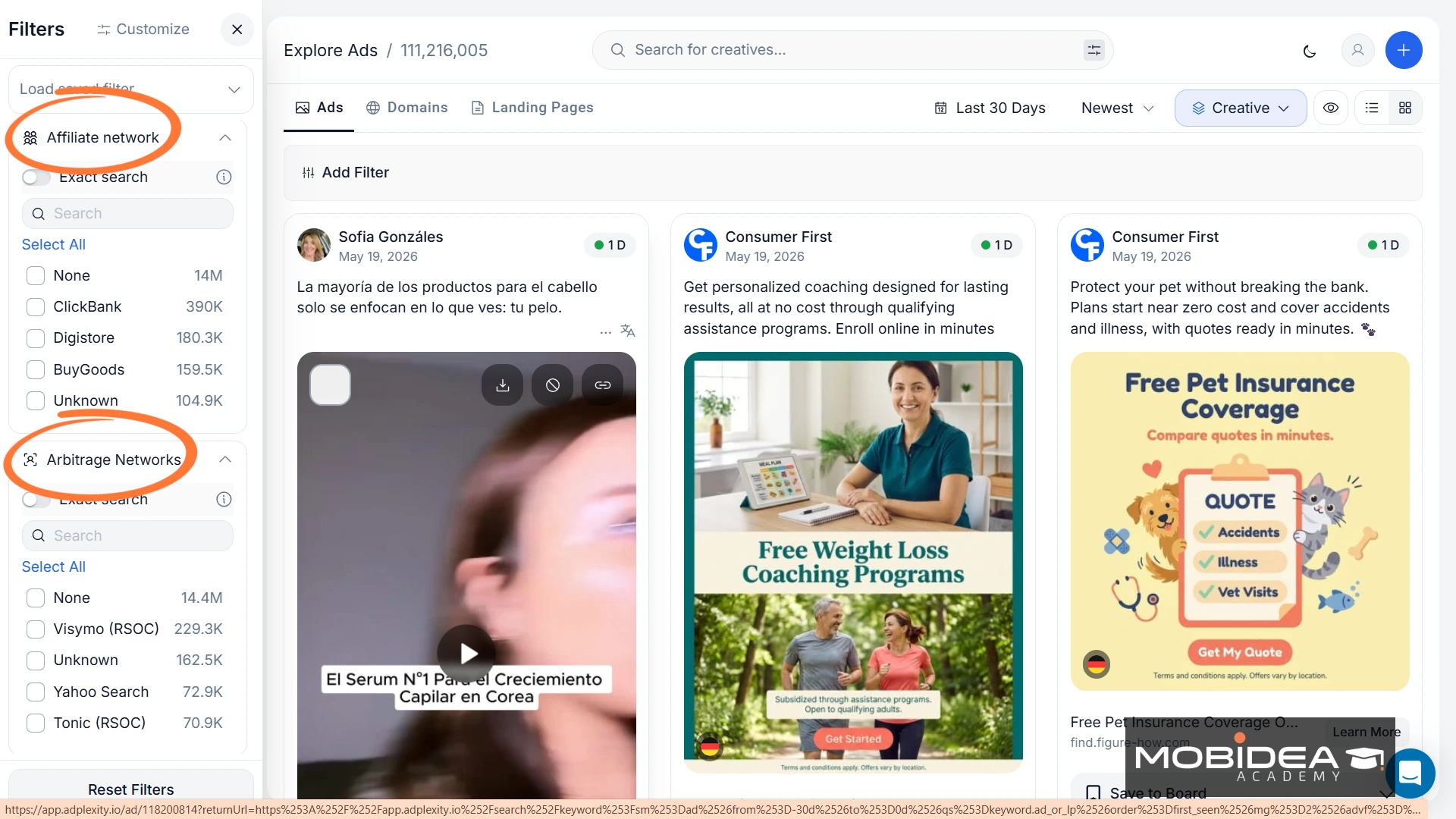
Next filters are the Affiliate Networks and the Arbitrage Networks.
Usually if you choose one from the affiliate network, you won’t need anything from the arbitrage networks and vice versa.
If that’s the case, you can customize the filters list and remove either one.
This is followed by Country and Landing Page Language options.
As we’ve already mentioned above, only 16 countries are available as of the moment.
I do hope they add more soon—we’re actually looking forward to it!
After these two is the Technology Filter, with choices such as Shopify and Google Play.
Then there’s the Tracking Tool, which lists 15 commonly used affiliate tracking tools, such as Voluum, Binom, Bemob, and RedTrack.
Pro Tip: If the advertiser uses a tracking tool, more often than not, they’re an affiliate marketer.
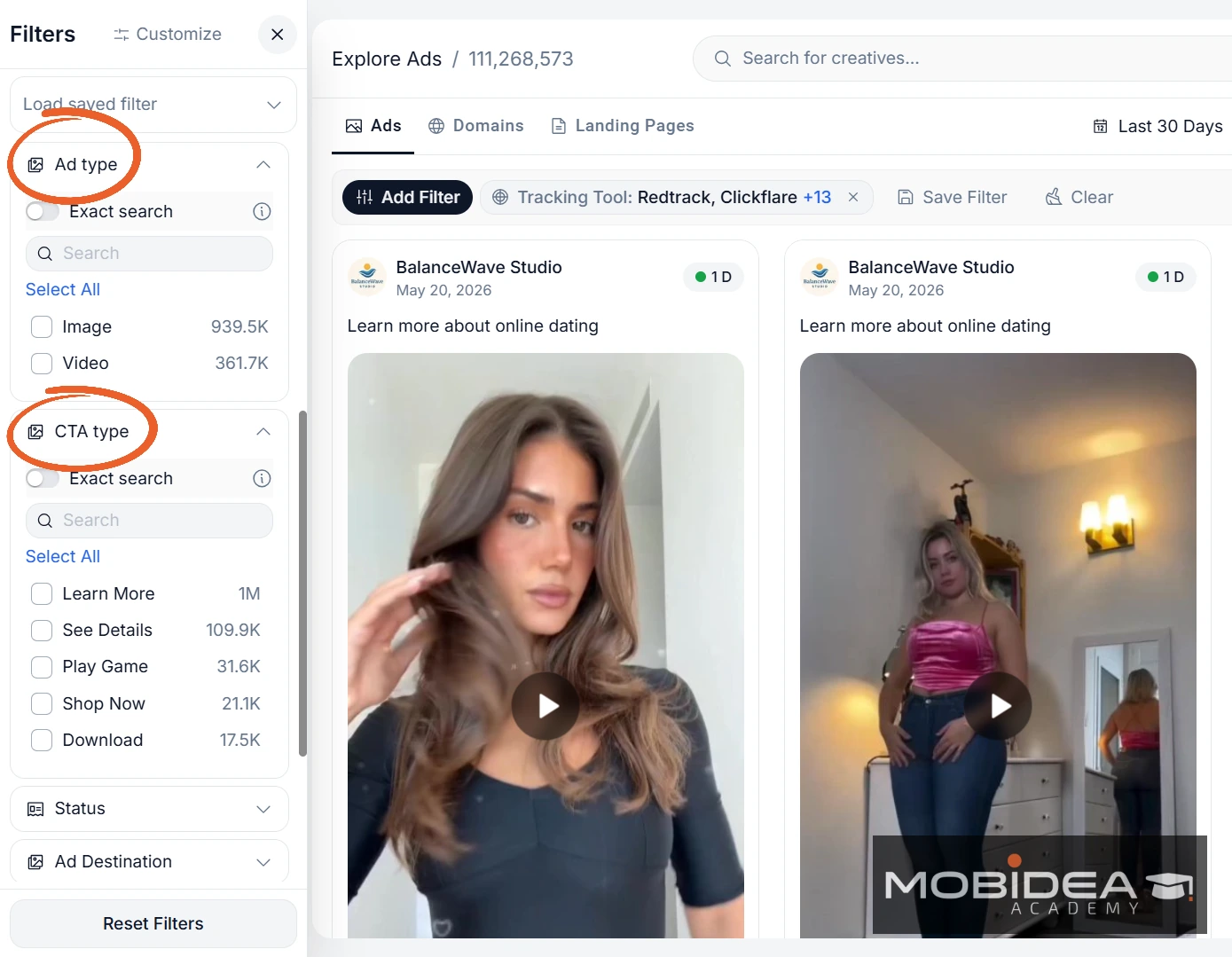
Next filter is the Ad Type, which let’s you choose between Image or Video (or both), followed by the CTA Type.
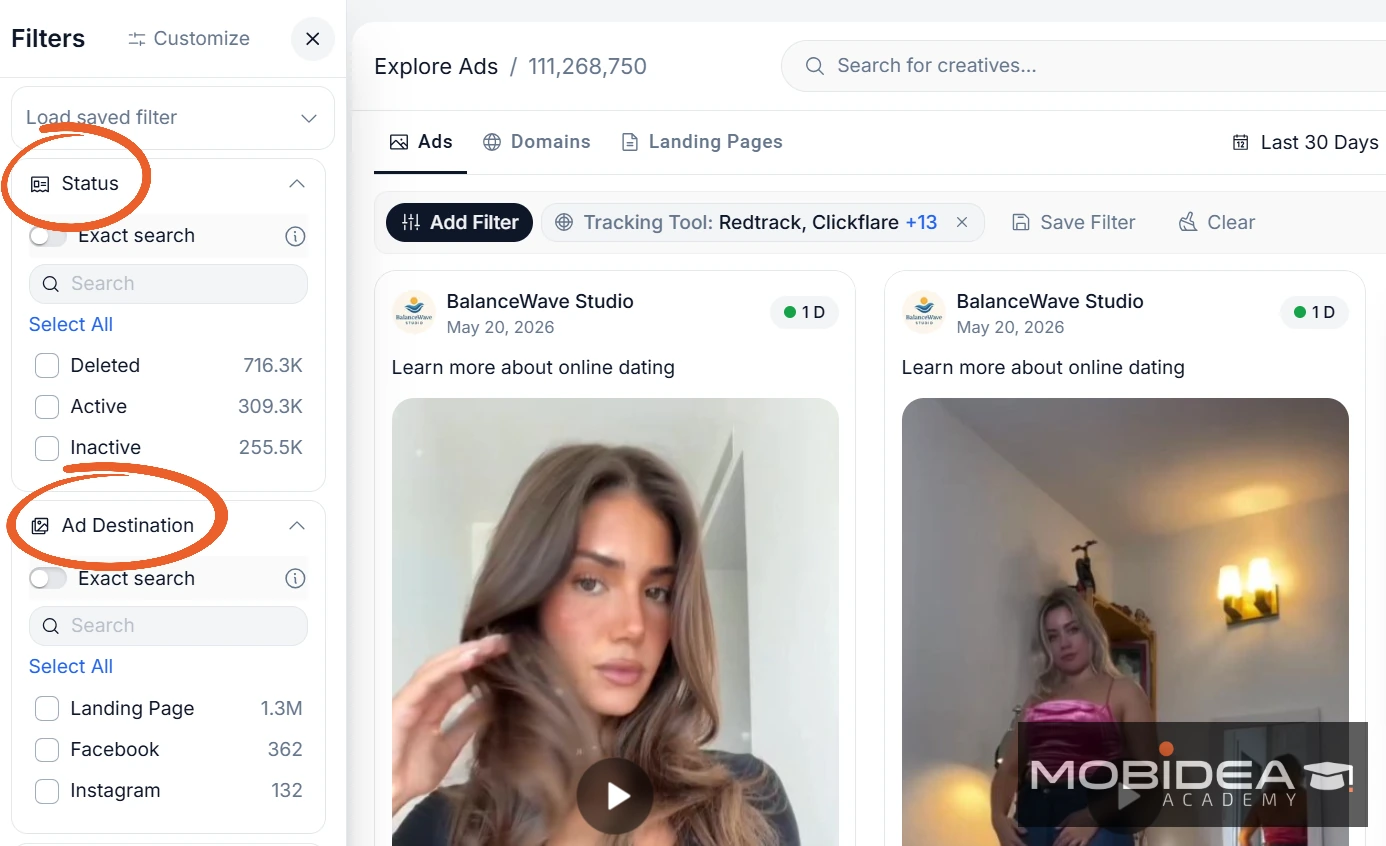
The Status and Ad Destination filters are up next.
As you can see in the Ad Destination ad count, the Landing Page option has the most count.
This is because I selected all tracking tools in the filter.
A landing page is further proof that the ads we are seeing now in the results are by affiliate marketers.
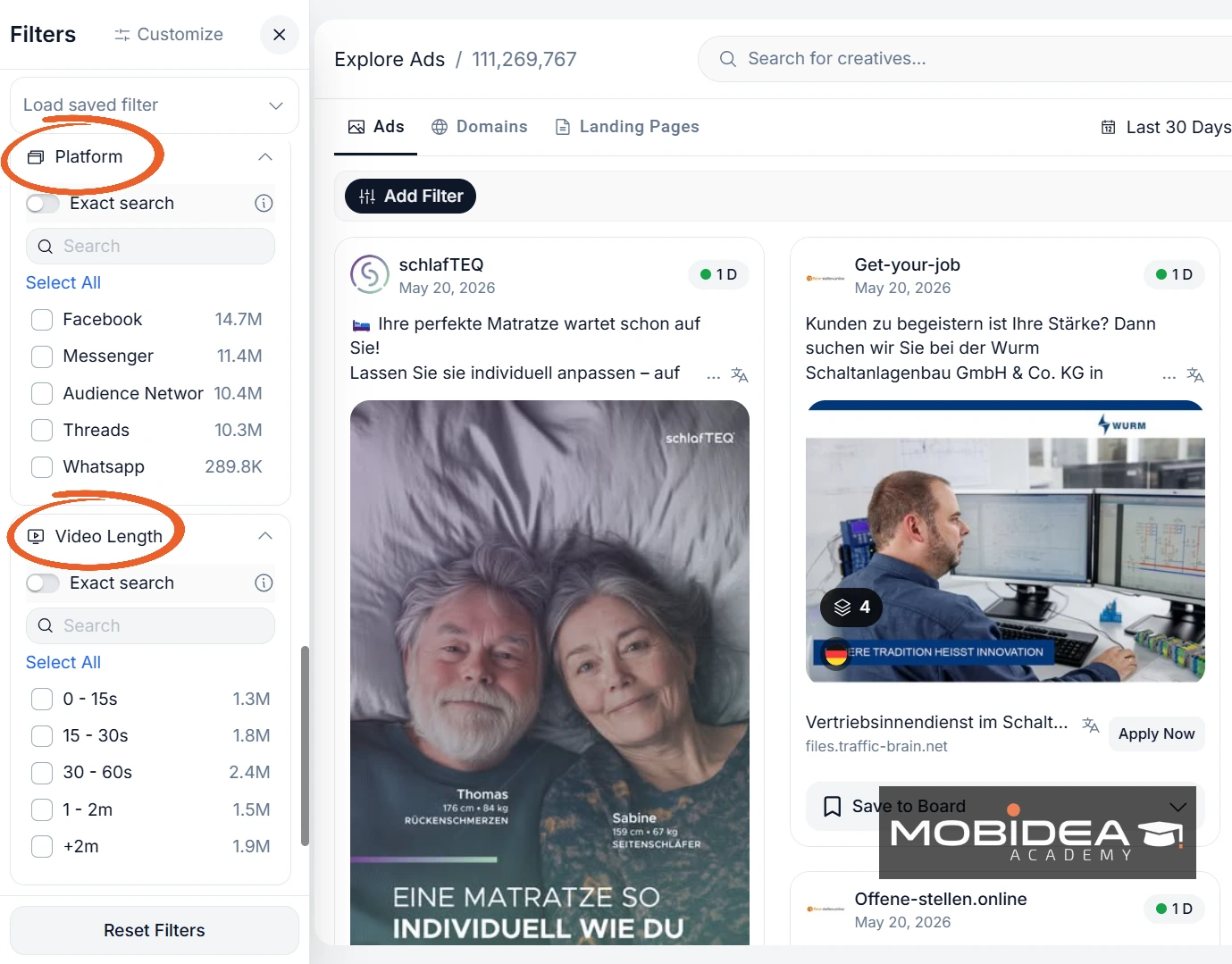
The Platform filter helps you narrow down ads based on which Meta platform they’re being shown—Facebook, Instagram, Messenger, WhatsApp, and so on.
The Video Length filter is self explanatory.
Lastly, there’s the number of countries slider.
If your filters are too vague, you can be sure that there’ll be millions of ad results.
When such happens, you can experience some lag in the dashboard.
It’s normal, and they actually add a disclaimer about this, helping set your expectation.
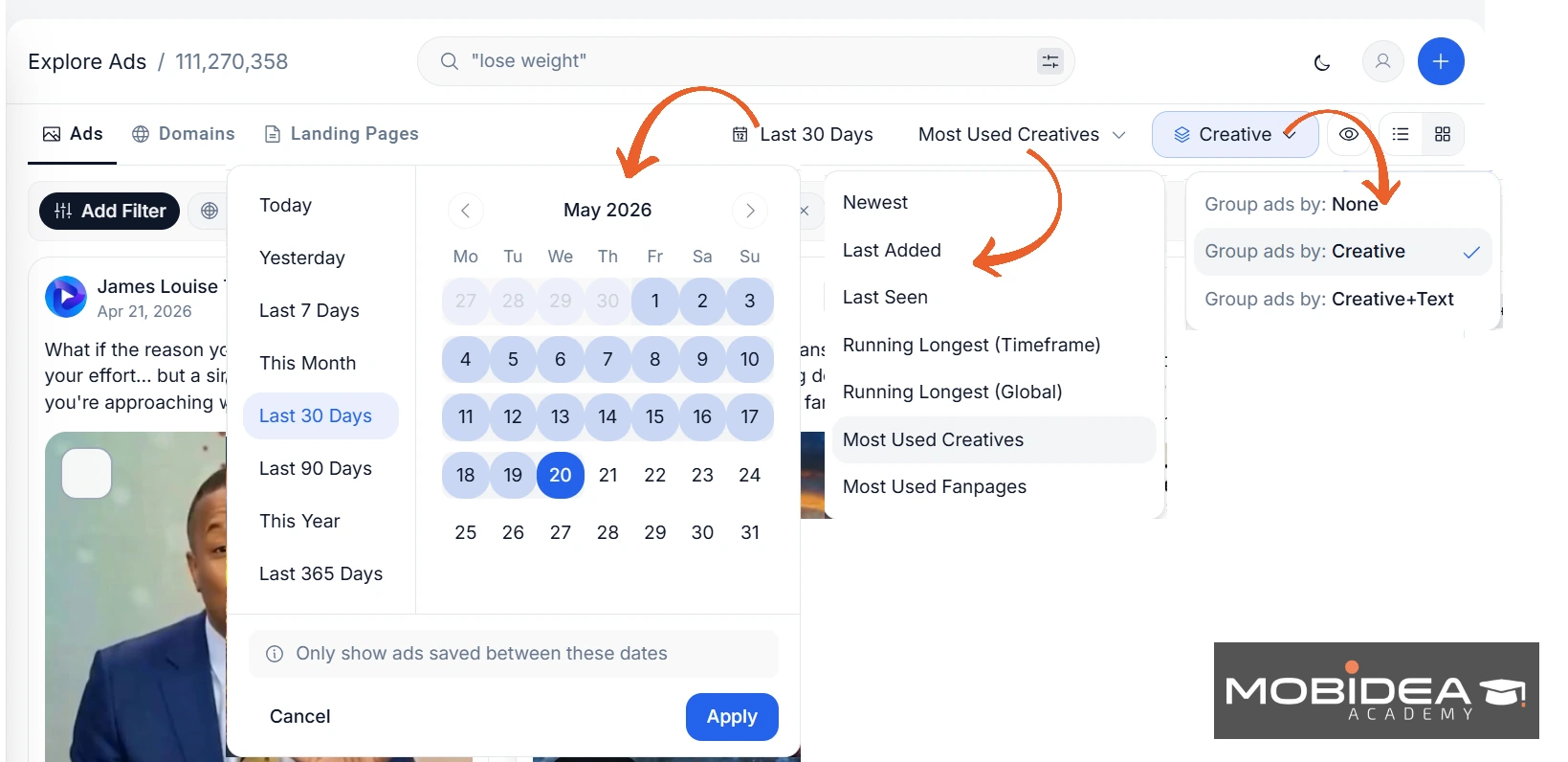
Once you’ve got the results, you can:
- Limit them based on calendar dates;
- Sort based on Newest, Running Longest, Most Used Creatives, and so on;
- Group by Creative, Creative + Text, or none.
Reading Ad Results and Details
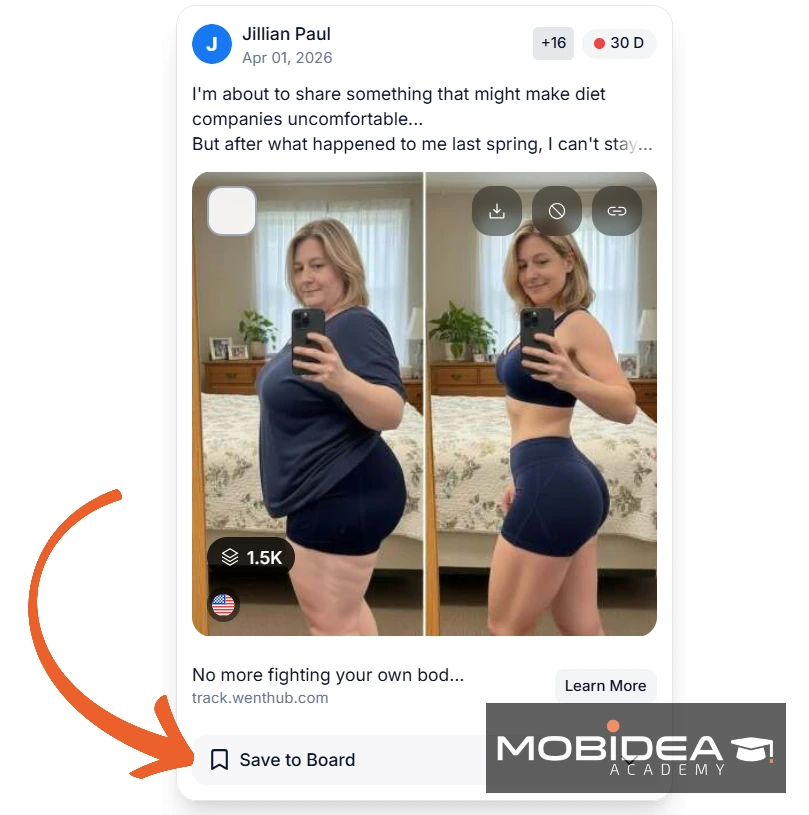
Once your results load and you’ve sorted them, you’ll have the results either in cards view or list view.
You can change that depending on what’s easiest for you.
When you immediately see a card that you want to bookmark, click on Save to Board so you can check them out again later.
Now, select an ad card you want to view more details of.
Click on it to open the full detail view.
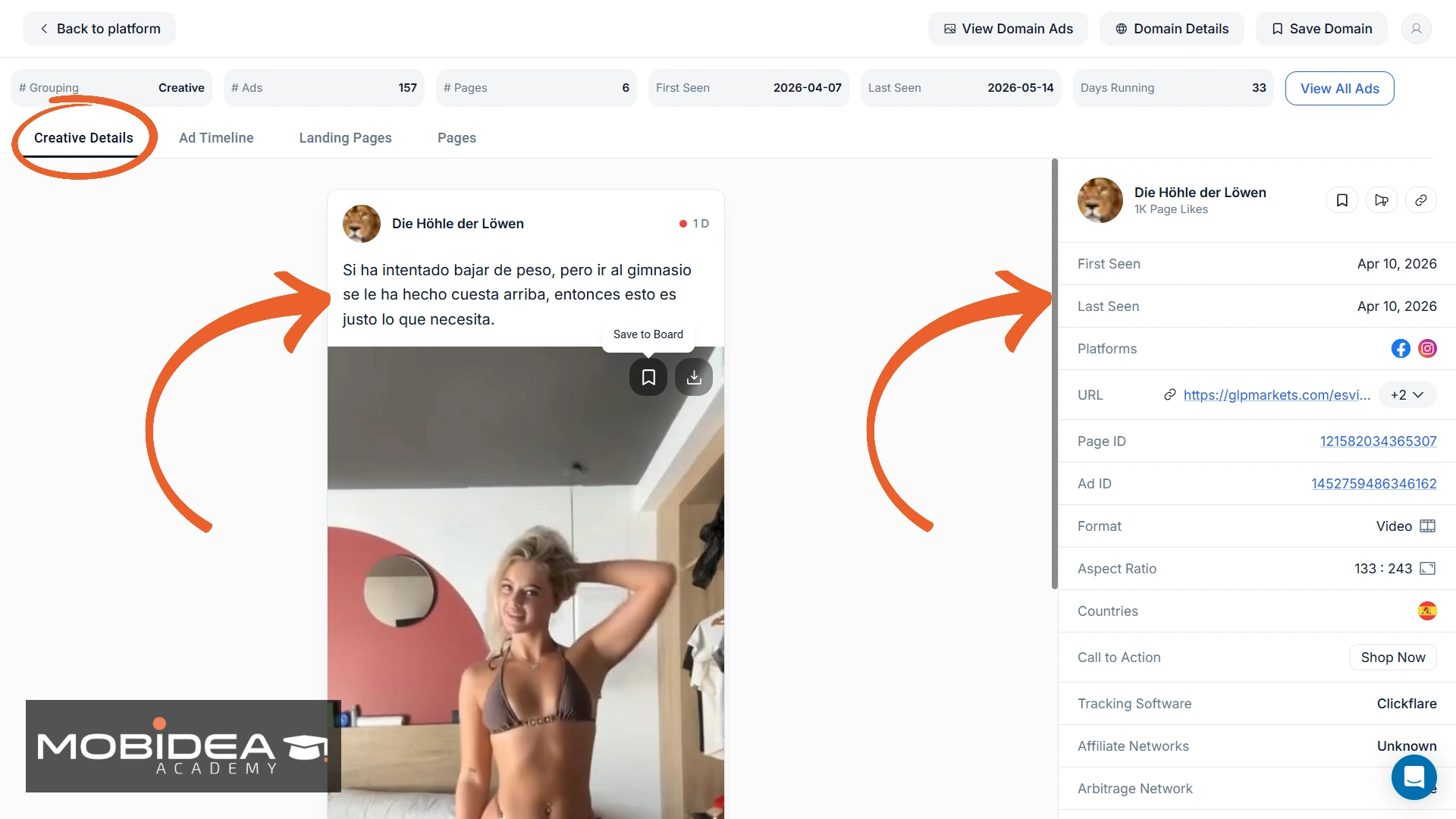
There are several sections in the ad details, namely:
- Creative Details
- Ad Timeline
- Landing Pages
- Pages
Take note that not all ads have these tabs.
Some only have created details—it all boils down to how much data AdPlexity was able to collect about each one.
With every ad you view, there’s always the option to:
- View domain ads
- Get domain details, and
- Save domain.
Now, the Creative Details tab is self explanatory.
This is where you can download the ad creative (image or video) and copy the ad text.
All other important ad details are on the right pane.
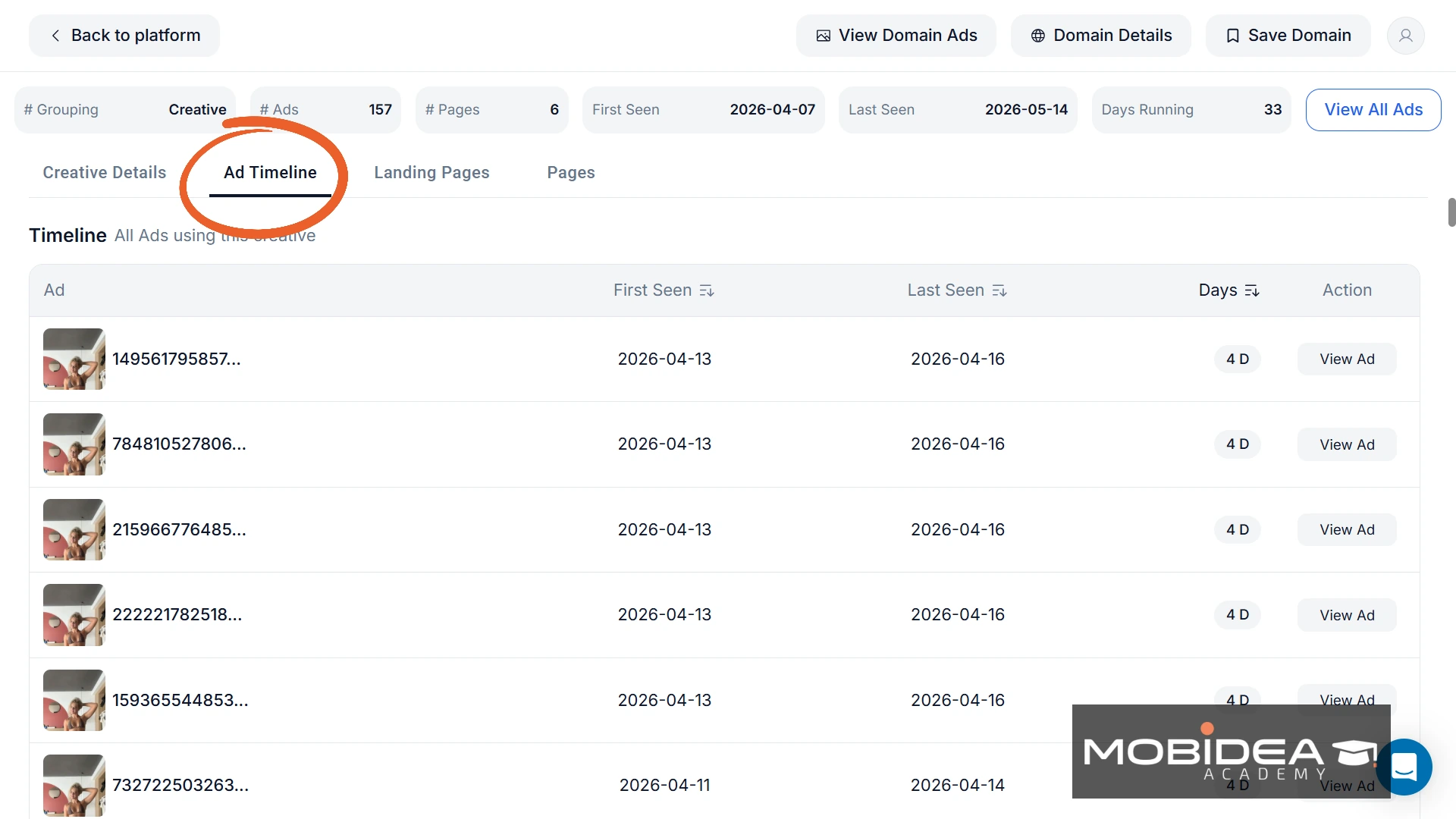
Next tab is the Ad Timeline.
Here, you’ll find its first seen date, last seen date, and how long it has been active.
If you see several items for the same ad, it means this ad is running in multiple campaigns.
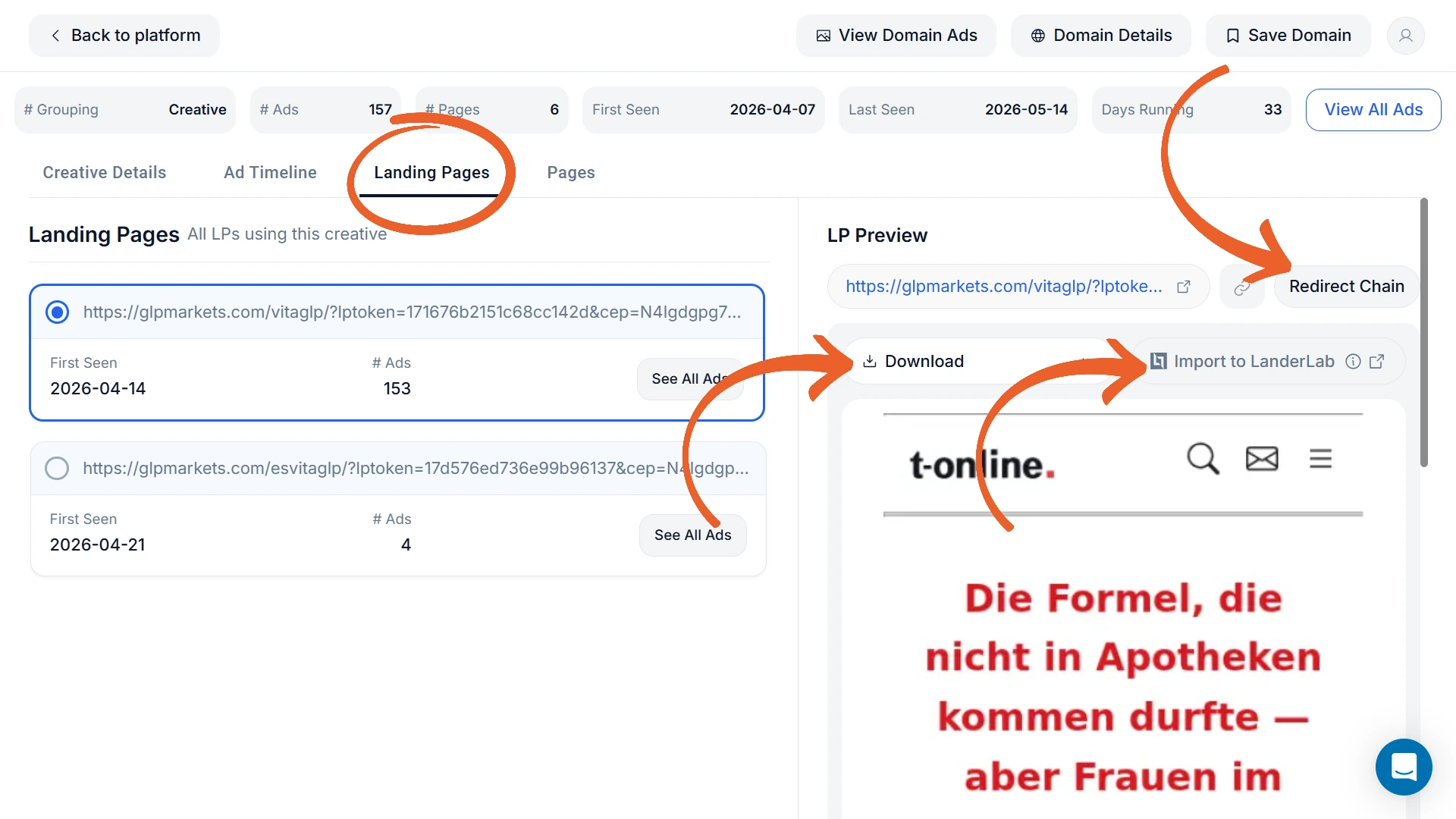
Next is the Landing Pages tab, which lists all landing pages associated with this ad.
Click Download to get the full ZIP file with all HTML, CSS, and JavaScript included.
If you use LanderLab, click Import to LanderLab instead and the page will open directly in the editor, ready for you to customize.
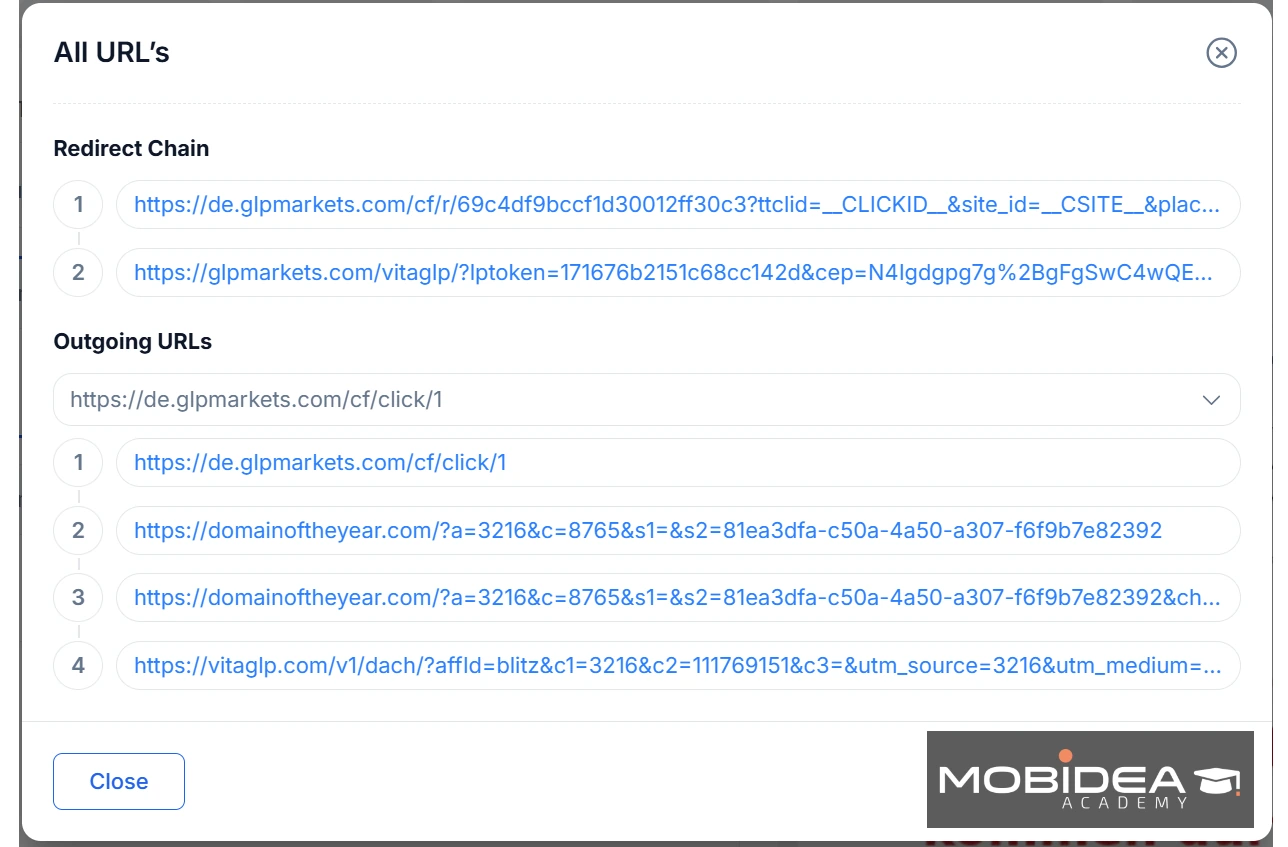
To view all URL chains, click on the Redirect Chain button.
The redirect chain is the full path from the ad to the final offer, including every URL in between.
The redirect chain is worth spending time on.
Follow it step by step to identify the pre-lander structure, the tracker being used, and the final offer.
This tells you far more about how the campaign is structured than just looking at the creative.
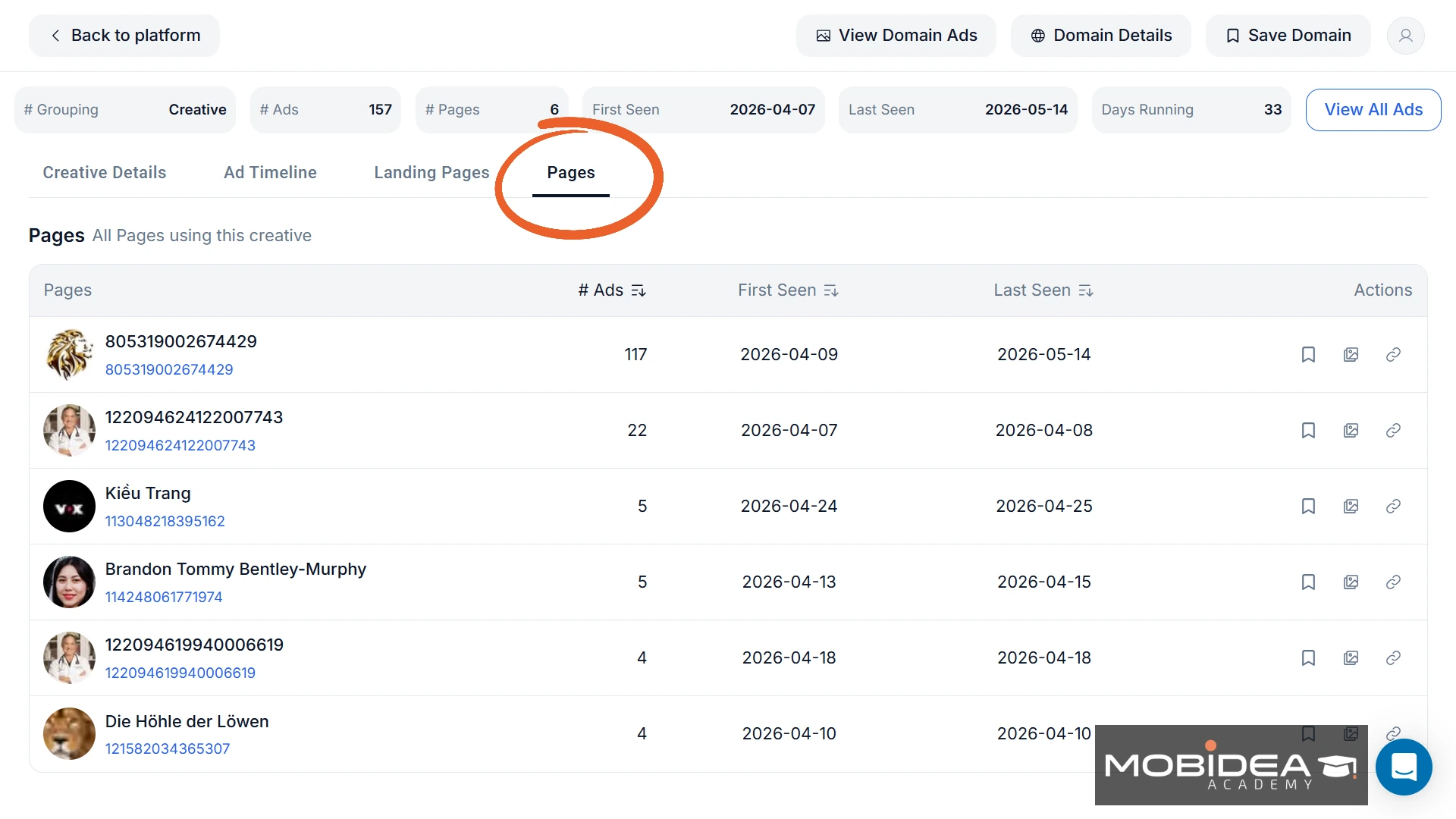
Finally, we have the Pages tab, which shows every page running this ad or creative.
Check Domain Details
When viewing an ad, clicking the Domain Details button opens a full domain profile.
This is one of the more underrated views in the platform.
At the top you’ll see key stats at a glance: the first and last time ads from this domain were seen, how many days it has been running, which countries it is active in, and which platforms it uses.
There are tabs for:
- Overview
- Landing Pages
- Pages
- Analytics
- Creatives
- Hooks
- Ad Copy
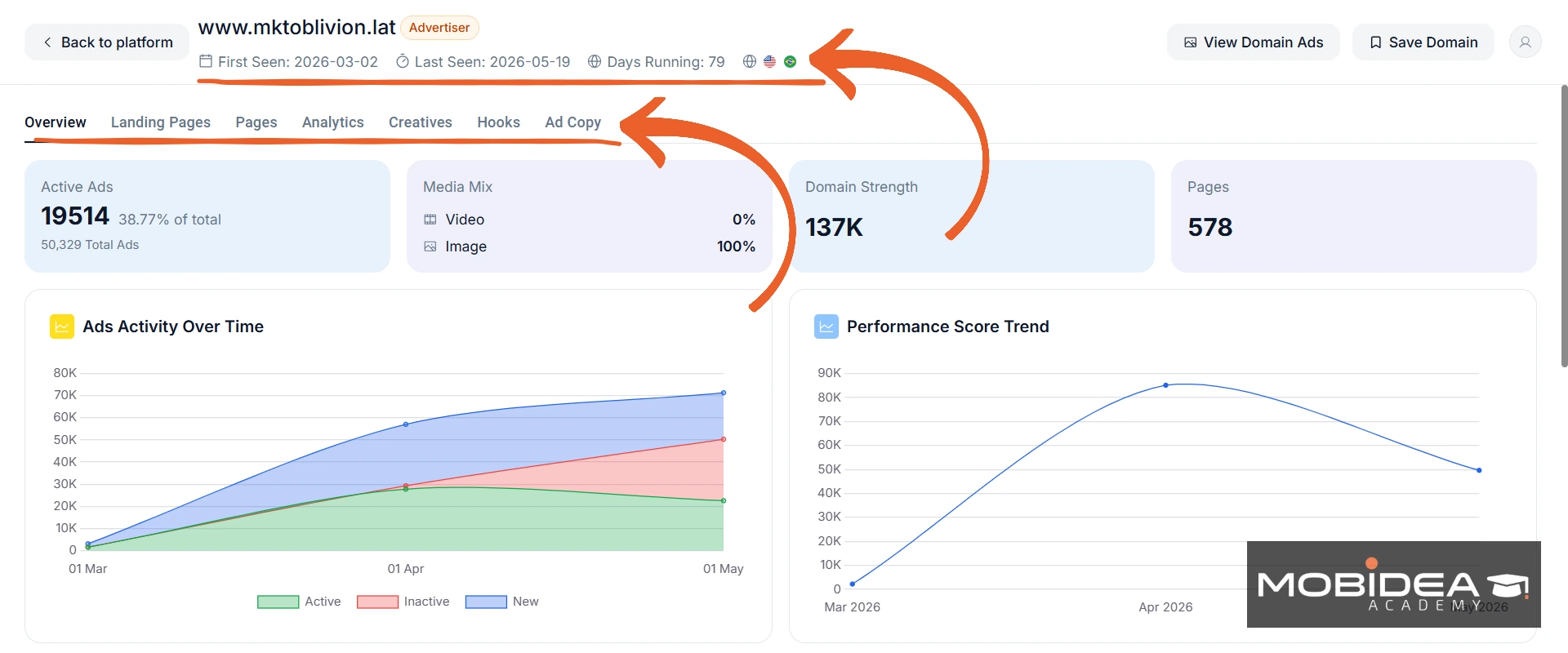
Overview Tab
Let’s take a look at the Overview tab first.
This tab breaks things down into four summary cards:
- Active Ads — how many ads from this domain are currently running, plus total ads ever collected
- Media Mix — the percentage split between video and image ads
- Domain Strength — a score that reflects how established the domain is
- Pages — a list of Facebook pages running ads from this domain
Below that are two charts.
Ads Activity Over Time shows the volume of active, inactive, and new ads over time.
This is useful for spotting whether a competitor is scaling up or winding down.
Performance Score Trend tracks how the domain has been performing over time, giving you a sense of their trajectory.
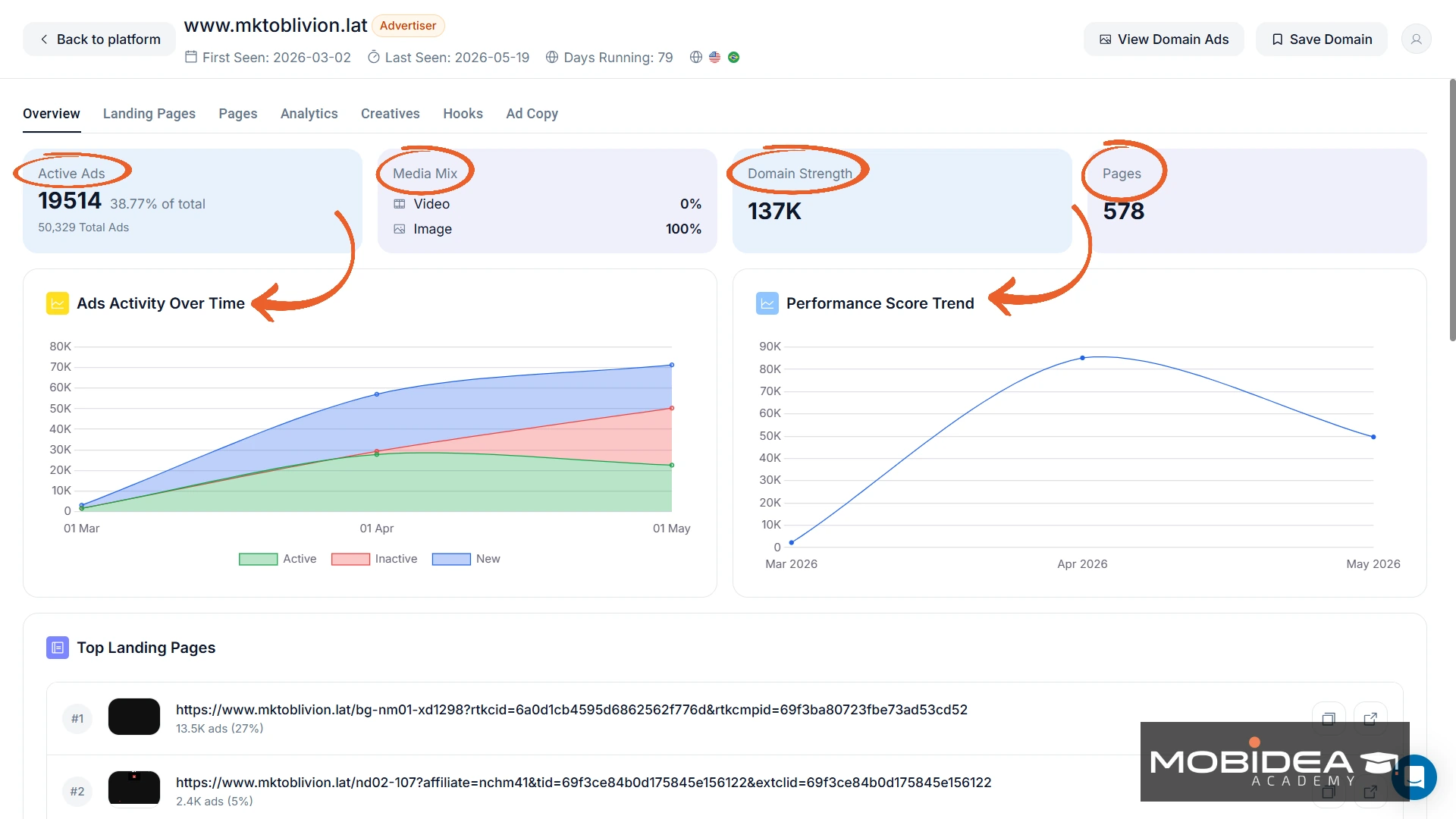
Scroll further and you’ll find the Top Landing Pages list, which ranks the most-used landing page URLs from that domain by ad count and percentage share.
If a particular landing page URL accounts for a huge portion of a domain’s ads, this is a strong signal the page is worth looking into.
Below that is the Newest Ads section, showing the most recent ads from this domain.
This one’s a quick way to see what angles a competitor is currently testing.
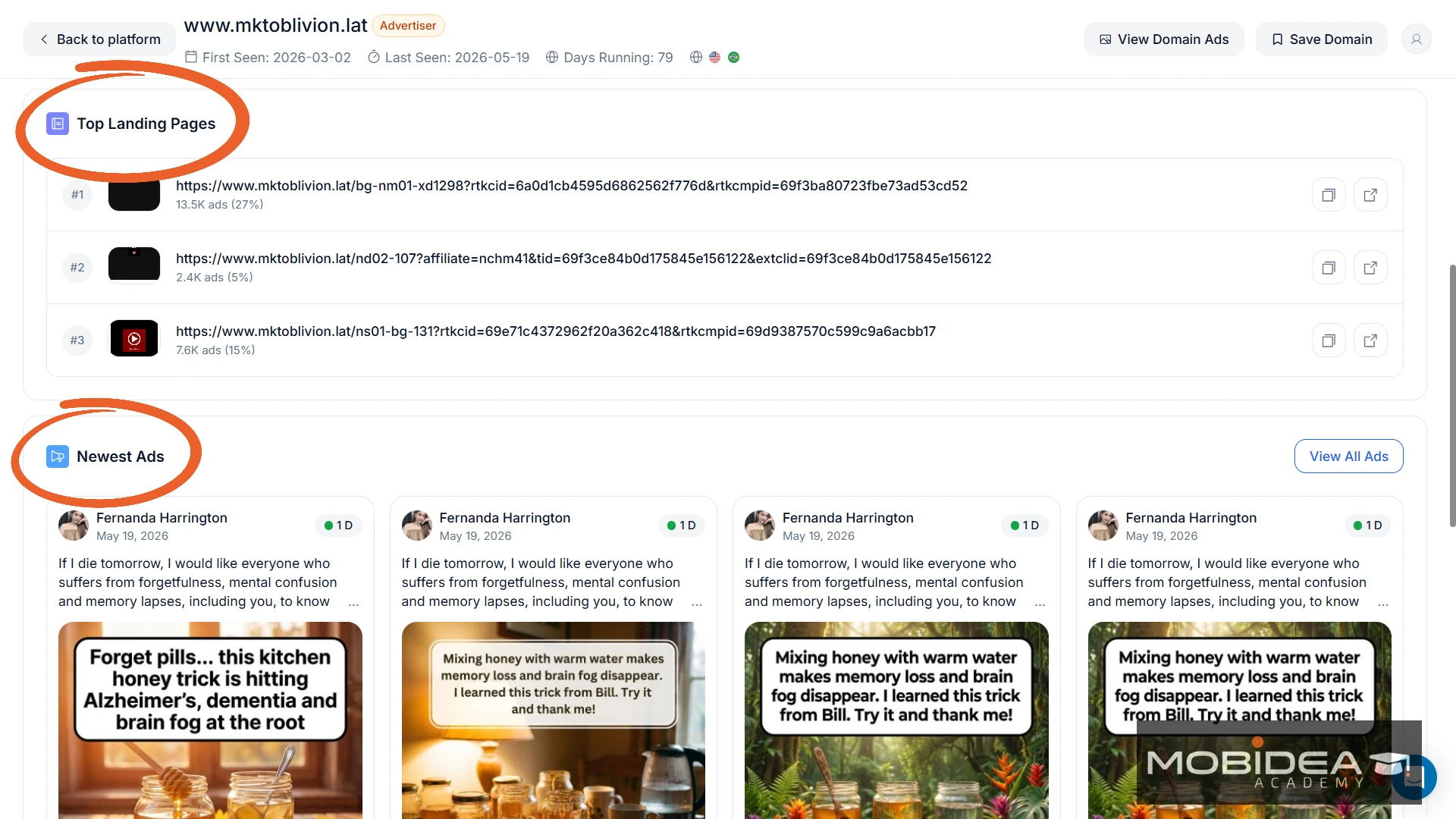
Landing Pages
The Landing Pages tab lists every landing page URL associated with this domain, sorted by Strength (30D) by default.
You can also sort it by Days Running, Number of Ads, etc.
For each URL you can see:
- # Ads — total number of ads using this landing page
- New Ads — recent ad count with percentage change
- Days Running — how long this landing page has been active
- Strength (30D) — a performance score for the past 30 days
On the right side is an LP Preview pane, which loads a visual preview of the selected landing page, just like what shows up in the Ad Creative Details.
The same options are available: Redirect Chain, Download LP, or import to Landerlab.
Pages
The Pages tab shows every Facebook page running ads from this domain.
Each row shows:
- Page name and ID
- # Ads — total ads from this page
- New Ads — recent ad count with percentage change
- Strength (30D) — performance score for the past 30 days
- First Seen / Last Seen — date range of activity
- Days Running — how long this page has been active
In the Actions column, you can save the page (as favorite), view ads, or view details.
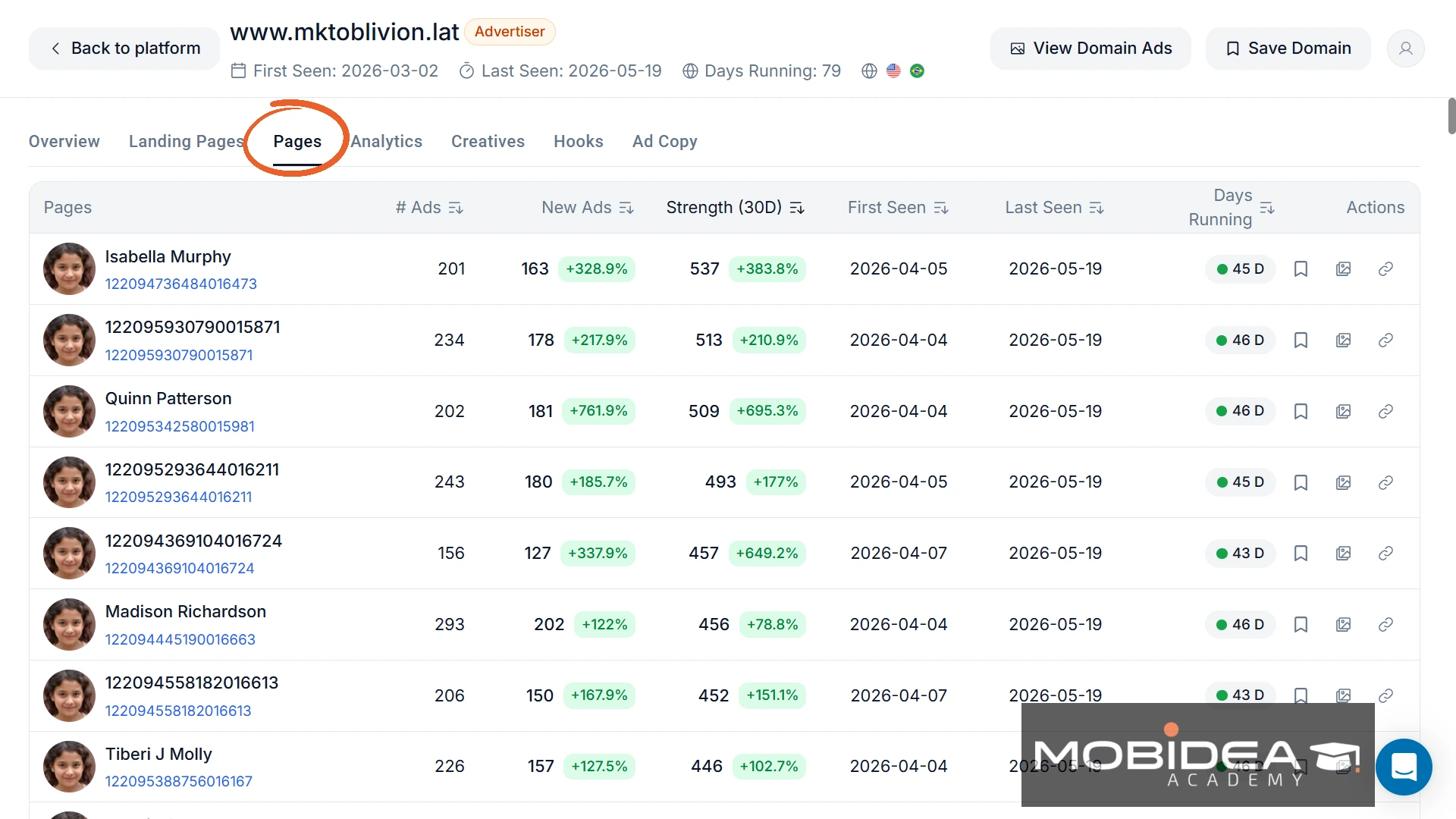
This tab is useful when a domain is running ads across dozens or hundreds of pages.
It tells you which pages are actively scaling and which have gone quiet.
As you can see in the sample above, it seems like the campaign is paying out since the advertiser created so many Facebook Pages just to make sure the ads continue to run.
That’s a telltale sign this one’s doing great!
Analytics
The Analytics tab has two views: GEO and Verticals.
The GEO view shows which countries this domain is targeting, with columns for Total Ads, New Ads (with percentage change), Strength (30D), and Days Running.
You can click See All Ads next to any country to filter the full ad results to that specific GEO.
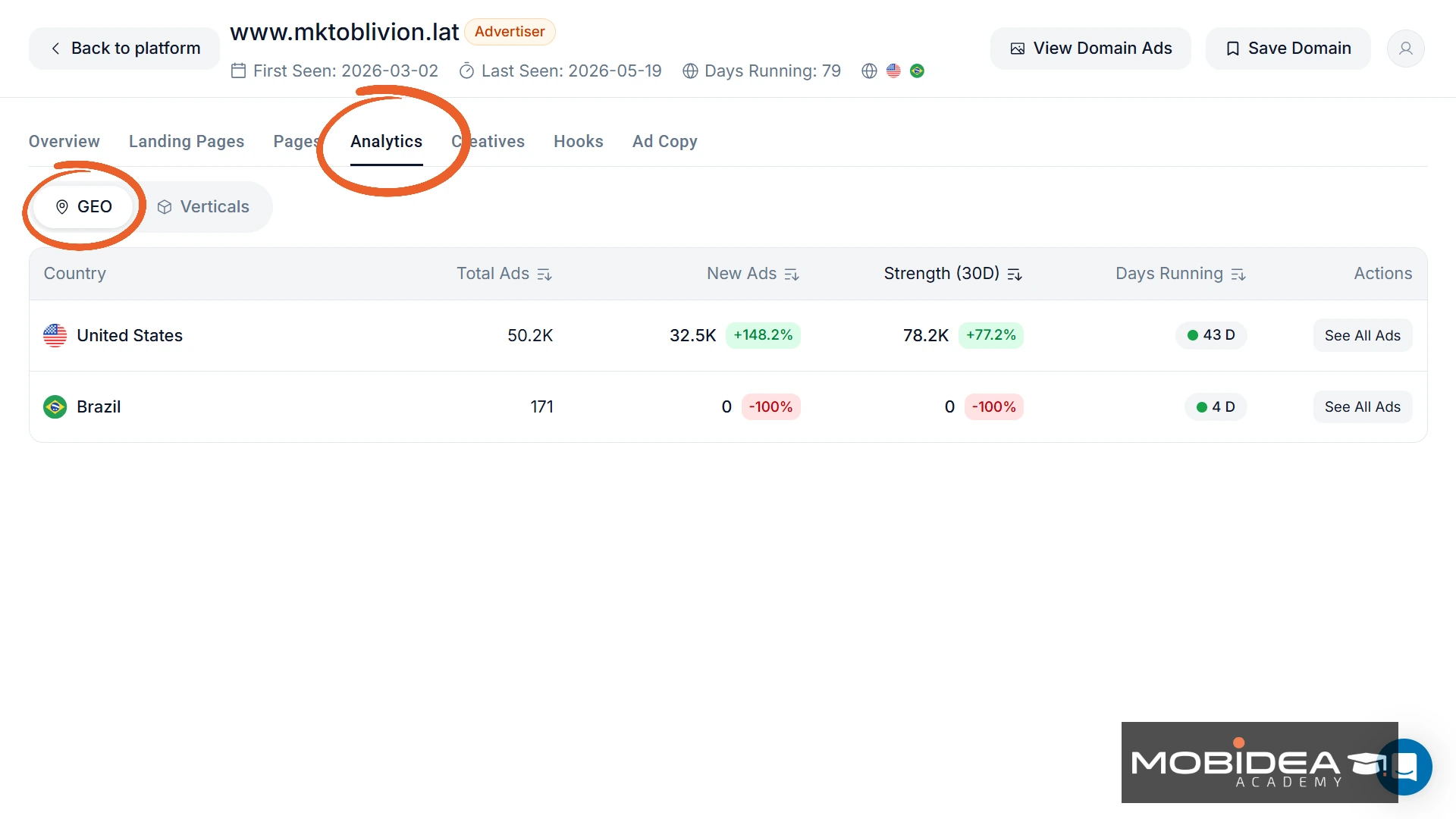
This will open a new tab that takes you back to the Explore dashboard, this time it’s already pre-filtered with the domain name and the country.
The Verticals view shows which niches this domain is active in, broken down the same way.
This is very useful for understanding whether a domain is focused on one niche or spreading across multiple verticals.
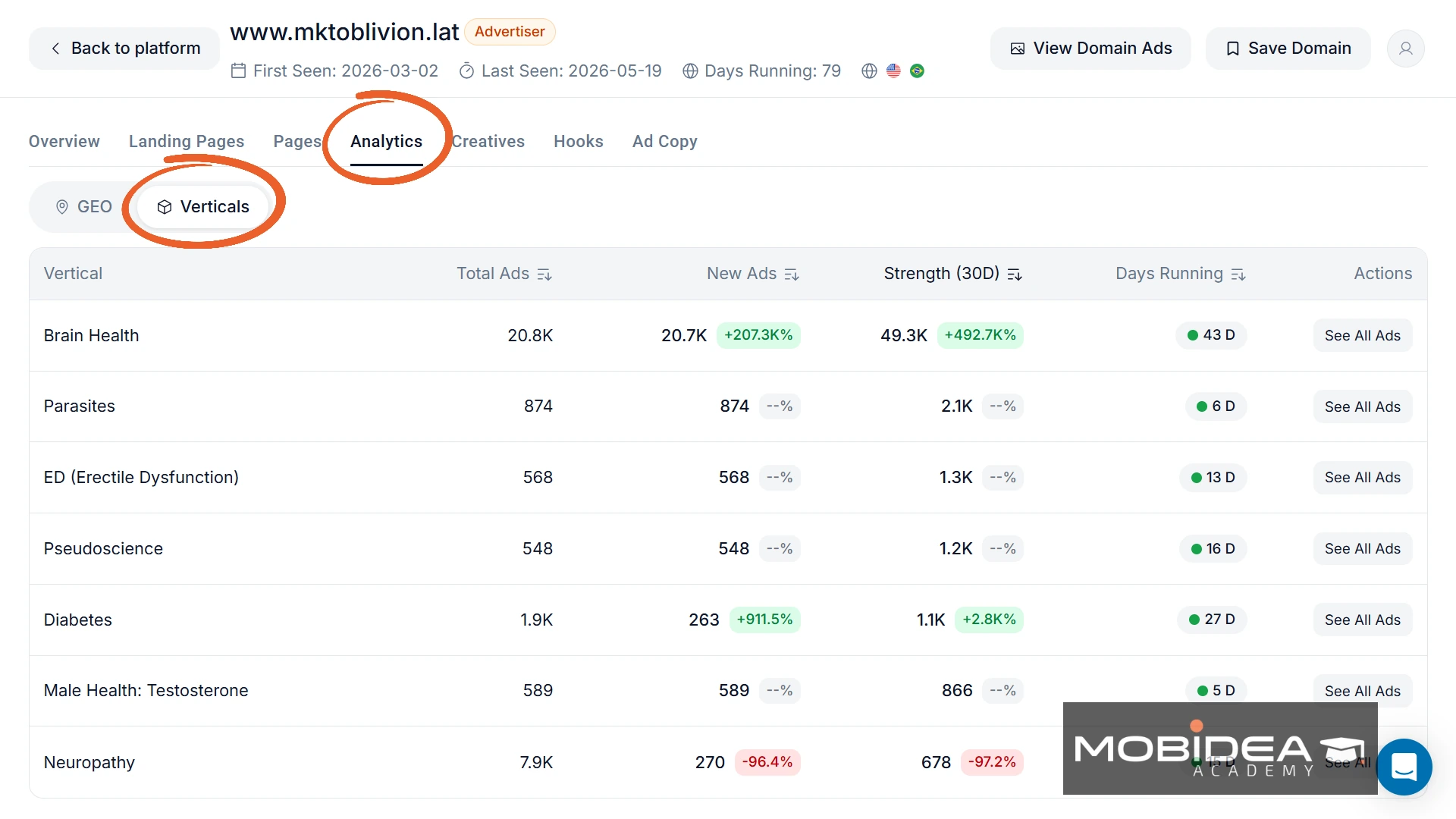
In the example here, Brain Health dominates with over 20K ads, with secondary verticals like Parasites, ED, Pseudoscience, Diabetes, and Testosterone also present.
So now you know this advertiser is focusing on Nutra campaigns, with a surge in Brain Health and Diabetes recently.
Creatives
The Creatives tab gives you 4 sets of data.
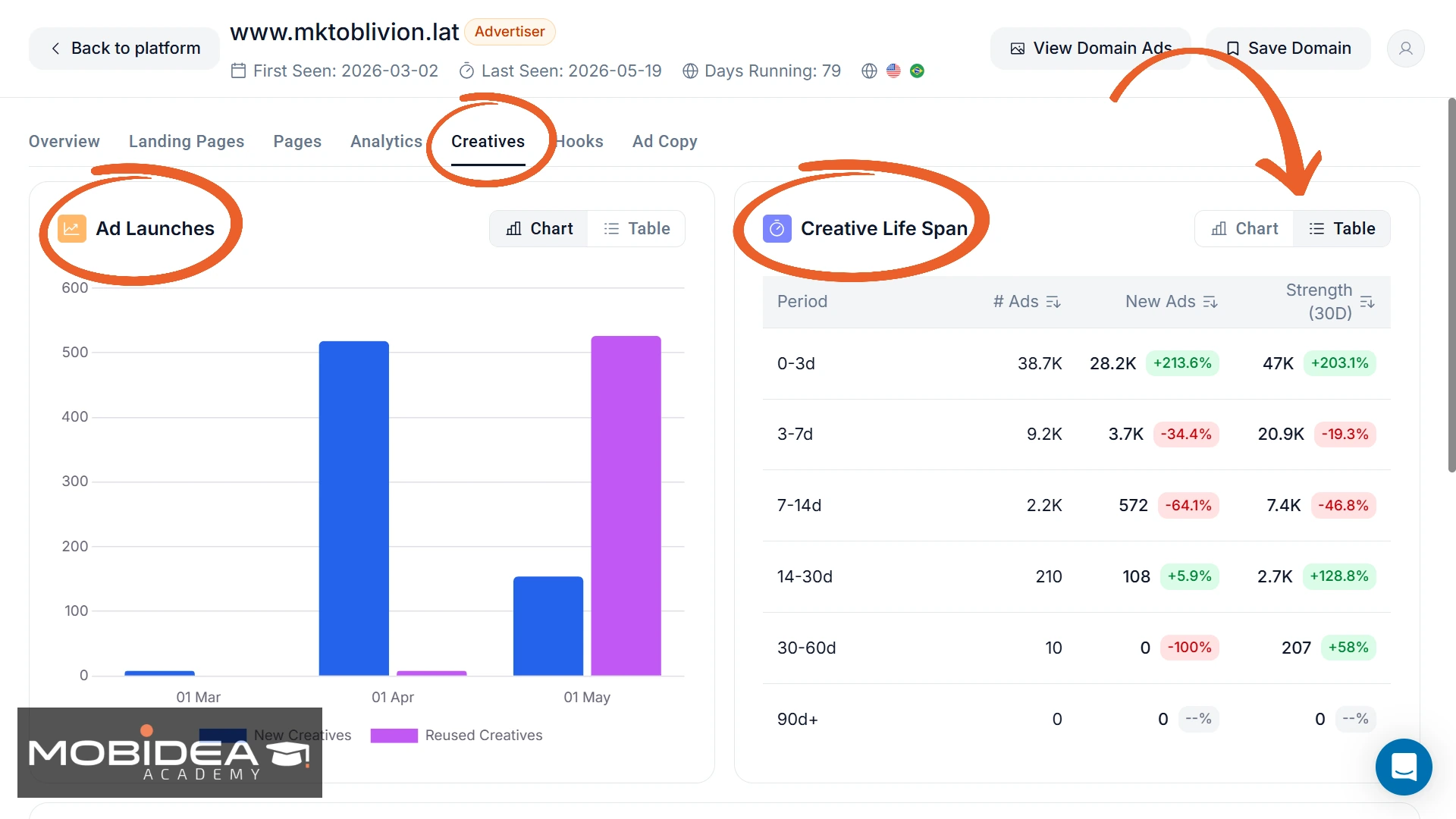
Ad Launches is a bar chart showing new vs. reused creatives over time.
A high volume of reused creatives in recent months usually means the advertiser has found something that works and is scaling it.
Creative Life Span breaks down creatives by how long they have been running — 0–3 days, 3–7 days, 7–14 days, 14–30 days, 30–60 days, and 90 days+.
This tells you how quickly creatives burn out for this advertiser.
If most creatives die within 3–7 days, they are testing aggressively.
If a lot survive to 14–30 days, some angles are clearly sticking.
Both these charts can be switched to table view for more precise details.
Below the charts are:
- Top Creatives — proven performers across multiple campaigns, sorted by # Ads and Days Running
- Emerging Creatives — rapidly gaining traction, sorted by # New Ads and percentage growth. This is the list to watch if you want to spot what’s picking up momentum before it peaks.
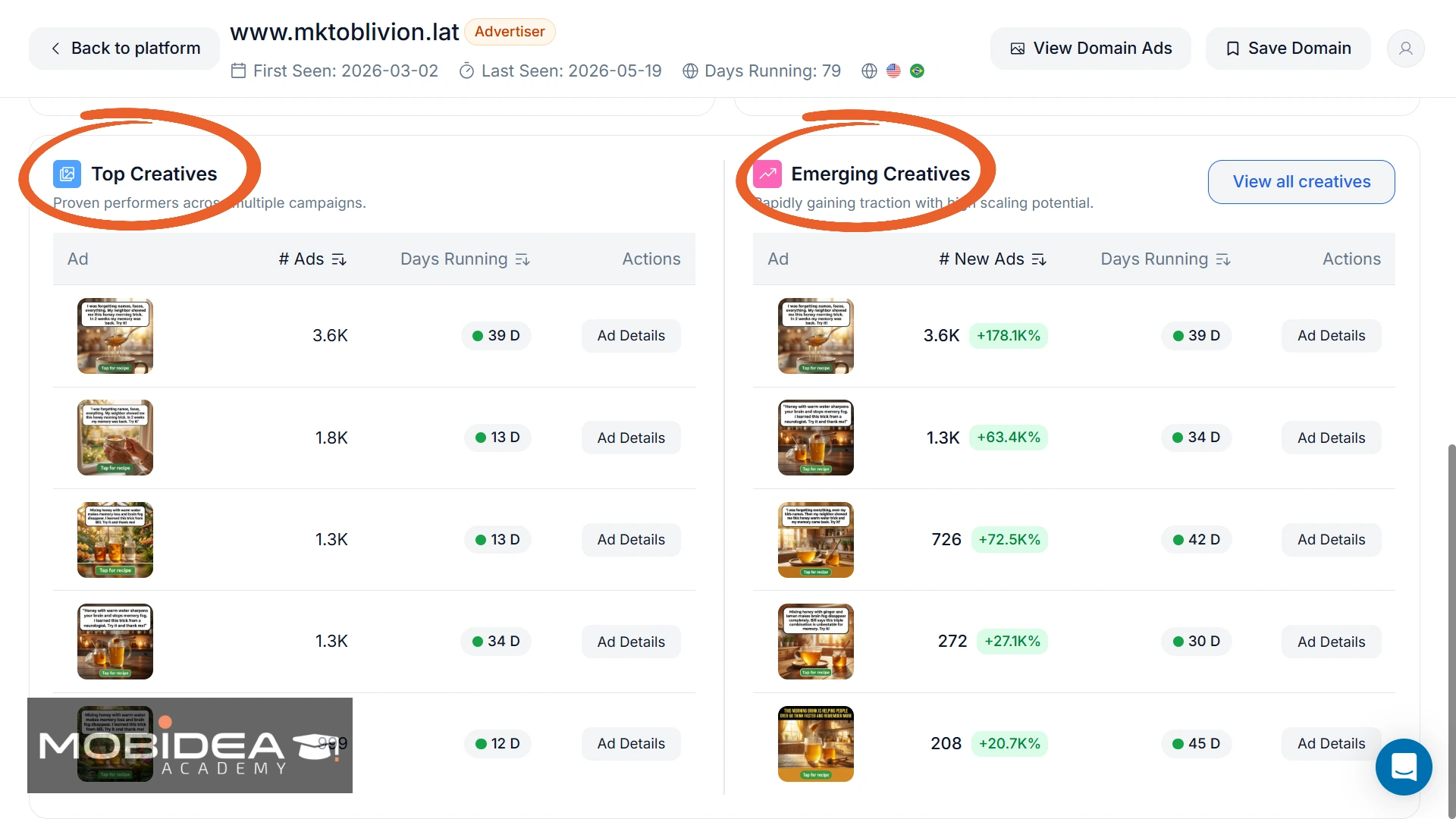
Clicking Ad Details next to any creative takes you directly into the full ad detail view for that creative, which we’ve already covered above.
Hooks
The Hooks tab lets you request video hooks from this domain’s creatives.
Click the Request Hooks button so that AdPlexity would process the video ads and extract the opening hooks for you.
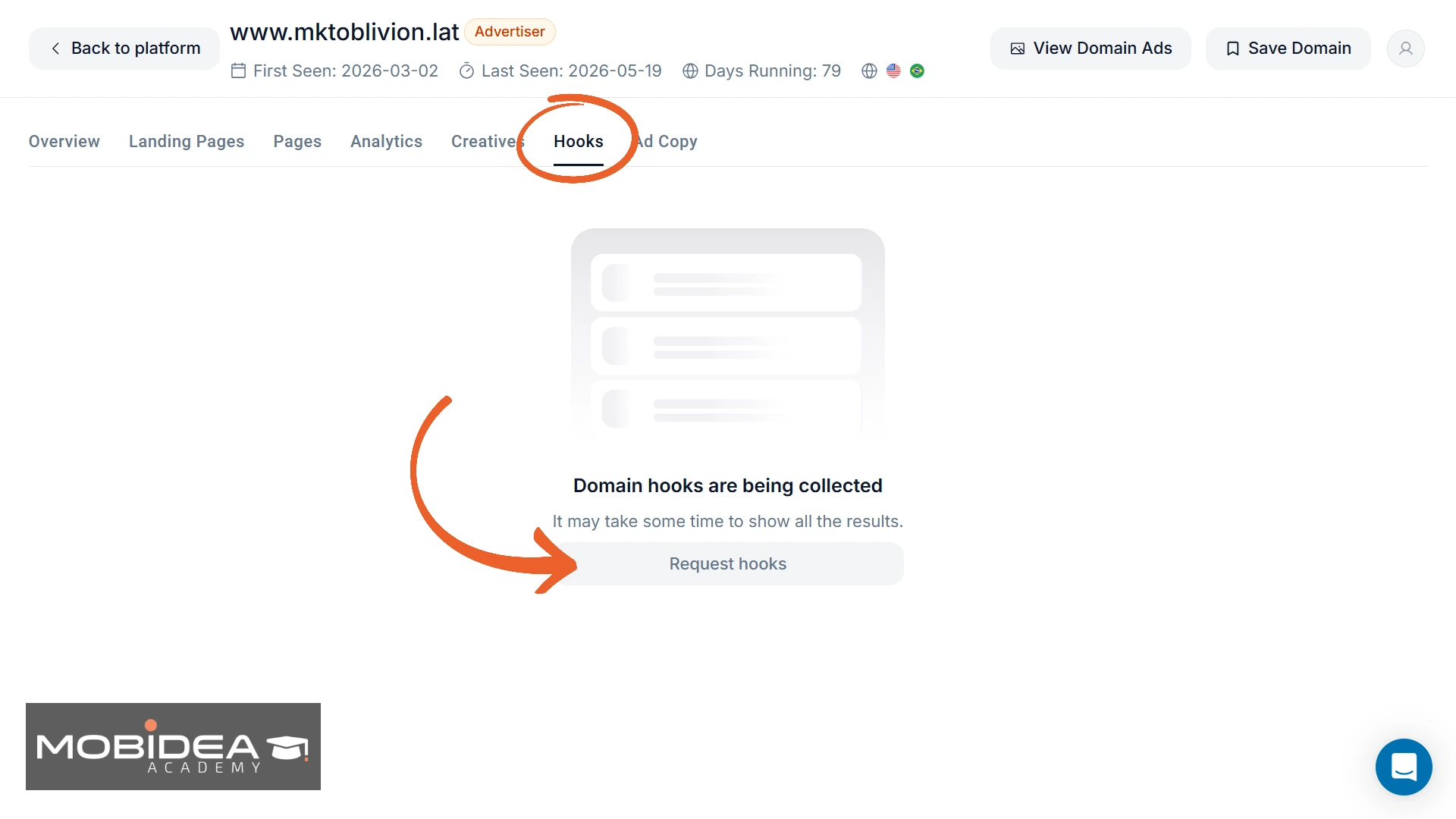
It doesn’t happen instantly, though.
You check back shortly after requesting.
Once ready, the hooks appear here so you can study what opening angles this advertiser is using across their video campaigns.
Ad Copy
Ad Copy, the final tab, has two sub-tabs: Headlines and Primary Texts.
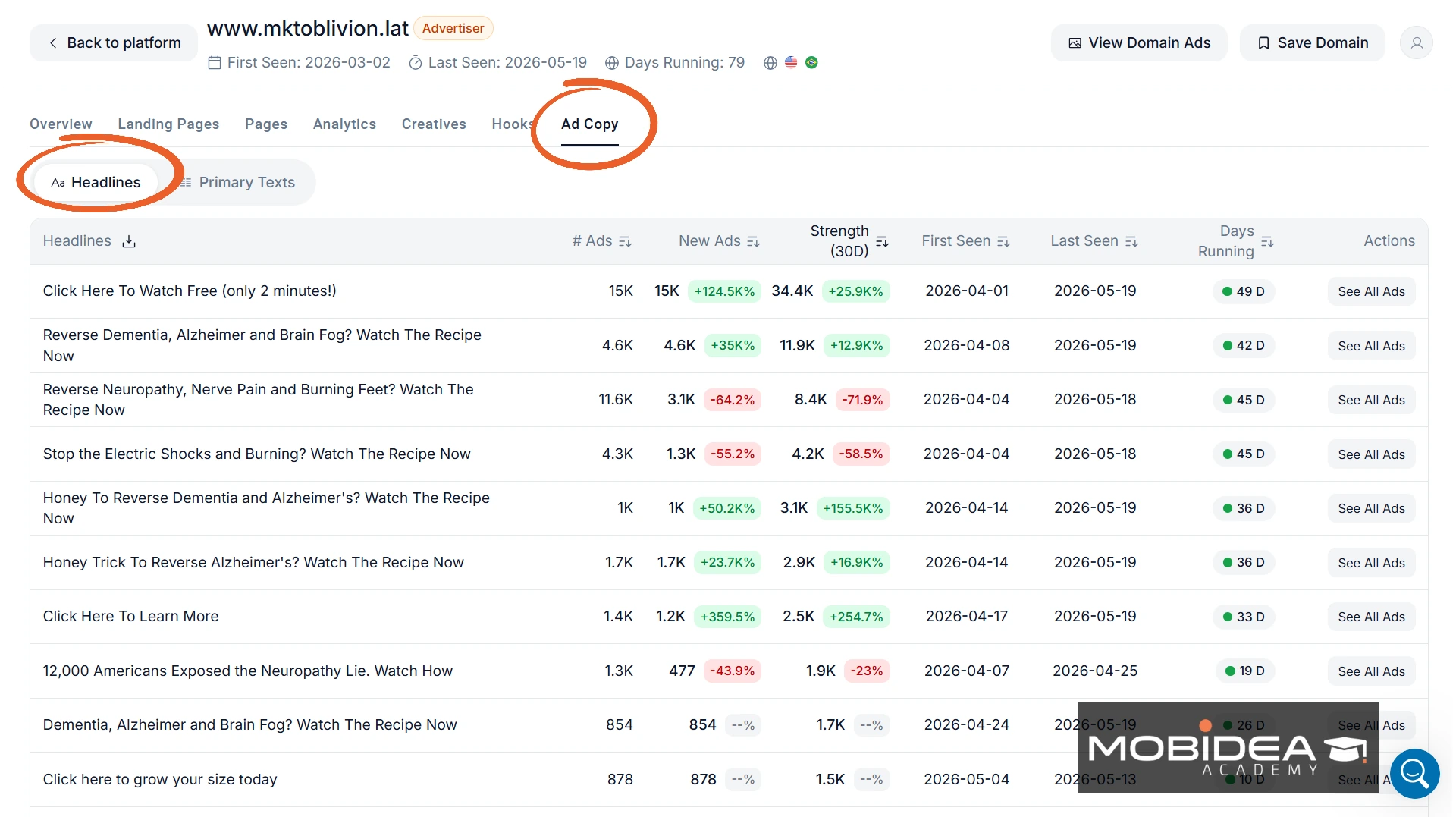
Headlines shows every headline used in this domain’s ads, ranked by # Ads.
Each one shows the following:
- headline text
- total ads using it
- new ads
- Strength (30D)
- first seen
- last seen
- days running
A headline running across 15K ads for 49 days tells you this headline is working well.
Primary Texts shows the full body copy used in ads, with the same data columns.
The text is cut-off in the list but you can hover over it to see the full copy.
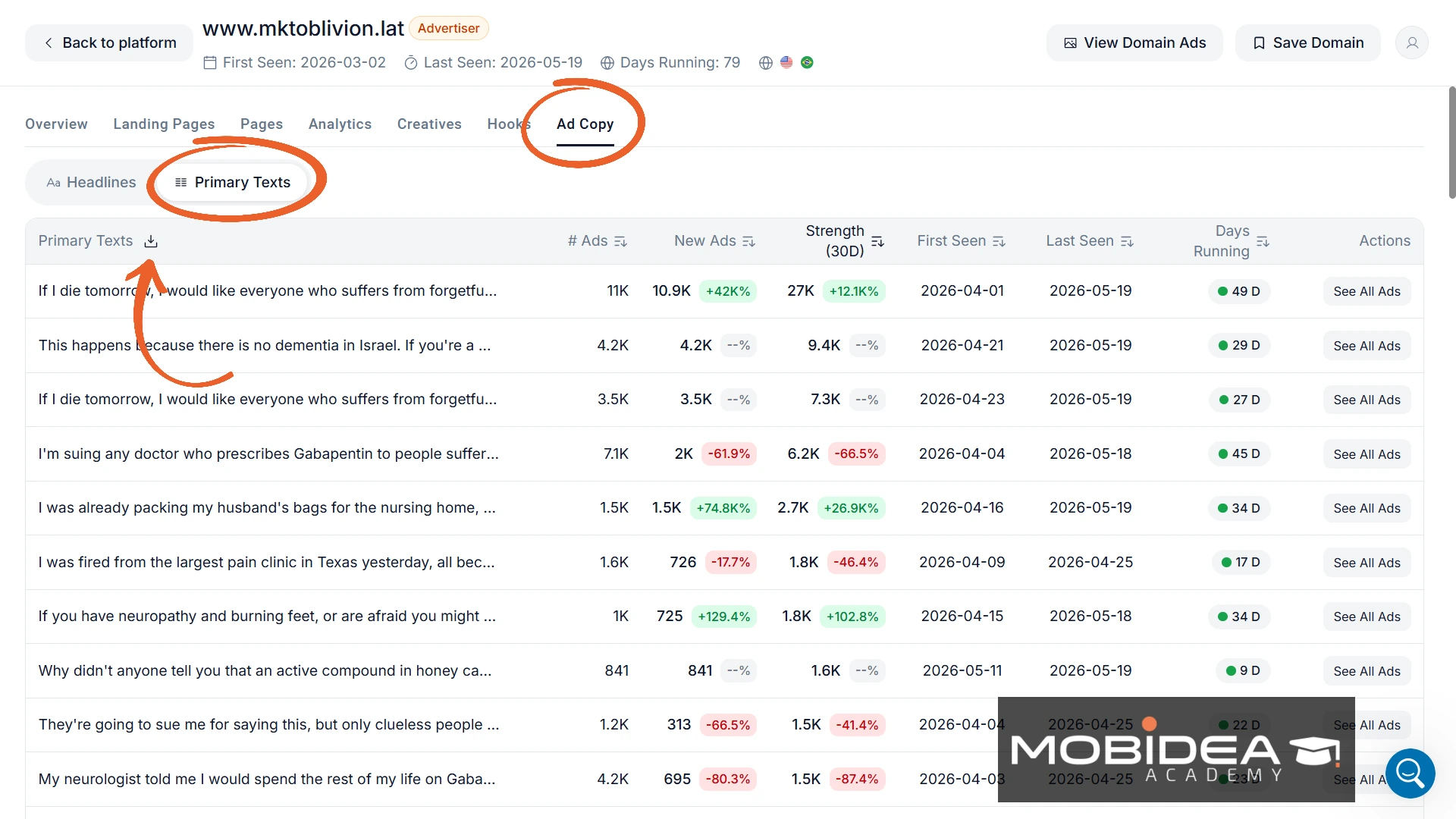
You can also download the table in csv format to get all primary texts instantly.
The same can be done with the Headlines.
The Domain Details view turns a single competitor domain into a full intelligence briefing.
You can see exactly what they’re promoting, which pages they use, which GEOs they target, which creatives are working, and what copy is driving the most ads—all without leaving AdPlexity Social.
Once you figure a domain to be useful for you and you want to study it more, click on the Save Domain button.
Place it under the appropriate board.
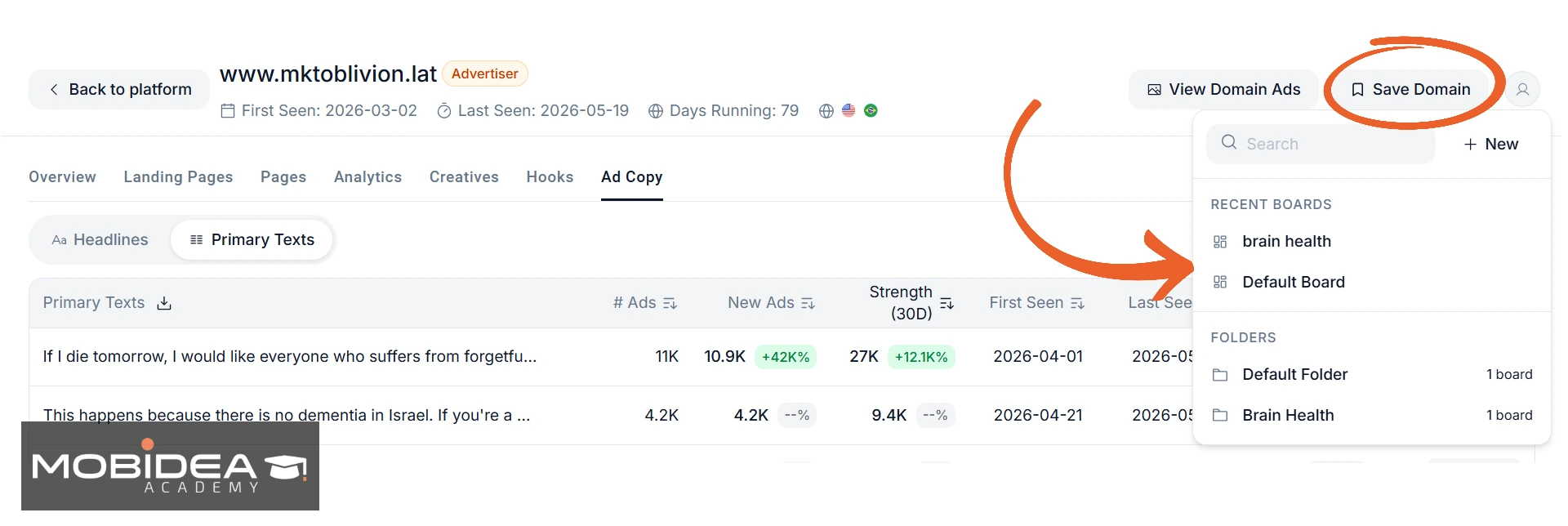
Boards serve as a space for ad ideas to compile for a single strategy or campaign you want to run.
Researching by Domain
Researching competitors is just the same as when researching ads.
As of the moment AdPlexity Social has collected data from almost 18 thousand domains.
The filters and options are all the same, though the results feature a domain-level view, showing you which domains are most active in your niche.
Each domain row shows:
- Ads (search) — active and inactive ads matching your current search filters
- Ads (total) — the full count of all ads ever collected from this domain
- New Ads (30d) — how many new ads launched in the past 30 days, with percentage change
- Country — the primary GEO this domain is targeting
- Newest Ads — thumbnail previews of the most recent creatives, so you can get a quick read without clicking in
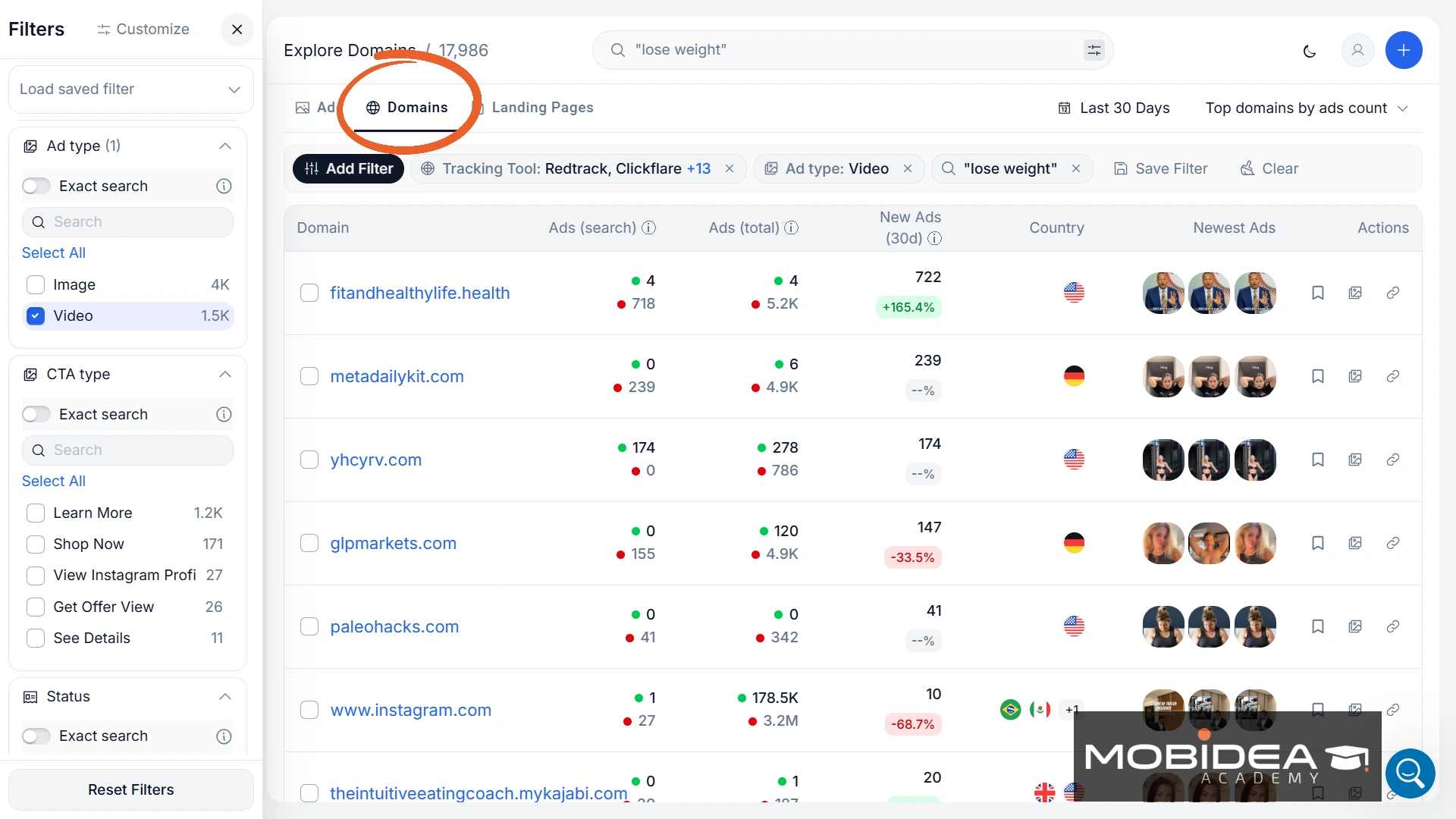
You can see at a glance which domains are scaling (marked green) and which are slowing down (in red).
You can sort results by top domains by ads count, or switch to other sort options depending on what you’re looking for.
When you click on any domain name opens the full Domain Details view, which we covered above.
Exploring Landing Pages
The third dimension in Explore is Landing Pages.
Switch to it at the top of the Explore section and instead of ads or domains, you are now browsing landing pages directly.
Same search, same filters—but the results show you the actual landing page content rather than the ad creative.
There are 6.5 million landing pages compiled. That’s a massive pool to pull from.
Each result card shows:
- Page name or advertiser — the Facebook page running ads to this landing page
- Date — when this landing page was most recently seen
- Ad copy preview — the primary text used in the ad pointing to this landing page
- Landing page preview — a visual snapshot of the actual page
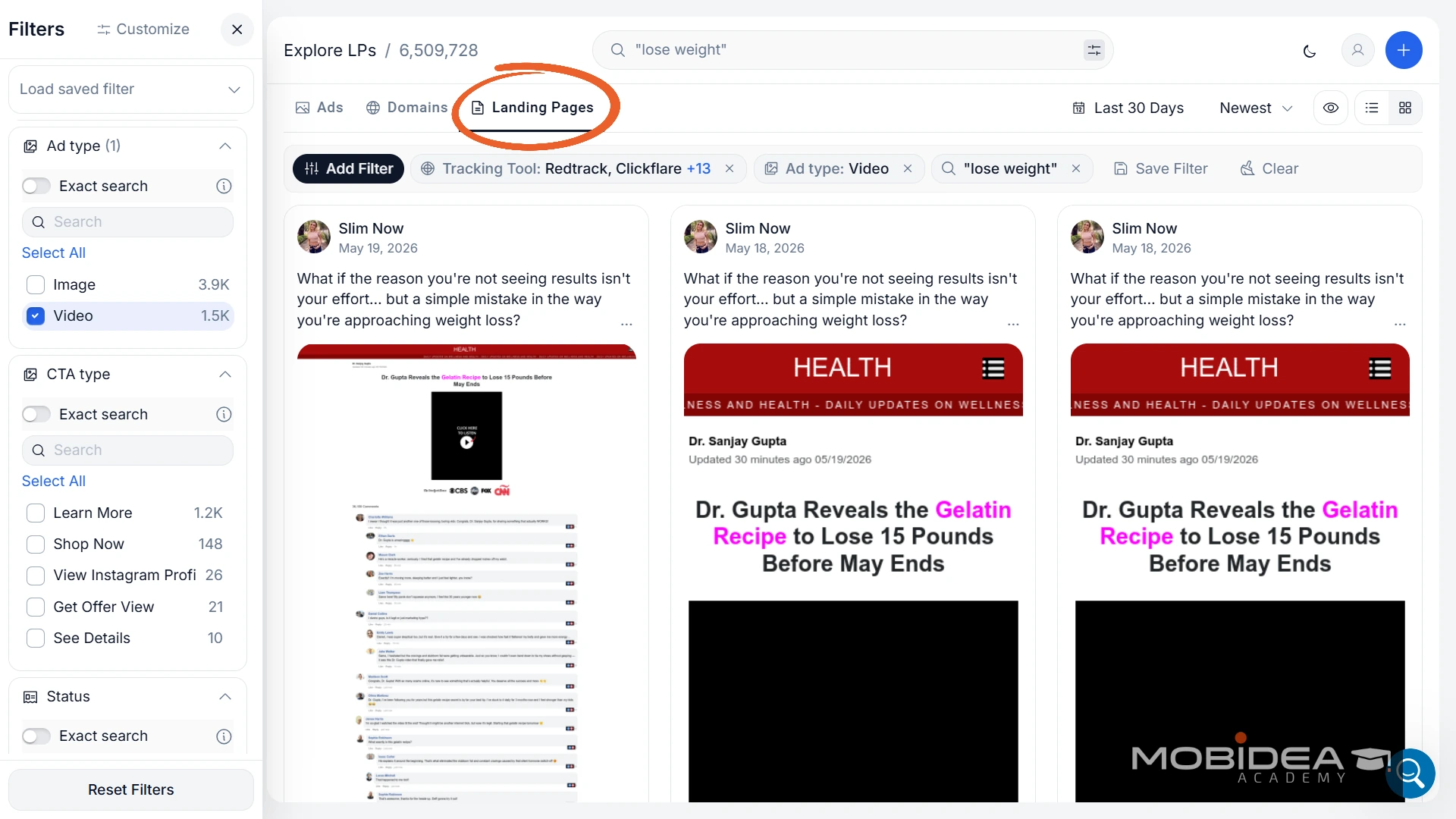
You can switch between grid and list view using the icons in the top right.
The card view is particularly useful when you want to research landing page angles and designs directly, without starting from the ad creative.
Trending
The Trending section shows you what is gaining momentum on Meta right now.
It’s a great place to start when you’re not sure where to look.
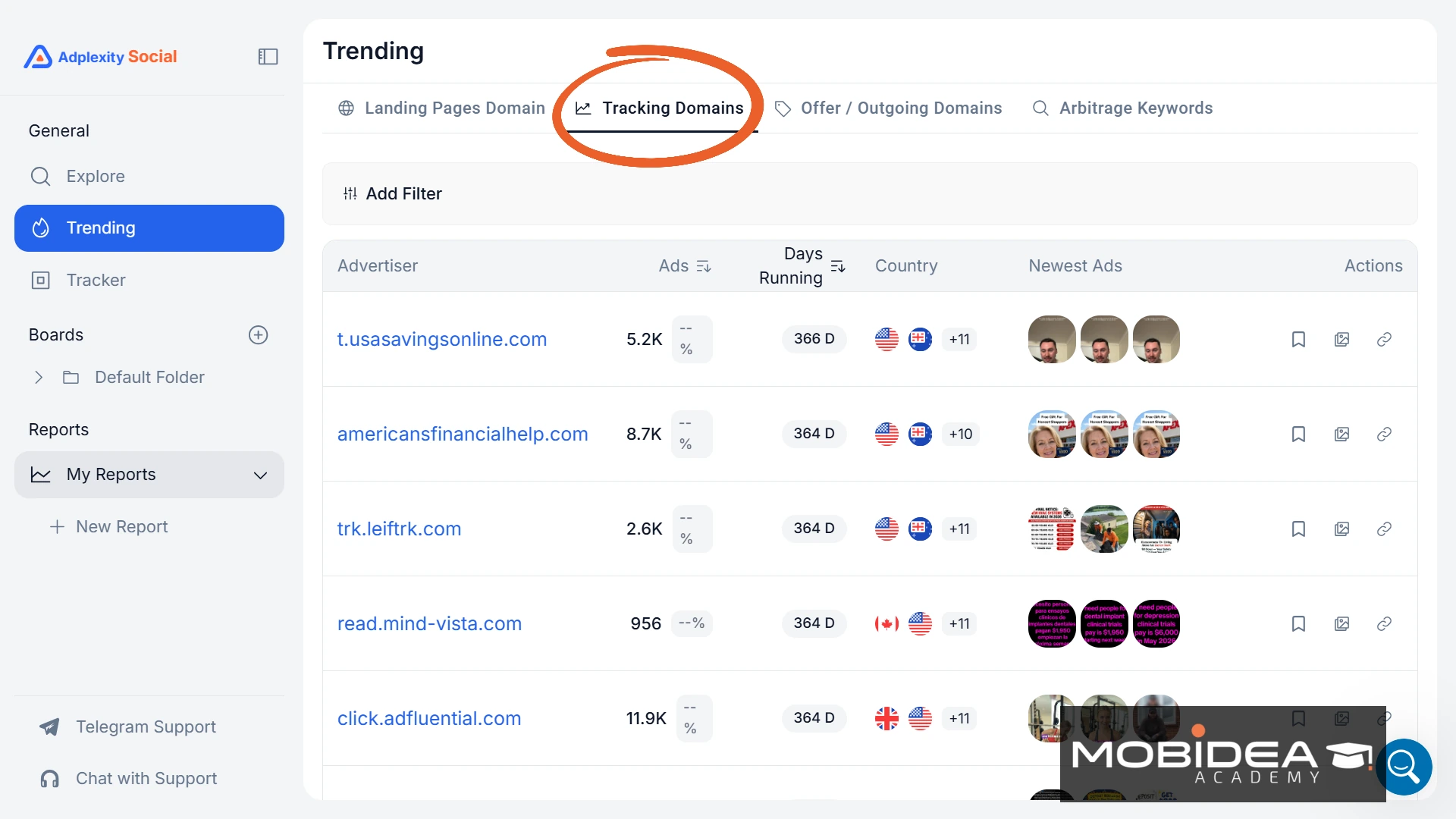
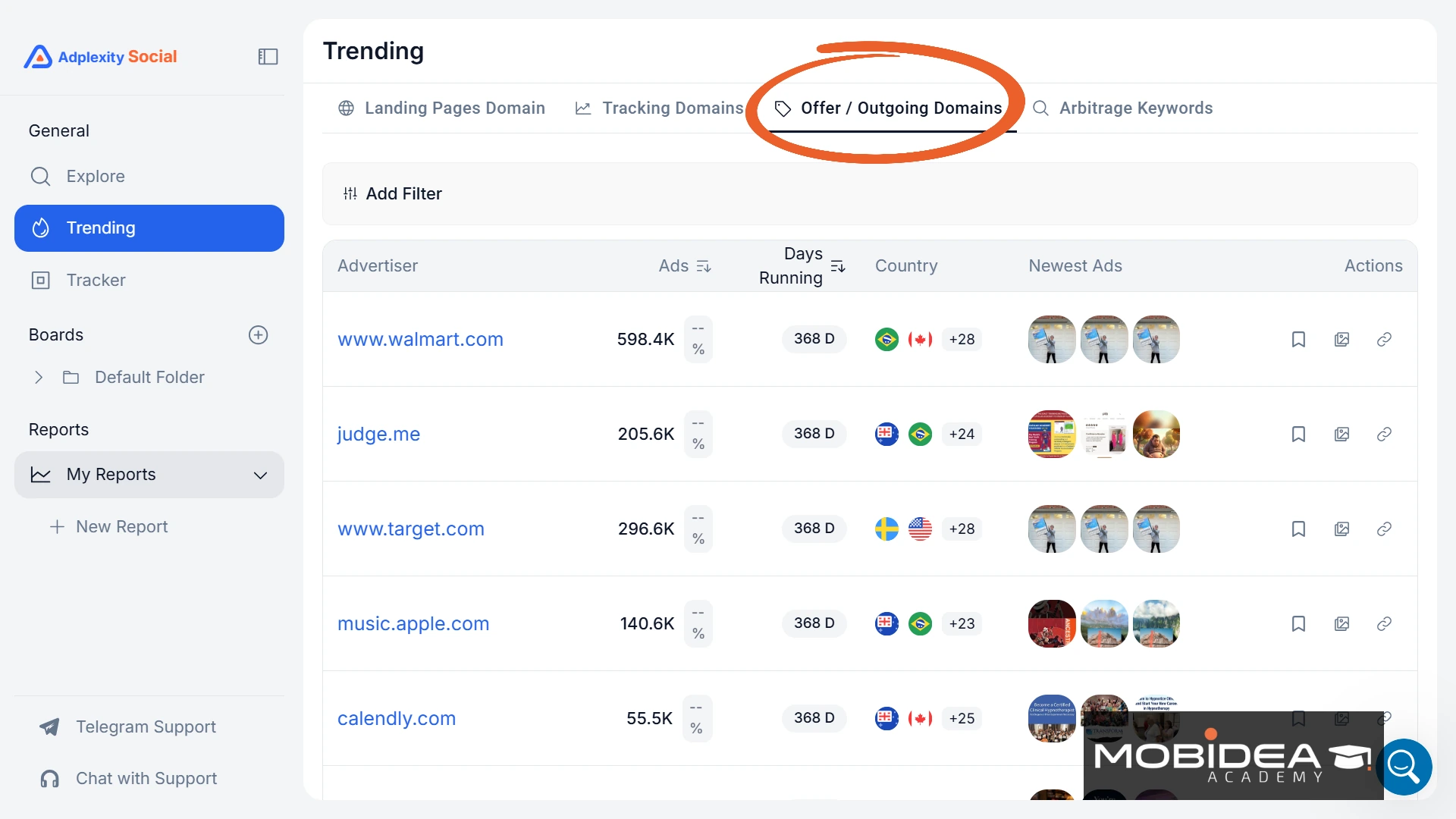
Trending has four tabs:
- Landing Pages Domain
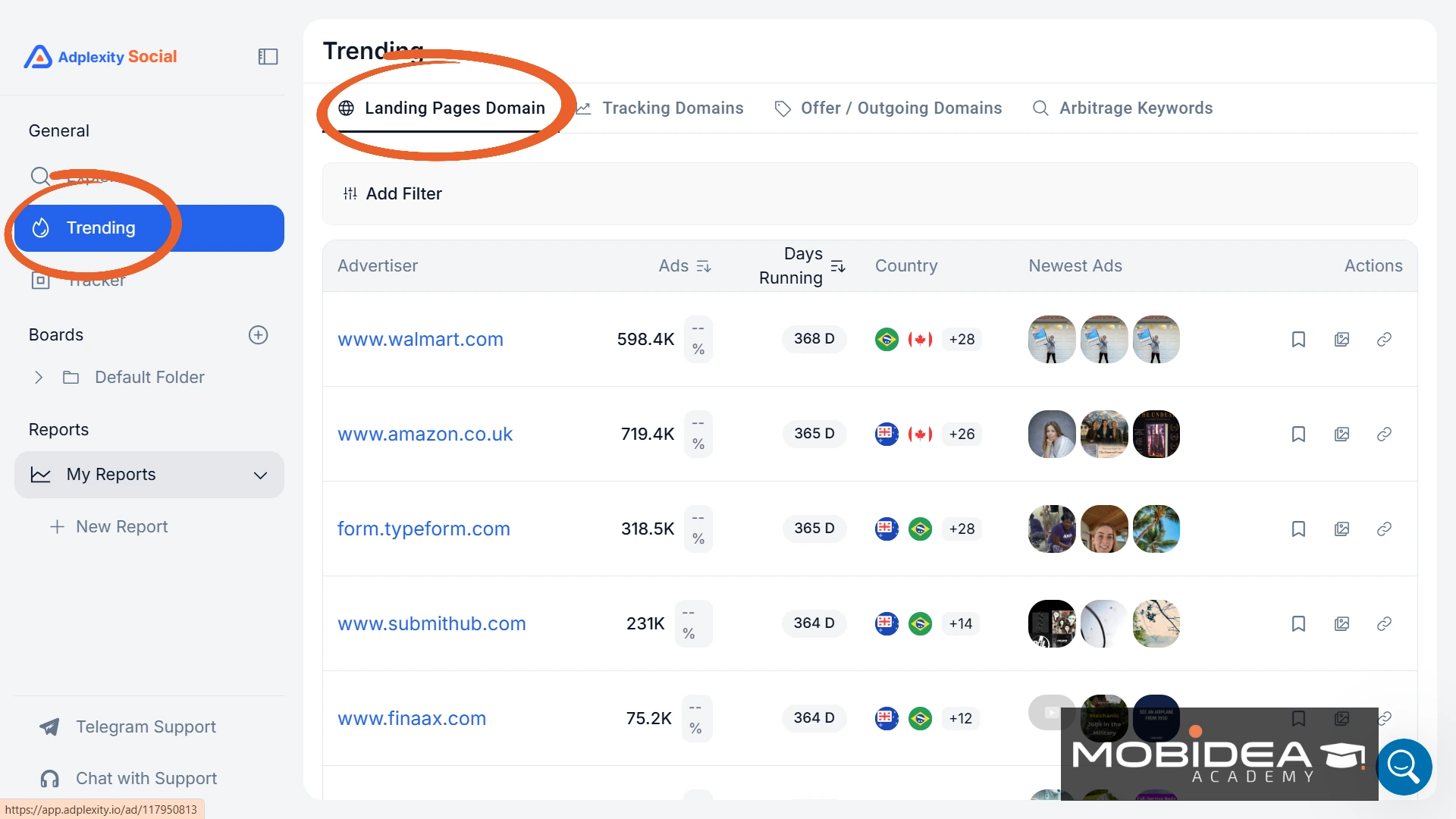
- Tracking Domains
- Offer / Outgoing Domains
- Arbitrage Keywords
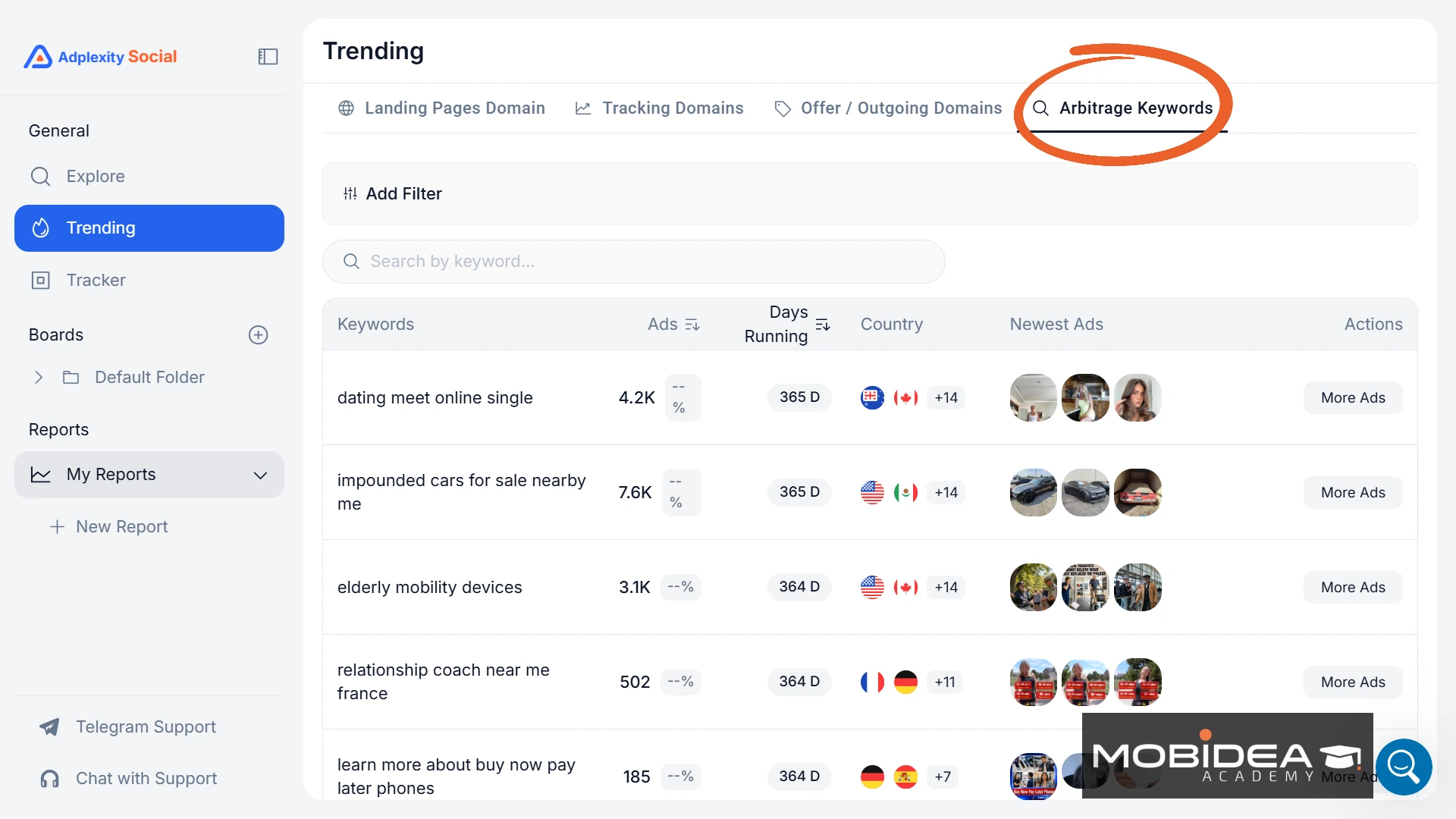
Each tab shows the advertiser domain, ad count, days running, country, and newest ad thumbnails.
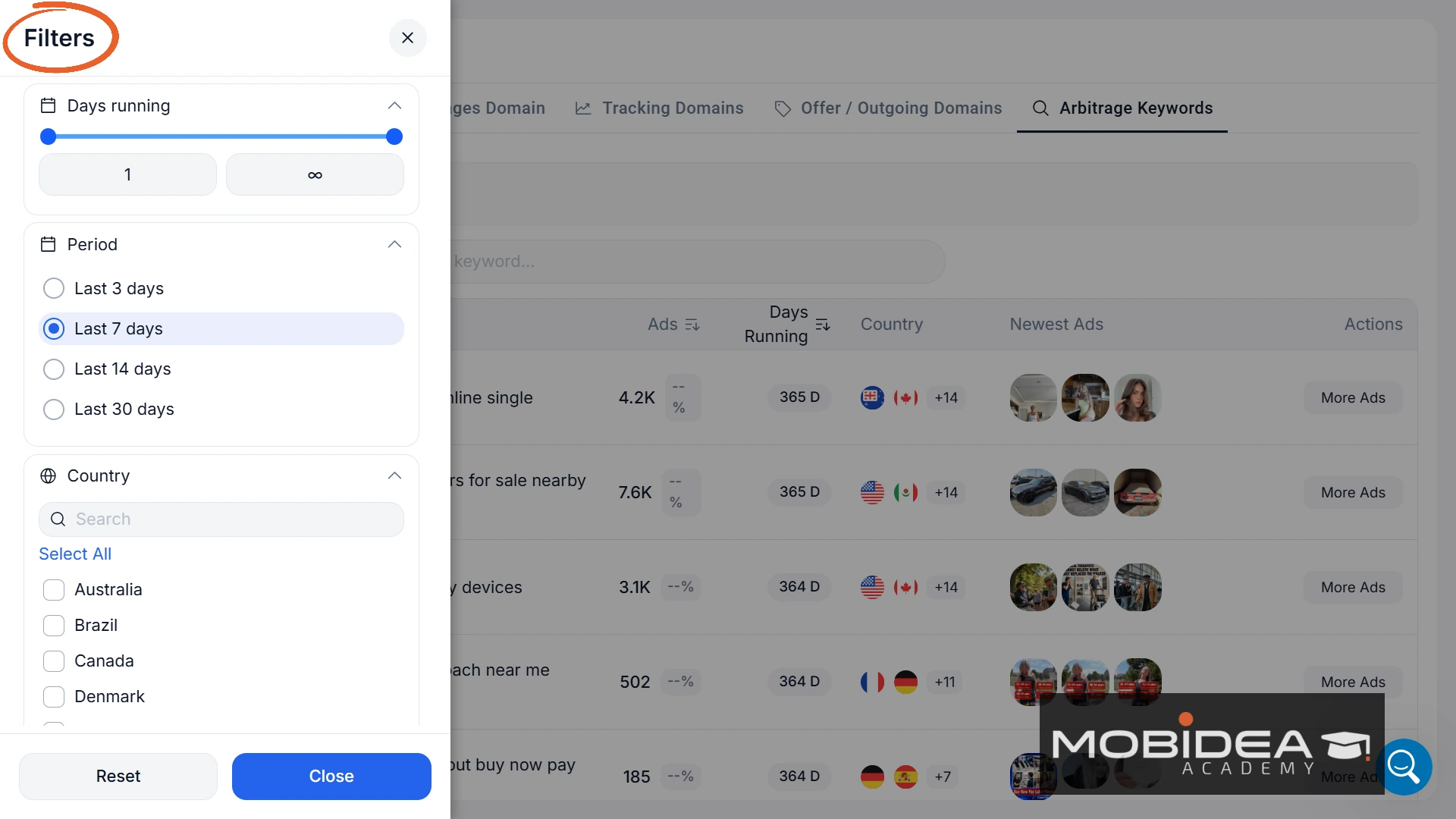
You can filter by Days Running, Period (last 3, 7, 14, or 30 days), and Country.
AdPlexity Social Verdict
If Meta is your main traffic channel and you run performance campaigns, AdPlexity Social is absolutely worth it!
The depth of intelligence it gives you on Meta Ads campaigns is not something you will find in a generic social spy tool.
With the ads, landing pages, full funnels, and competitor data right at your fingertips, you can realistically go from zero to a fully researched campaign ready to launch in just a few hours!
This alone is a massive win.
The first month is available at 50% off through this link, bringing the price down to $49.99 on the first month.
At that price, there is really no excuse not to try it. Go for it!
AdPlexity Social FAQs
What is AdPlexity Social and how is it different from the Meta Ad Library?
AdPlexity Social is a Meta ads spy tool for performance marketers.
Unlike the Meta Ad Library, it shows you the full campaign funnel including redirect chains, affiliate networks, trackers, and landing pages behind every ad.
Does AdPlexity Social work for ClickBank or CPA network campaigns?
Yes. You can filter directly by affiliate network, including ClickBank, BuyGoods, Digistore24, and others, and trace the full funnel behind each campaign.
Can AdPlexity Social find deleted or banned ads?
Yes. AdPlexity Social keeps an archive of ads that have been removed or banned from Meta, which is useful for angle research and understanding what the platform flags.
Is AdPlexity Social suitable for beginners?
Yes. The core search and filter functions are easy to pick up, and the Industry Filter presets help new users get useful results quickly without manual configuration.
What trackers and affiliate networks can you filter by?
Trackers include Voluum, ClickFlare, Redtrack, and Ringba.
Affiliate networks include ClickBank, BuyGoods, Digistore24, and ClickDealer, with more being added over time.
Does AdPlexity Social offer a free trial?
There is no free trial, but you can book a 30-minute demo and there is a 24-hour refund window after your first payment.
Do you have an AdPlexity Social promo code?
Yes! Sign up through Mobidea Academy’s exclusive link to get your first month at 50% off!


In this comprehensive Tyver review, we look at what this ad spy tool offers, how it works across verticals, and if the price is worth it for your needs.

AdvertisementWhy Do You Need A Spy Tool? Have you ever wanted to spy on your competitors’ advertising campaigns to see…

In this AdFlex review, we'll walk through its features and how you can find your competitors' ads, and its pros and cons.