
This Post is brought to you by Semrush.
The content marketing playbook is getting rewritten.
While you pump out article after article, smart brands are doing the opposite—and seeing better results.
They’re publishing less but ranking higher.
The data backs this up: sites with 5,000+ pages often struggle with indexing issues, low engagement, and weak authority.
If you’re managing a site with thousands of pages that barely rank, you’re not facing a content problem: you’re facing a technical SEO crisis.
The “publish every day” strategy has left you with a bloated site where Google refuses to index most of your content.
Your crawl budget (the limit on how many pages Google will visit on your site) gets wasted on thin articles, and your site authority spreads so thin that nothing ranks well.
But here’s the good news: you can fix this.
Strategic content pruning (removing low-value pages) combined with technical diagnosis can cut your page count by 70% while improving organic traffic.
Sites that make this shift see faster indexing, better rankings, and concentrated authority on their best content.
This article focuses on one thing: diagnosing and fixing the volume trap for sites drowning in thousands of underperforming pages.
Key Takeaways
Why More Content Hurts Rankings | ||
Publishing Volume Hurts Rankings Sites with thousands of pages often suffer from indexing gaps, wasted crawl budget, and diluted authority. Publishing less but better content consistently outperforms high-volume strategies. | ||
Crawl Budget Is Finite Google limits how many pages it will visit on your site, meaning thin or low-quality pages consume budget that should go to your best content. | ||
Semrush Site Audit Is the Starting Point Running a site audit reveals the exact pages causing technical damage — thin content, duplicate issues, broken links, and orphaned pages — before you make any pruning decisions. | ||
Four-Bucket Framework Guides Every Decision Pages should be categorized as Keep and Optimize, Consolidate, Delete, or Redirect based on traffic, engagement, backlink data, and technical health. | ||
Content Pruning Can Cut Page Count by 70% While Increasing Traffic Sites that remove low-value pages see faster indexing, better rankings, and concentrated authority on their strongest content. | ||
Deletion Is Not Always the Answer Pages with traffic history or backlinks should be redirected using 301 redirects rather than deleted outright, preserving their link authority. | ||
Semrush Content Toolkit Handles Improvement at Scale Semrush's Content Optimizer, Topic Finder, and SEO Brief Generator work together to improve hundreds of existing pages without sacrificing brand voice or requiring a large writing team. | ||
Prevention Requires the Same Tools The volume trap recurs without upfront validation. Running Topic Finder before assignment and Content Optimizer on drafts before publishing stops low-quality pages from ever going live. | ||
But first, let’s talk about the Volume Trap.
The Volume Trap: When More Content Hurts Your Rankings
Google doesn’t reward you for publishing more. It rewards you for publishing better.
When you flood your site with content, you create technical problems that hurt rankings instead of helping them.
Think about it this way: you wouldn’t add more rooms to a house with a cracked foundation, right?
But that’s exactly what happens when content teams keep publishing without fixing existing technical issues.
The volume trap creates the following issues:
1. Indexing problems.
Google gives every site a crawl budget—a limit on how many pages it will visit and index.
When you have thousands of pages, Google picks and chooses what to index.
Sites with thousands of URLs face this constantly.
You publish article after article, but only a fraction shows up in search results.
2. Wasted crawl budget.
Your crawl budget gets spent on thin content (pages with insufficient text for Google to understand the topic) instead of your best work.
Every low-quality page Google crawls is one less high-quality page it discovers.
3. Diluted authority.
Site authority spreads across thousands of URLs until nothing ranks well.
It’s like trying to light a room with one candle versus concentrating that same light with a focused beam.
4. Poor engagement signals.
Your analytics tell the real story.
Average time on page drops.
Bounce rates climb.
Users land on rushed, generic content and leave immediately.
These engagement signals tell Google your content doesn’t provide value, which hurts rankings across your entire site.
The pattern shows up everywhere: 80% of your traffic comes from 20% of your pages.
The other 80% of pages sit there wasting resources and providing almost zero value.
This isn’t a philosophical debate about content quality vs quantity—it’s a traffic reality backed by your own analytics.
When you’re racing to hit publishing quotas, quality drops.
Writers produce thin content that checks SEO boxes but lacks depth.
These pages don’t just fail to rank—they actively hurt your site’s performance.
Diagnosing Your Volume Problem: Step-by-Step with Site Audit
Most content teams approach the volume problem backwards: they try to fix it by creating better content.
But if you’re sitting on thousands of low-quality pages, creating more content—even great content—doesn’t solve the technical problems dragging your site down.
You need to diagnose the damage first.
This is where Semrush’s Site Audit becomes essential.
It’s a powerful website crawler that performs over 140 technical SEO checks, showing you exactly where the volume trap is hurting your site.
Setting Up Your First Audit
Step 1: Create your audit campaign.
Navigate to Site Audit from the left menu in Semrush, under SEO On Page & Tech section (also available under AI Visibility).
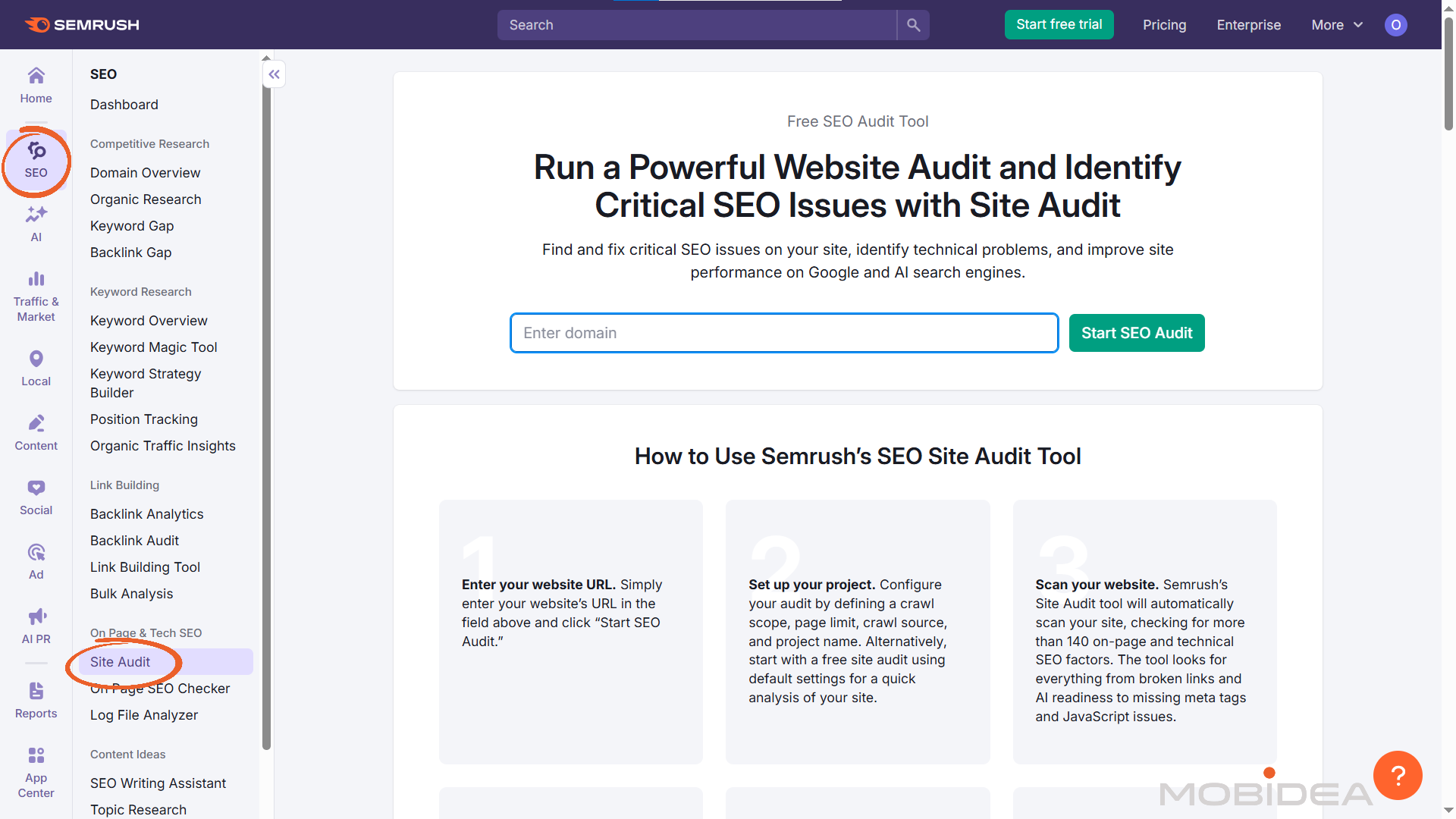
Place your domain and click on Start SEO Audit.
If this is your first audit, it will automatically configure when you create a folder.
For subsequent audits, click “Create new project” and enter your domain.
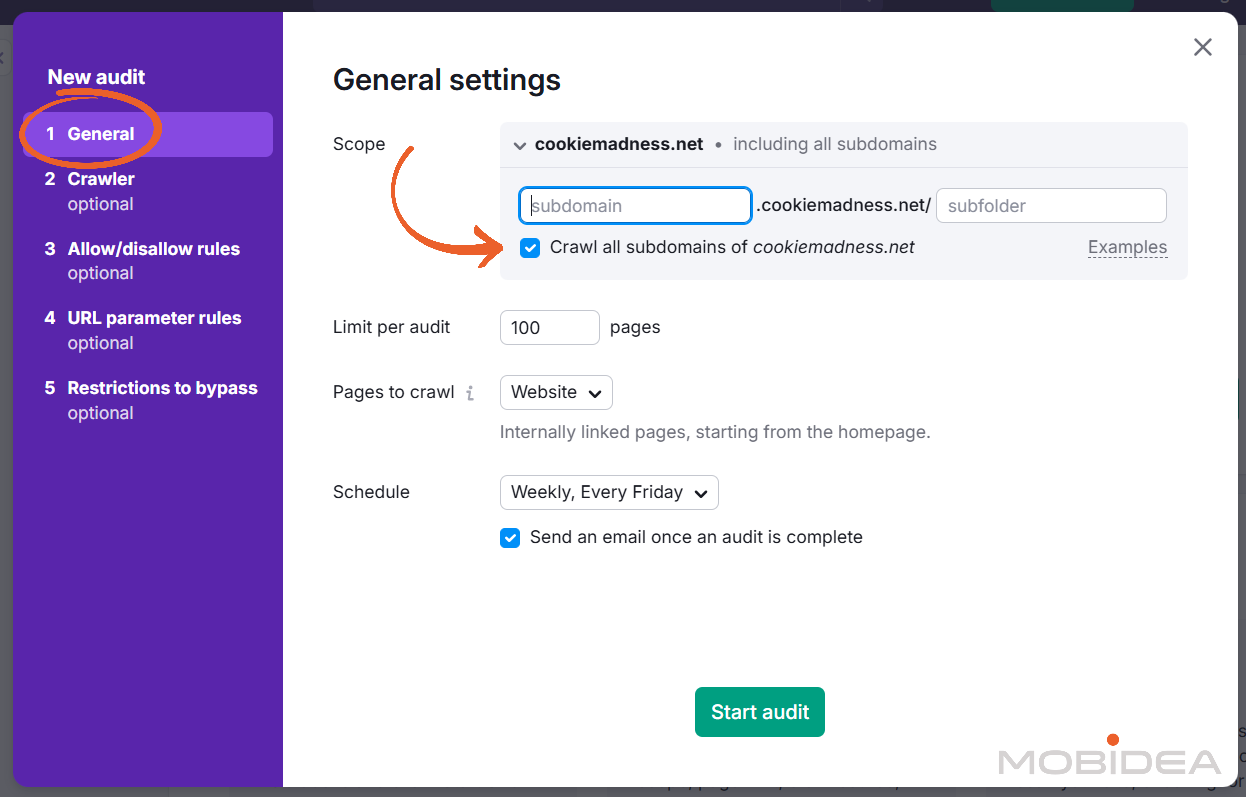
Step 2: Configure your crawl scope.
In the General Settings pop-up wizard, decide what to audit:
- Root domain (includes all subdomains and subfolders)
- Specific subdomain (e.g., blog.yoursite.com)
- Specific subfolder (e.g., yoursite.com/blog/)
For diagnosing volume problems, start with your root domain to see the full picture.
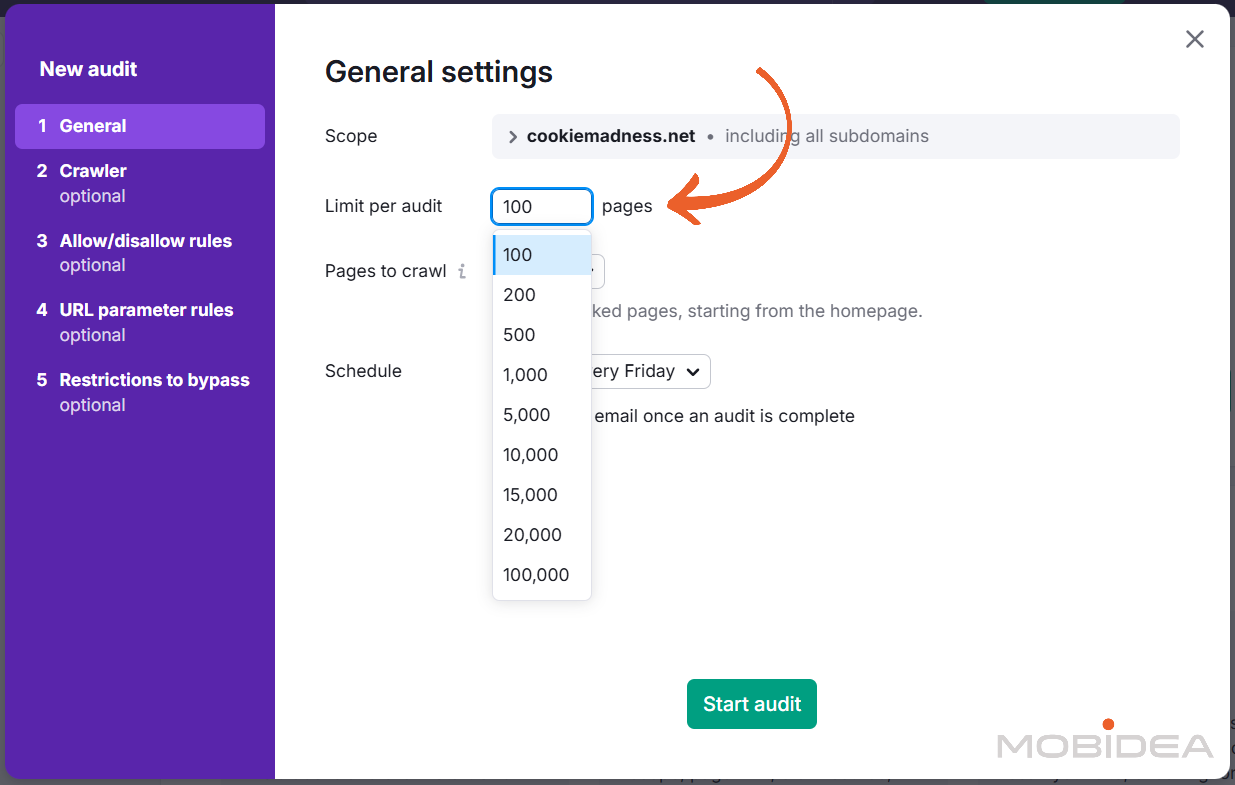
Step 3: Set your page limit.
Choose how many pages to crawl per audit based on your subscription:
- Pro: up to 20,000 pages per audit
- Guru: up to 20,000 pages per audit
- Business: up to 100,000 pages per audit
If you have more pages than your limit allows, the crawler will prioritize pages it finds first through your site’s internal linking structure.
Free accounts can crawl up to 100 pages.
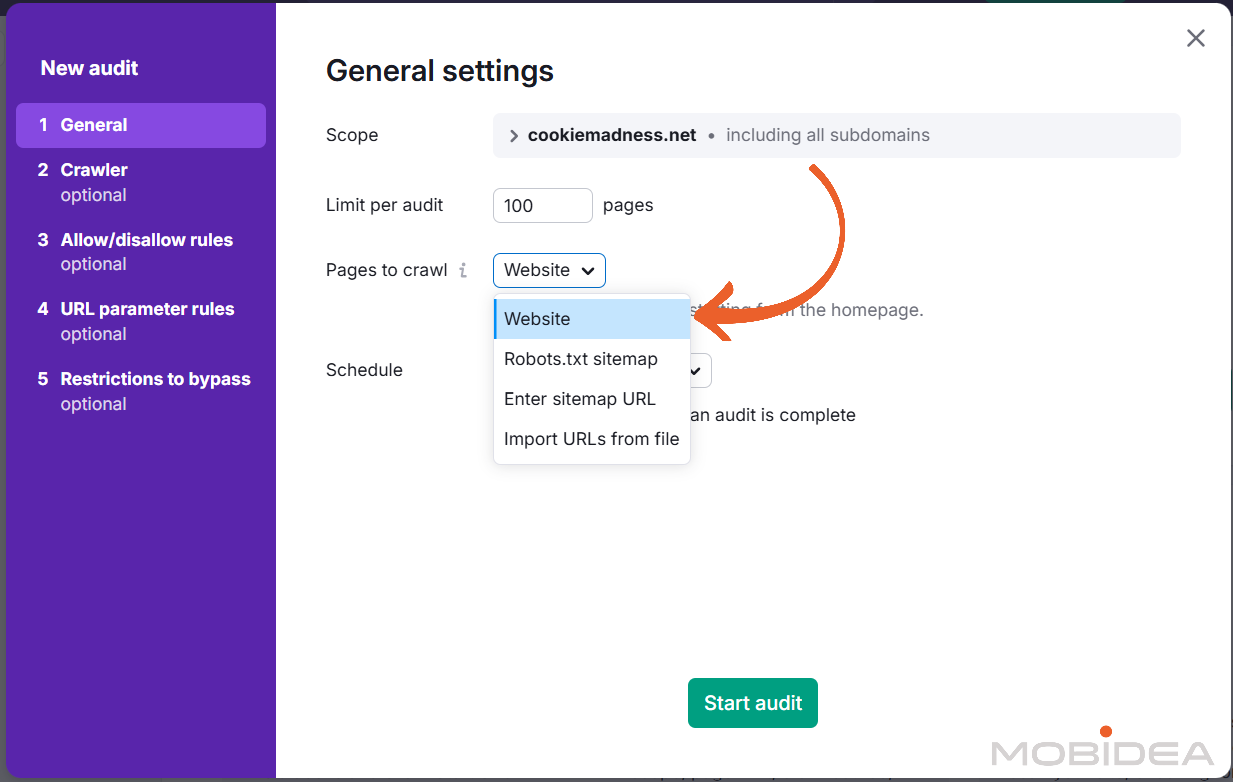
Step 4: Choose your crawl source.
You have four options:
- Website (crawls like Google, following links from your homepage)
- txt sitemap (uses the sitemap linked in robots.txt)
- Sitemap by URL (enter your specific sitemap URL)
- File of URLs (upload a .csv or .txt file with specific URLs to check)
For volume trap diagnosis, “Website” gives you the most realistic view of what Google sees.
Step 5: Schedule your audit.
Choose weekly, daily, or one-time crawl.
For initial diagnosis, select “Once.”
You can always re-run it after making changes.
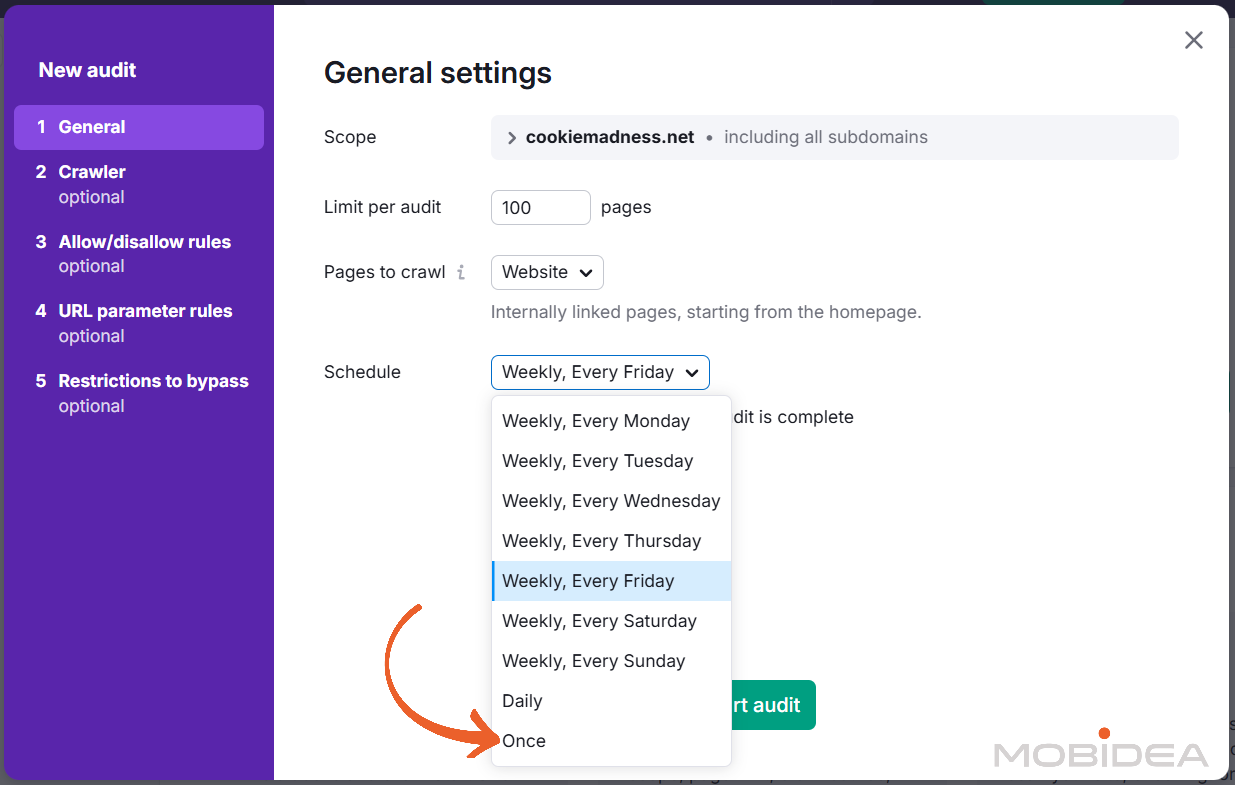
Click “Start audit” and Site Audit will begin crawling.
Note: You can also edit other settings such as crawler settings (useful to avoid getting blocked by your own site), Allow/Disallow (for crawling or not crawling specific pages), and so on.
For large sites, this process can take 15-30 minutes.
Reading Your Audit Results
Once the crawl completes, you’ll see the Overview report. Here’s what matters for volume trap diagnosis:
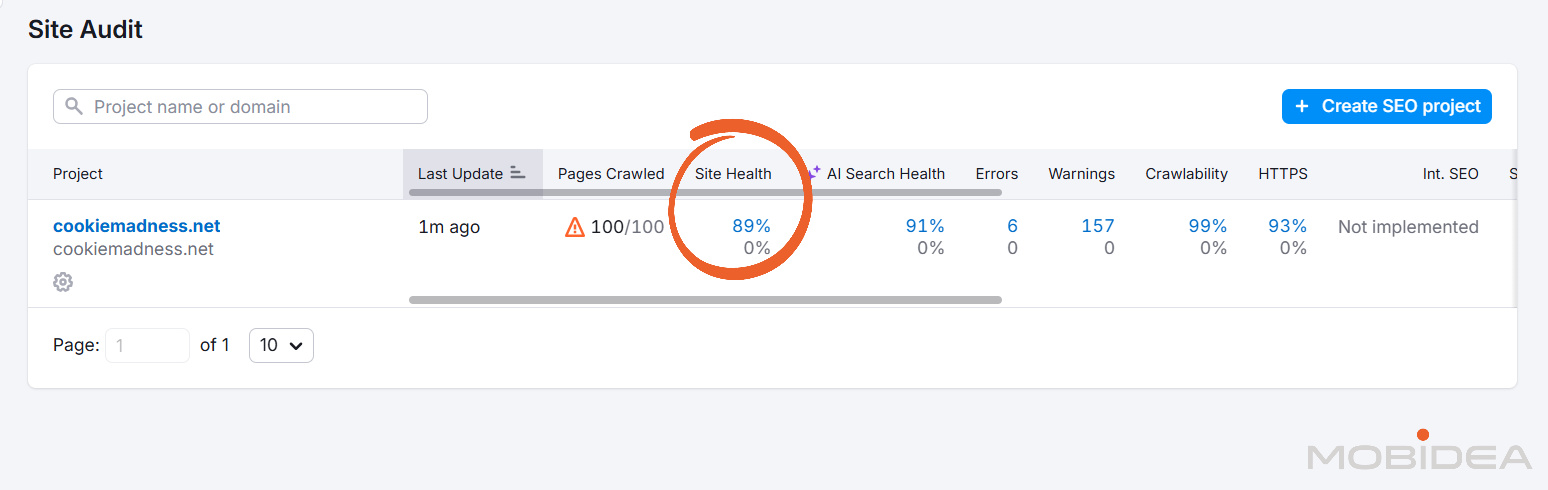
Site Health Score.
This percentage (0-100%) reflects the density of problems on your site.
A score below 80% typically indicates serious issues.
The score considers both errors (severe issues shown in red) and warnings (medium severity issues shown in orange).
Top Issues by severity.
The report shows your biggest problems first.
For volume trap sites, you’ll commonly see:
- Pages with thin content (low text to HTML ratio and low word count)
- Duplicate content issues
- Broken internal links
- Pages with no incoming internal links (orphaned pages)
- Slow page load times
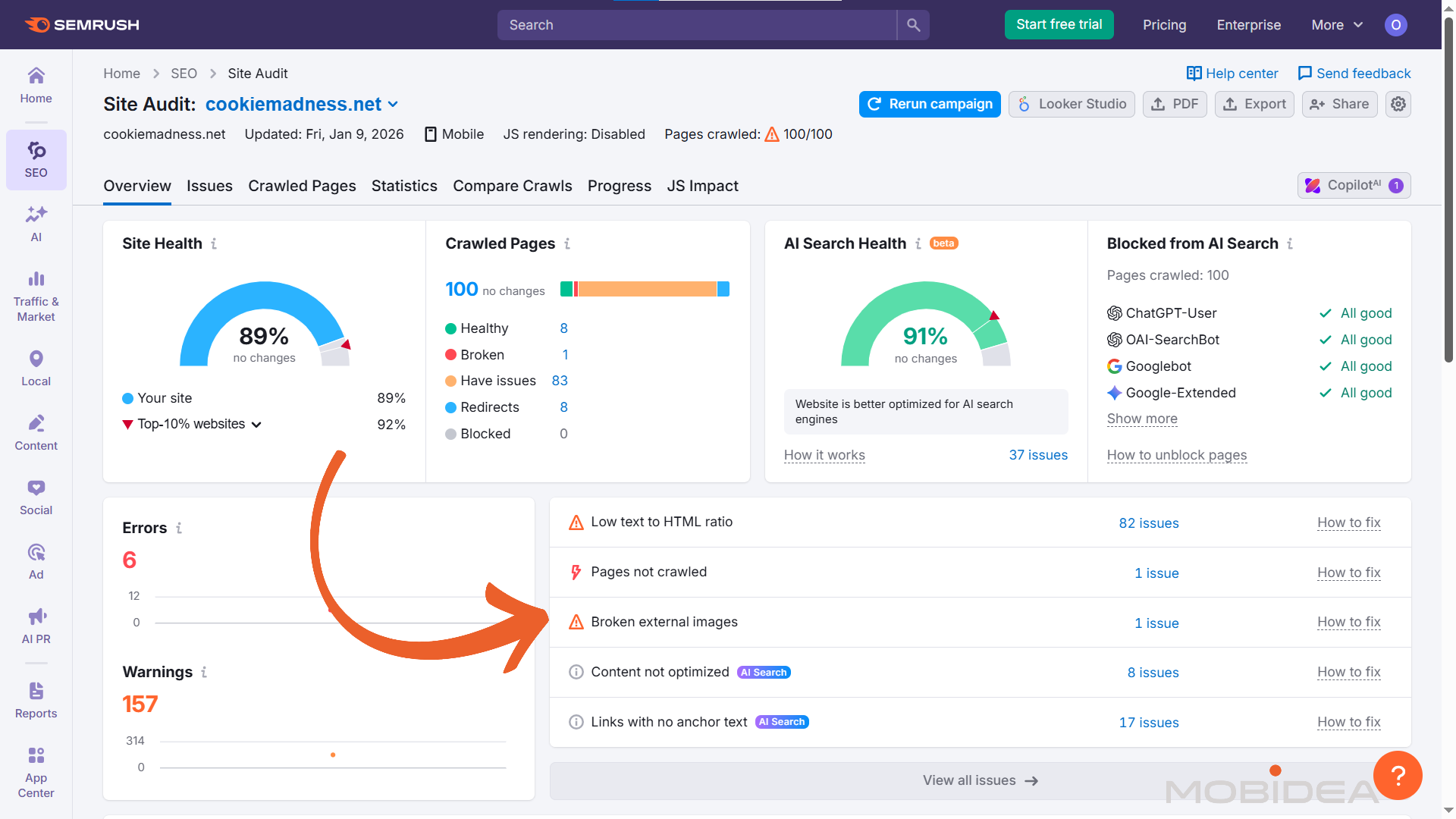
Crawled Pages breakdown.
This shows how many pages are healthy, broken, having issues, redirects, or blocked.
If you see a large number of “pages with issues,” that’s your toxic mass.
Finding Your Problem Pages
Click on “Crawled Pages” tab.
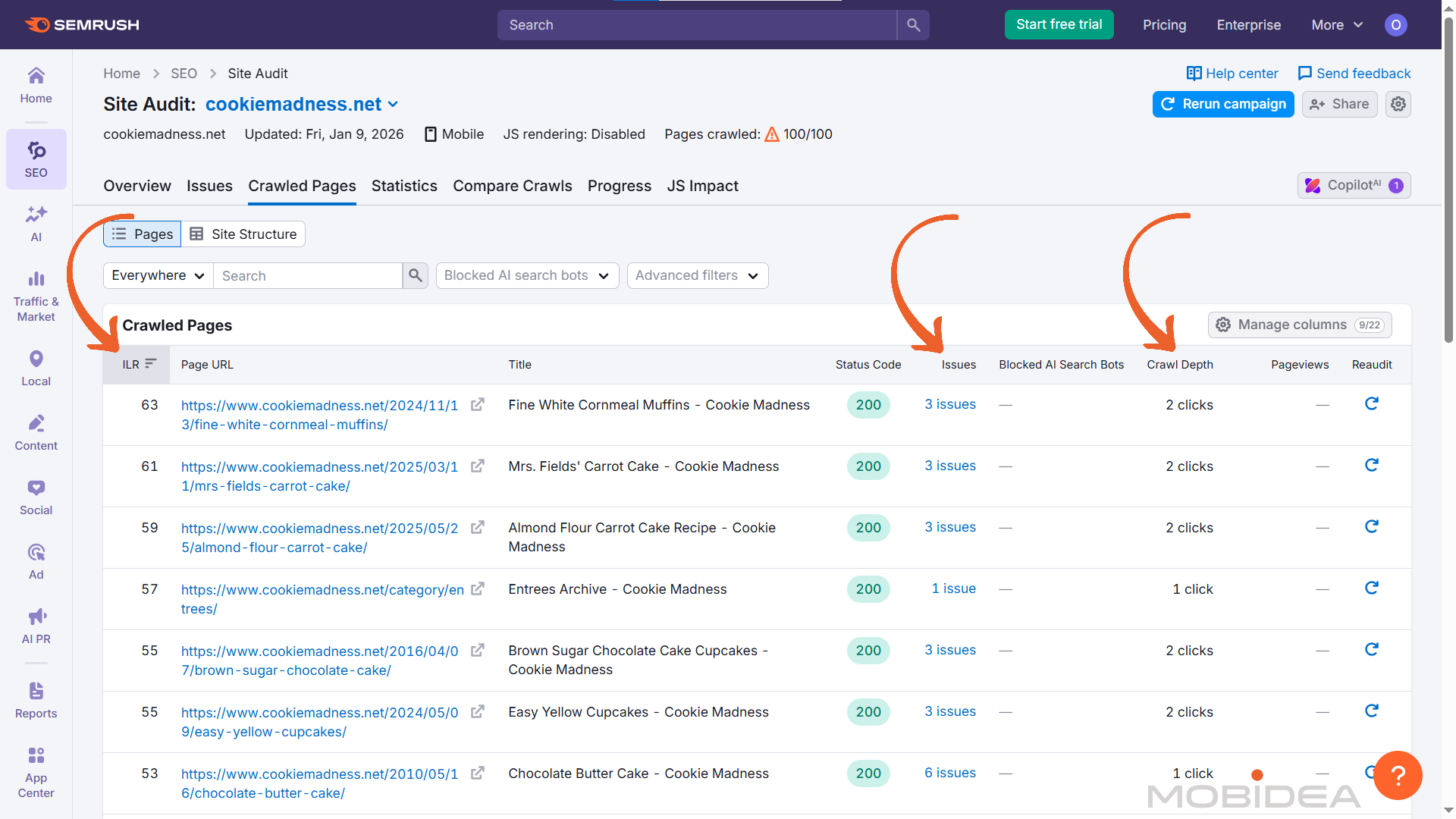
This report lists every URL Site Audit found, along with critical metrics:
- Internal LinkRank (ILR).
This is based on incoming internal links and crawl depth (how many clicks from the homepage).
Pages with higher ILR are more accessible and typically more important.
- Crawl depth.
This shows how many clicks from your homepage to reach this page.
Anything over 3 clicks is hard for users and search engines to find.
- Total issues.
How many problems this specific page has.
- Unique pageviews.
If you connect Google Analytics, you can see which pages actually get traffic.
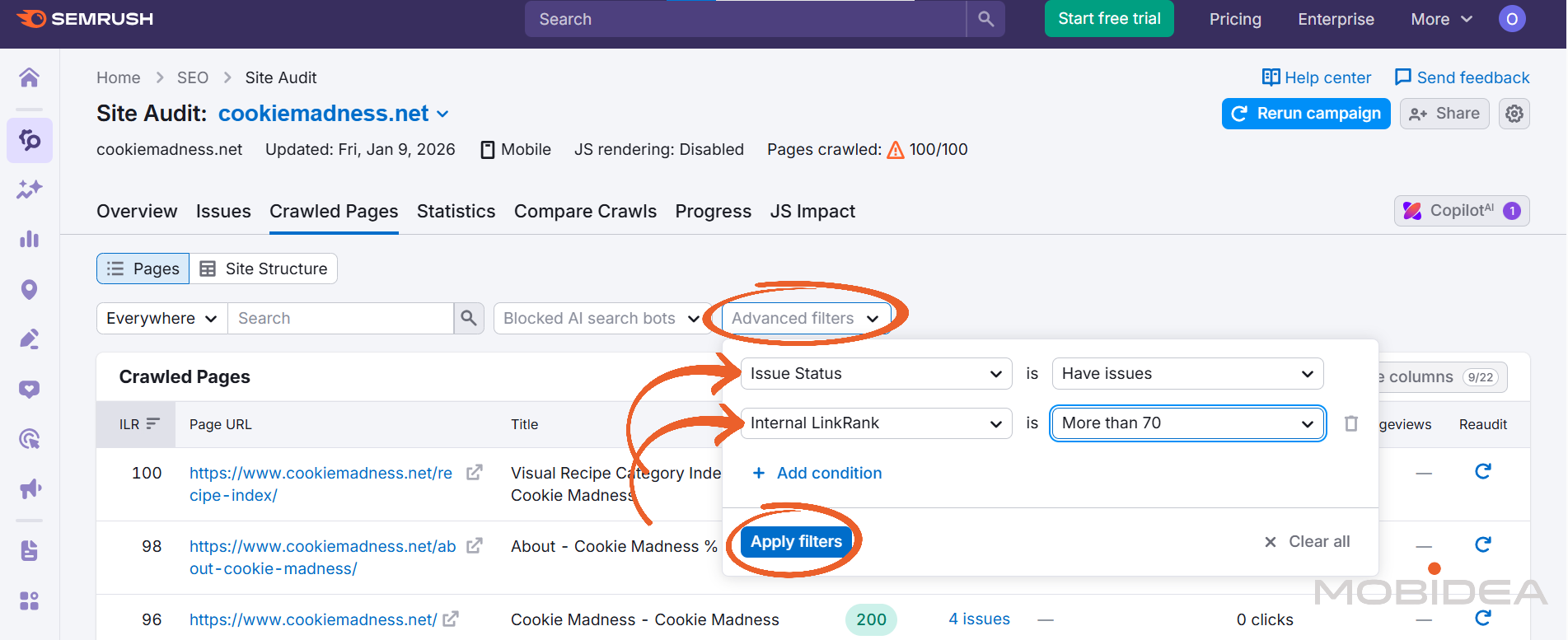
Use filters to identify problem pages:
- Click “Advanced filters” at the top of the table
- Add filter: “Status” = “Pages with issues”
- Add filter: “Internal LinkRank” > 70 (finds important pages with problems)
- Sort by “Unique pageviews” to fix high-traffic pages first
This filtered view shows you which important pages need attention.
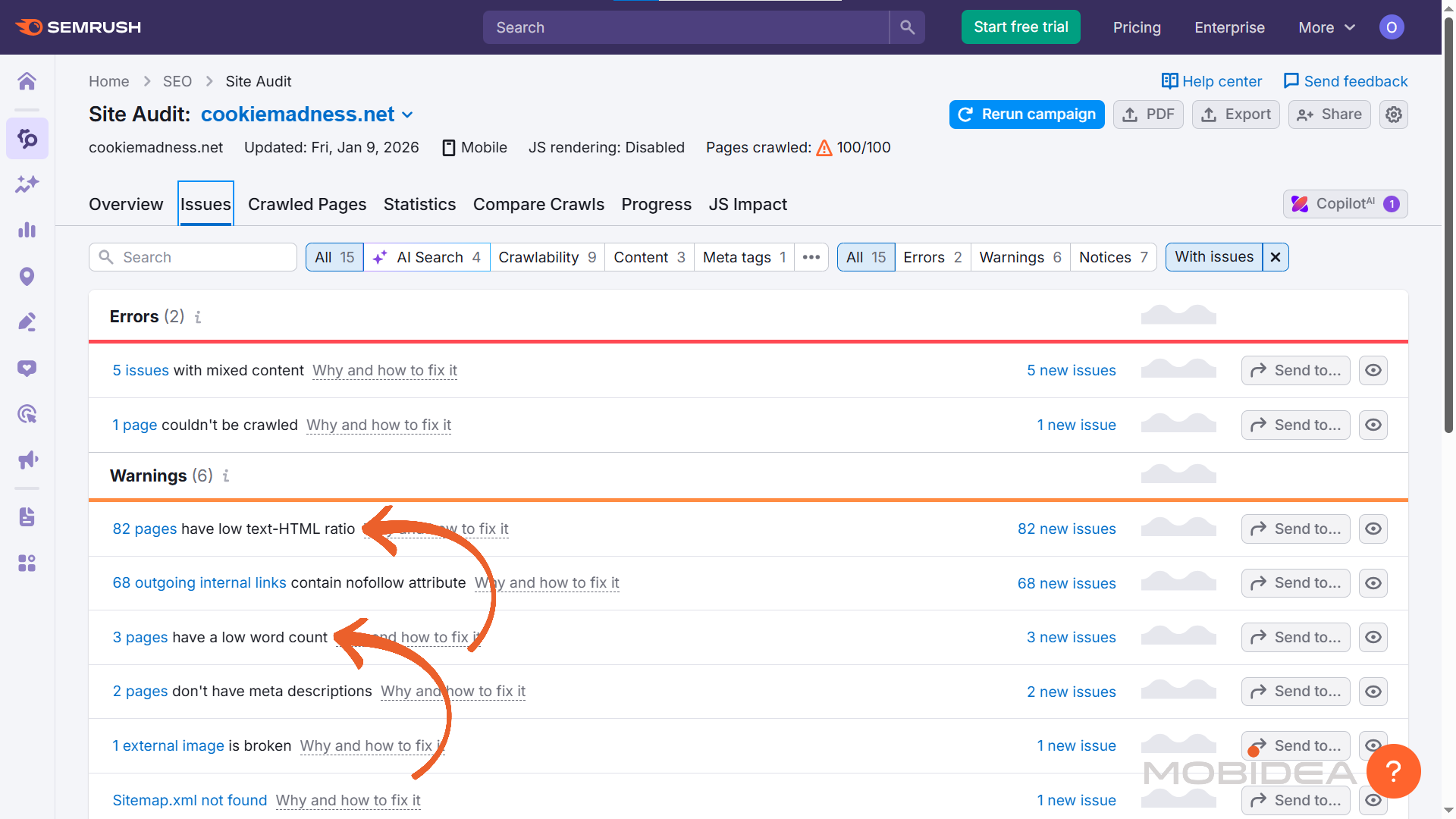
To find thin content specifically:
- Go to the “Issues” tab
- Look for “Low word count” in the warnings list (I also like looking into pages with low text-HTML ratio)
- Click on the number to see all pages with thin content
- Export this list for your pruning decisions
Exporting Data for Analysis
You need to combine Site Audit data with your Google Analytics traffic data to make smart pruning decisions.
From Site Audit: Click the export button (top right) and select:
- “Crawled Pages” – gives you all URLs with their technical metrics
- “Crawled Pages with Issues” – includes a column for every potential issue
Export as Excel or CSV format.
From Google Analytics: Export 12 months of data including:
- URL
- Sessions
- Average time on page
- Bounce rate
- Conversions (if applicable)
Combine the data.
Use Excel’s VLOOKUP or Google Sheets to merge Site Audit metrics with traffic data.
This gives you a complete picture: technical health plus actual performance.
Now you can sort to find:
- Pages with zero traffic and multiple technical issues (deletion candidates)
- Pages with good traffic but fixable technical problems (optimization targets)
- Pages with low traffic and high crawl depth (consolidation candidates)
However, you can make this a whole lot easier by simply connecting your Google Analytics to Semrush Site Audit.
What Site Audit Reveals About Your Volume Problem
To summarize, for high-volume sites, Site Audit typically reveals:
- Pages with thin content.
Insufficient text for Google to understand the topic.
Often these are posts rushed to meet publishing quotas—200-300 words that barely scratch the surface.
- Duplicate issues.
Google sees multiple pages as copies of each other, diluting authority.
Maybe you have five blog posts covering similar topics without adding new insights.
- Broken internal links.
Links pointing to non-existent pages, wasting crawl budget and creating a poor user experience.
- Pages not being crawled.
If you have 5,000 pages but Site Audit only found 3,000, that gap shows pages Google can’t discover through your internal linking structure.
- Low engagement signals.
High bounce rates and low time on page indicate content that doesn’t meet user needs.
Each of these technical problems links back to high-volume publishing that prioritized quantity over quality.
The good news? You now have the data to fix it systematically.
Improving Content at Scale: The Strategic Infrastructure Approach
Site Audit told you what’s broken.
Now you need to fix it efficiently without hiring 20 writers or losing your authentic voice.
This is where Semrush’s Content Toolkit becomes your strategic content infrastructure.
The quality-vs-scale paradox looks impossible: you have hundreds of pages that need improvement, but you can’t afford to rewrite everything from scratch, and you can’t use generic AI content that loses your brand voice.
Content Toolkit solves this by combining data-driven planning with AI-assisted execution that preserves your expertise.
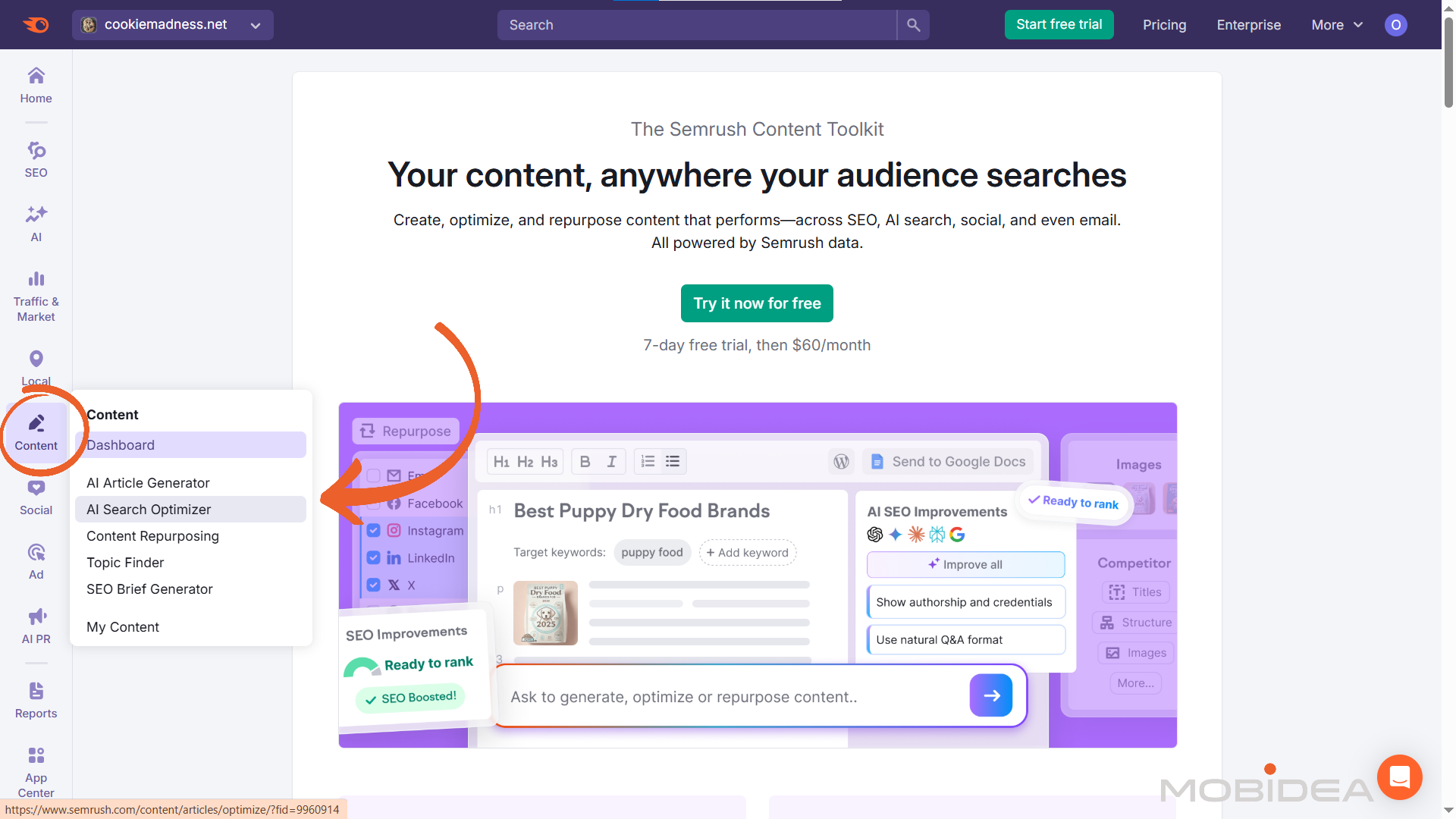
Improve Existing Content at Scale
Content Optimizer is specifically designed to improve existing content at scale while maintaining your authentic voice.
This is the tool that transforms your “keep and optimize” list from Site Audit into better-performing pages.
How it works for volume trap recovery:
Step 1: Upload your existing content.
Take a page Site Audit flagged as thin or underperforming.
Go to Content Optimizer in the Content Toolkit (left menu).
Paste your existing content directly into the editor.
Step 2: Set your target keywords.
Add at least three target keywords (the terms you want this page to rank for) and select your audience location.
The tool will highlight these keywords throughout your draft so you can see where they appear.
Step 3: Get your performance scores.
Content Optimizer automatically analyzes your content across three areas:
- SEO score: Keyword coverage, metadata, alt tags, and topical relevance (the topics search engines expect to see covered)
- Readability score: Sentence length, structure, and ease of reading (critical for non-native English speakers)
- Tone of voice score: How well your content matches your brand voice
Each area gets a score from 0-100. You’ll instantly see what needs fixing.
Step 4: Review specific suggestions.
The tool provides detailed recommendations based on top-ranking competitors:
- Missing keywords you should add
- Alt texts (descriptions for images) that are missing
- Readability issues like overly long sentences
- Tone inconsistencies that drift from your brand voice
Step 5: Apply AI-powered improvements.
This is where the tool preserves your voice while fixing problems.
Click any sentence or paragraph and choose:
- Rewrite: Improve clarity while keeping your point
- Simplify: Make complex ideas easier to understand
- Expand: Add more detail where content is too thin
- Summarize: Condense long paragraphs
- Make a list: Turn dense text into scannable bullet points
Unlike generic AI rewriting, these improvements maintain your expertise and perspective—they just fix the technical and readability issues.
Step 6: Watch your scores improve in real-time.
As you apply improvements, your SEO, readability, and tone scores update immediately.
You can see progress as you work, knowing exactly when you’ve hit your targets.
Step 7: Add content where needed.
Use the integrated AI Chat to expand thin sections.
For example, if Site Audit flagged a page as having low word count (under 300 words when competitors have 1,500), you can ask the AI to help expand specific sections while you maintain control over the expertise and voice.
Step 8: Compare with competitors.
The Competitor Data tab shows you how your improved content stacks up against top-ranking pages.
You can identify any remaining gaps before finalizing.
Step 9: Optimize for AI search.
Content Optimizer includes an AI SEO tab that checks five specific factors:
- Clarity and summarization (can AI tools easily digest and cite your content?)
- E-E-A-T signals (Experience, Expertise, Authoritativeness, Trustworthiness)
- Q&A format (does your content directly answer questions?)
- Section structure (clear headings and logical flow)
- Structured data (schema markup that helps machines understand your content)
Click “Check for improvements” and apply suggestions to make your content more visible in AI-powered search tools like ChatGPT and Google’s AI Overviews.
Step 10: Export or publish.
When you’re done, you can:
- Publish directly to WordPress
- Export to Google Docs
- Share a read-only link with your team
Validate What’s Worth Improving
Before you spend time improving hundreds of pages, validate which topics actually have search demand.
Topic Finder helps you decide which content deserves the investment.
How to use it:
Enter a broad topic related to your content category (like “email marketing”).
Topic Finder generates topic suggestions with real SEO data:
- Search volume (actual demand)
- Keyword difficulty (how hard it is to rank)
- Search intent (what users are looking for)
- Related questions users ask
For volume trap recovery:
Take your “keep and optimize” list from Site Audit.
Run the main topics through Topic Finder.
You’ll quickly discover:
- Pages covering topics with zero search demand (move these to “delete” instead of wasting improvement time)
- Pages covering high-demand topics that justify your improvement investment
- Related subtopics that can transform thin content into comprehensive guides
This prevents you from improving content nobody searches for.
One team can cut their improvement list from 500 pages to 150 pages worth investing in, saving months of work.
Create Improvement Plans
For pages that need significant expansion (like when Site Audit shows word count under 500 when competitors have 2,000+), you need a clear improvement plan.
SEO Brief Generator (still under the Content Toolkit) analyzes top-ranking competitors and creates a data-driven brief showing exactly what to add.
The brief includes:
- Target word count based on what ranks
- Secondary keywords to include (related terms that round out the topic)
- Full content outline with suggested H2 and H3 headings
- Title and meta description suggestions
- Competitor reference links
For improving thin content:
Enter the keyword your page targets.
The tool generates a brief showing what successful competitors cover that you’re missing.
This transforms “make this better” into specific, actionable improvements like:
“expand from 400 to 1,200 words, add sections on X and Y, include these secondary keywords naturally.”
You can export the brief to share with writers, or click “Generate SEO article” to create a draft you can then refine in Content Optimizer.
The Strategic Pruning Playbook: From Diagnosis to Recovery
Content pruning isn’t about randomly cutting pages—it’s about removing what actively hurts your SEO while keeping what drives results.
Done right, you can reduce your site by 70% and see traffic increase instead of drop.
Phase 1: Categorize Every Page
Using your combined Site Audit and Google Analytics data, group content into four buckets:
Keep and optimize pages that:
- Get meaningful traffic (50+ sessions per month)
- Have good engagement (low bounce rate, decent time on page)
- Have fixable technical issues from Site Audit
- Cover topics where you have genuine expertise
These are your performers. Fix their technical problems and they’ll perform even better.
Consolidate pages that:
- Cover similar topics without adding new insights
- Each have minimal traffic individually
- Together could make one comprehensive resource
- Show up as “duplicate content” warnings in Site Audit
For instance, you can merge five weak blog posts about “email marketing tips” into one authoritative guide.
This solves the duplicate content issue while concentrating your authority.
Delete pages that:
- Have zero traffic for 12+ months
- Have no backlinks (check this in Site Audit’s link metrics)
- Have multiple technical errors
- Don’t showcase any unique expertise
- Waste crawl budget without providing value
These are the casualties of publish-at-all-costs strategies.
Remove them to fix crawl budget problems.
Redirect pages that:
- Have traffic history but outdated information
- Have valuable backlinks (even with low current traffic)
- Were once important but now superseded by better content
Don’t just delete these—use 301 redirects (permanent redirects that tell Google where to send visitors and link authority) to point them to relevant current content.
Phase 2: Make Pruning Decisions
Look at the combined data for each page and ask:
| Concern | Ask | Evaluation and Task |
| Traffic patterns | Has this page gotten any organic traffic in the past year? | If zero, it’s not serving users or search engines.
Delete or consolidate with another article. |
| Engagement metrics | When people do land here, do they stay? | Pages with 80%+ bounce rates and under 30 seconds average time suggest content that doesn’t meet user needs.
Redirect to a page with better content. |
| Technical health | How many errors does Site Audit show? | One or two fixable issues suggest “keep and optimize.”
Five or more severe errors suggest “delete” unless traffic justifies the fix. |
| Conversion data | What is the page’s conversion rate or click-through rate (from page to lead page)? | Some pages drive few visits but high conversions.
These are often your most valuable content—showcase your expertise and directly lead to business results. Keep these even with lower traffic. |
| Backlink profile | Do other sites link to this page? | Even one quality backlink means you should redirect rather than delete, preserving that authority signal. |
Phase 3: Execute Your Prune
Don’t delete 3,000 pages overnight.
Work in batches to prevent technical chaos and allow you to monitor results.
Week 1-2: Start with obvious deletions
Begin with pages that have:
- Zero traffic for 12+ months
- No backlinks
- Multiple technical errors
- No strategic value
Export your “delete” list from your spreadsheet. For each URL, either:
- Delete the page entirely (if truly no value)
- Set up 301 redirects to relevant existing content
Week 3-4: Handle consolidations
For your “consolidate” bucket:
- Pick the strongest existing page as your foundation (usually the one with most traffic or best URL structure)
- Merge content from related pages into this comprehensive guide
- Set up 301 redirects from old URLs to your consolidated page
- Update internal links pointing to deleted pages
Week 5-6: Improve keepers with Content Toolkit
Now tackle your “keep and optimize” pages using Content Toolkit’s strategic infrastructure:
- Use Topic Finder to validate pages are worth the improvement investment (some may have zero search demand)
- For pages needing significant expansion, use SEO Brief Generator to create data-driven improvement plans
- Upload each page to Content Optimizer, add target keywords, and apply AI-powered improvements
- Watch your SEO, readability, and tone scores improve in real-time
- Fix remaining technical issues flagged in Site Audit (broken links, slow load times)
This approach lets you improve hundreds of pages efficiently while maintaining your authentic voice—no army of writers required.
Week 7-8: Monitor and adjust
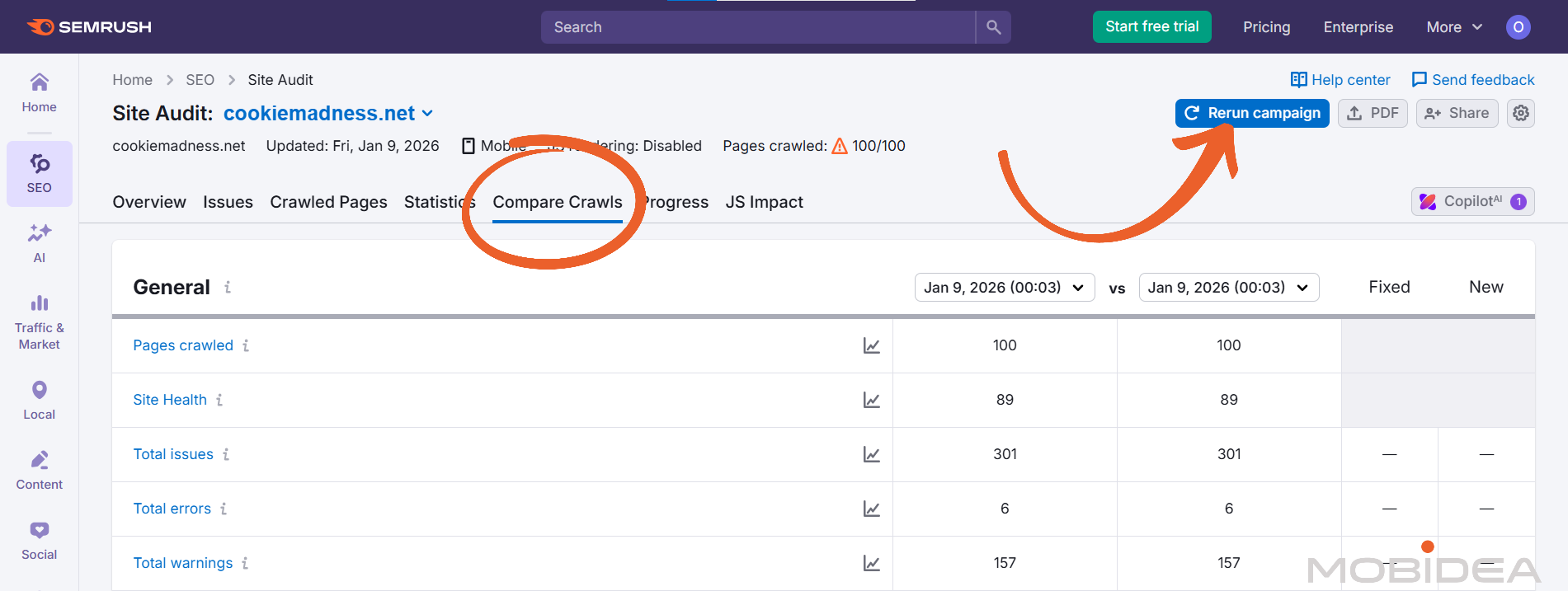
Run Site Audit again to check progress:
- Has your Site Health Score improved?
- Are indexing rates better?
- How’s organic traffic trending?
Use Site Audit’s “Compare Crawls” feature to see exactly how your metrics changed.
Understanding Your Options: NoIndex, Delete, or Redirect
Use noindex when: You need the page for users but don’t want Google to index it.
Add a noindex tag (a piece of code telling search engines not to include this page in search results) to the page’s code.
This works for duplicate content that serves users but shouldn’t compete for rankings.
Delete when: The page has zero value—no traffic, no backlinks, no conversions, multiple technical problems.
Just remove it completely.
Use 301 redirects when: The page has traffic history or backlinks.
You send that authority to a better page by setting up a redirect.
This is how you consolidate link equity (the ranking power passed through links) while cleaning up your site.
What to Expect After Pruning
Here’s what typically happens when you prune correctly:
Week 1-2: Temporary confusion.
Google may show some ranking fluctuations as it processes your changes.
This is normal.
Don’t panic and reverse your decisions.
Week 3-4: Indexing improves.
Your remaining pages get crawled more frequently.
Site Audit will show faster crawl times and better coverage of your important pages.
Week 5-8: Rankings improve.
As crawl budget concentrates on quality content and duplicate issues resolve, your good pages start ranking higher.
You’ll see organic traffic increase even though you have fewer pages.
Month 3+: Authority concentrates.
Instead of spreading thin across thousands of mediocre pages, your site authority focuses on fewer, stronger pages.
These compound ranking improvements over time.
Track your recovery using:
- Site Health Score in Site Audit (should improve significantly)
- Indexing coverage in Google Search Console
- Organic traffic trends in Google Analytics
- Rankings for priority keywords in Position Tracking
Some sites see immediate improvements.
Others take 2-3 months for Google to fully process the changes.
Either way, the technical foundation is stronger, setting you up for long-term growth.
Preventing Future Volume Traps
You’ve fixed the mess.
Now you need to prevent it from happening again.
The same Content Toolkit tools you used for improvement work for prevention—you just apply them at a different stage of your workflow.
Validate Topics Before Assignment
The volume trap starts with topic selection.
Teams create content without checking demand first, then discover months later (via Site Audit) that nobody searches for those topics.
By then, you’ve already built toxic mass.
Apply Topic Finder before assignment:
Use the same Topic Finder workflow detailed in our Improving Content section above, but run it BEFORE you assign content to writers, not after pages are already published and underperforming.
The process is identical—enter your broad topic, review SEO data (search volume, difficulty, intent), check related questions.
The difference? You’re preventing zero-demand content from ever getting created instead of pruning it later.
If a topic shows zero search volume or impossibly high competition, reject it at the very beginning.
Every piece you don’t create because it fails validation is one less page that will need pruning in 6 months.
Topic Finder’s weekly rotation feature is particularly valuable for prevention—you get fresh validated ideas automatically, so your team always has proven topics to work from instead of guessing.
Create Data-Driven Briefs to Prevent Thin Content
The second cause of volume traps?
Publishing without clear quality targets.
Writers produce 300-word posts because nobody specified that competitors have 1,500 words.
The content goes live, fails to rank, and becomes future pruning work.
Apply SEO Brief Generator to new content: Follow the same workflow described above for creating briefs with target word counts, secondary keywords, and full outlines.
Verify Quality Before Publishing
For prevention, you use the exact same Content Optimizer workflow discussed above, but on drafts BEFORE they go live.
The application difference:
- For improvement: Upload published page → see what’s broken → fix it → republish
- For prevention: Upload draft → validate it meets standards → fix problems BEFORE publishing → publish clean
This is the critical mindset shift: Content Optimizer prevents technical debt rather than repairs it.
Problems get fixed before they affect your Site Health Score or waste crawl budget.
Set Publication Quality Requirements
Before any content goes live, require these minimums:
Technical requirements validated in Content Optimizer:
- SEO score 80+ (proves keyword coverage and topical relevance)
- Readability score 80+ (ensures accessibility for non-native speakers)
- Tone score matches your brand voice
- Target word count met (based on SEO Brief Generator recommendations)
Technical checks in Site Audit:
- No broken links (test URLs before publishing)
- Loads quickly
- Proper heading structure
Content requirements:
- Topic validated in Topic Finder (proven search demand)
- Demonstrates genuine expertise, not just keyword coverage
- Doesn’t duplicate existing pages (Content Optimizer’s originality check confirms this)
If a draft doesn’t meet these standards, it goes back to the writer for revision using Content Optimizer.
Never publish content that would immediately show up as a problem in your next Site Audit.
Monitor with Site Audit to Catch Issues Early
Schedule Site Audit to run weekly.
Even with prevention systems, monitor for:
- Site Health Score drops (indicates new problems slipping through)
- New technical issues appearing in bulk
- Broken links or crawl depth increases
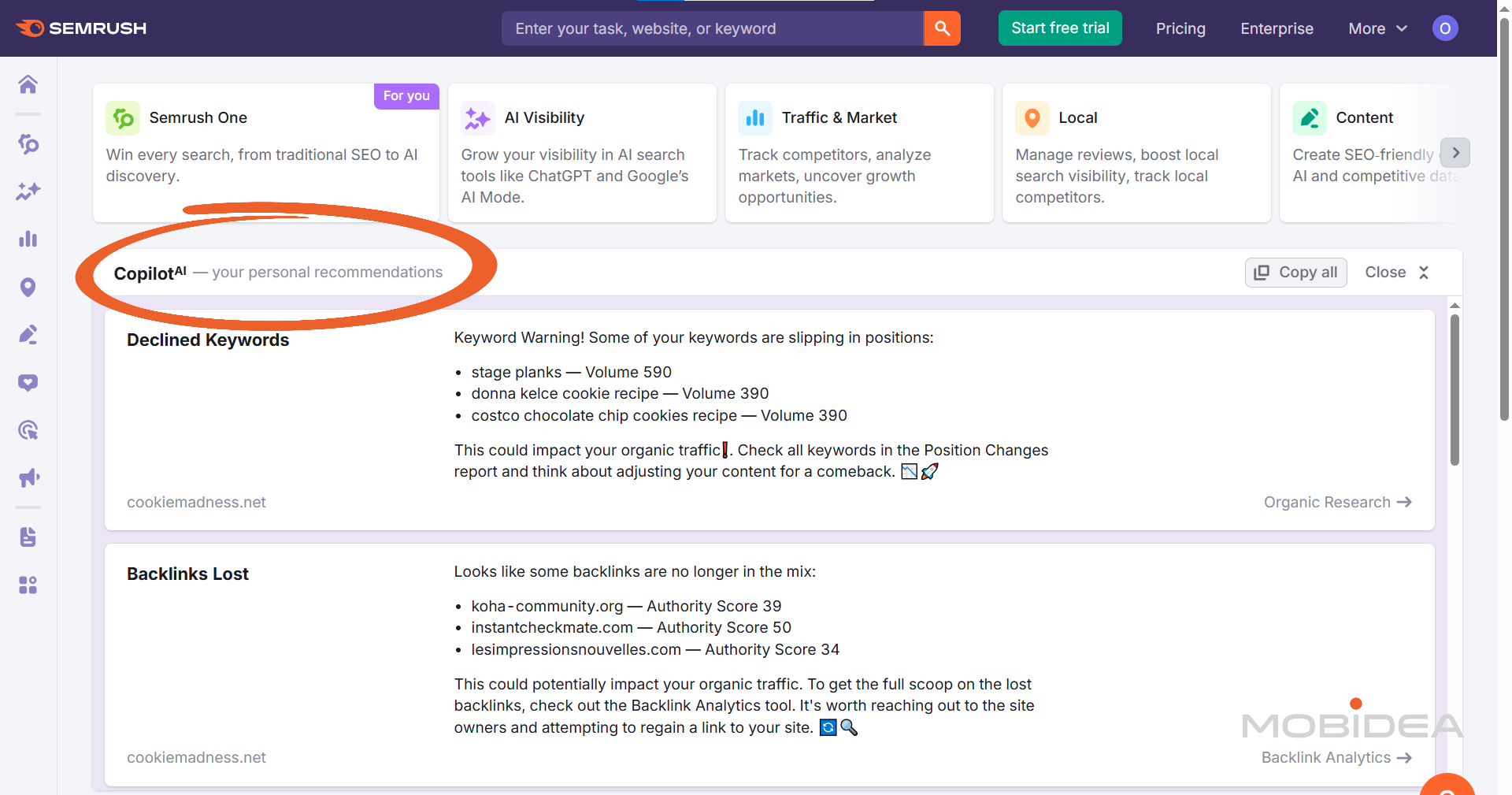
Use Semrush Copilot for alerts about technical problems before they pile up.
When Site Audit flags new issues, investigate immediately.
One warning about duplicate content caught early is much easier to fix than fifty pages needing pruning later.
You can find Copilot recommendations in the main dashboard.
The Result: Sustainable Quality at Scale
You now know how to fix the volume trap: diagnose with Site Audit, improve efficiently with Content Toolkit, prune what doesn’t work, and prevent future problems.
The tools are available.
What matters now is taking action.
You can maintain a publishing rhythm that doesn’t create lead to the volume trap because:
- Every topic validates before assignment (Topic Finder)
- Every brief sets clear quality standards (SEO Brief Generator)
- Every draft gets validated before publishing (Content Optimizer)
- Technical problems get caught immediately (Site Audit weekly monitoring)
Remember that the longer you wait, the more pages pile up and the harder the cleanup becomes.
So sign up for a 7-day free trial for Semrush One and fix this problem today.



There's a new challenge: How do you optimize content so AI tools actually cite your brand? Let's talk ways in this blog post.

This SEO case study is gonna show you how to effectively dominate Google by focusing on a wonderfully successful SEO tactic!

Understand how to effectively grow your affiliate income and avoid the most common SEO issues like the best player in town!