Tyver Review: Is It the Right Meta Ads Spy Tool for You?
March 23, 2026 21 min read
In an affiliate marketer’s world (and in digital marketing in general), the creative is king.
You can have a great tracker, a solid antidetect setup, and a well-built funnel, but if your ad doesn’t stop the scroll, none of it matters.
The hard part is figuring out what works across different geos and verticals without wasted budgets on testing, or blindly launching ads into markets you don’t fully understand.
Enter Tyver, an emerging ad spy tool in the Meta advertising space.
In this Tyver review, we look at what this spy service offers, how it works across popular verticals, and whether the price is worth it for your workflow.
Key Takeaways
Tyver Review Key Takeaways | ||
91%+ of all Facebook ads in the database. Tyver collects ads across all Meta placements including Facebook, Instagram, Threads, Audience Network, and Messenger, from 100+ countries, with more than 2 million new creatives added every day. | ||
20+ filters to narrow down results fast. This includes keyword search, GEO, CTA, ad format, Fan Page, domain, and the unique "In link" filter that lets you search by UTM tags or pixel IDs to find creatives from specific advertisers. | ||
EU demographic filters are a standout feature. For ads running in EU countries, you can filter by gender, age range, and ad reach. Unfortunately, not all regions have it yet. | ||
Ad details are basic but functional. Each ad shows the media, ad copy, target link, active dates, country, placements, and CTA. No click data, impressions data is for EU only, and no option to view landing page. | ||
Can easily view related ads. You can check for similar ads based on Fan Page, domain, or IP address. | ||
Ready-made ad filter based on verticals. Easily find ads for a specific niche in one click. Right now, Gambling is available, while Apps and Ecommerce will be available soon. | ||
Media processing lets you create ad variations. You can generate up to 10 slightly unique versions of any creative using cropping, rotation, and brightness adjustments. | ||
Folders are unlimited and shareable without login. You can organize saved ads into as many folders as you need and share them via link. Note that related ads will not show to viewers who are not logged in. | ||
Ad details open in a side pane, not a new tab. The layout can feel a bit cramped, though it does not get in the way of the information you need. | ||
No FAQ or knowledge base inside the platform. First-time users will need to figure things out on their own or reach out to support directly. | ||
Two paid plans and one free option. The Pro plan costs $79/month and the Team plan costs $119/month, with 20%, 30%, and 40% discounts for 6-month, 9-month, and annual billing. Use the code MOBIDEA for 20% off your first monthly plan payment. | ||
What Is Tyver?
Tyver is an ad spy tool built for Meta platforms.
It collects and tracks ads running across Facebook, Instagram, Threads, Audience Network, and Messenger, so affiliates and media buyers can see what competitors are running, in which geos, and for how long.
The Facebook Ads Library shows you that an ad exists. Tyver goes further.
It gives you performance data like reach, active days, and audience demographics, so you can tell whether an ad is just a test or something a competitor is actively spending behind.
This means no more blindly launching ads without knowing what the competition is doing.
It’s built for affiliates, media buyers, dropshippers, traffic arbitrage teams, and agencies.
Anyone running paid traffic on Meta who wants to make better creative decisions based on real data—and avoid wasted budgets—will find it useful.
In today’s market, where many solutions exist for analyzing Meta advertising, Tyver stands out as one of the more capable spy services available.
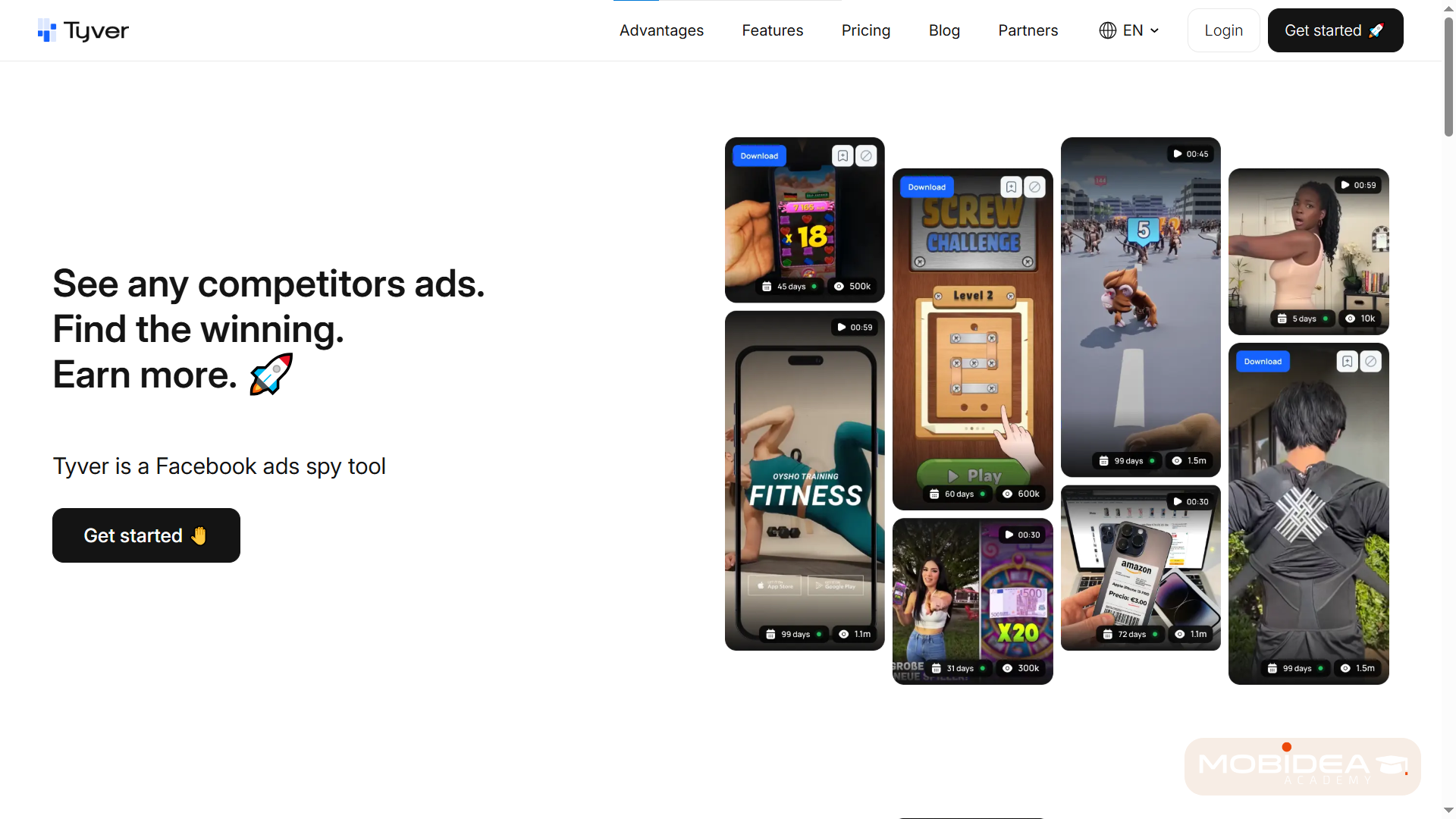
Key Features of Tyver
Database Scale & Coverage
Tyver’s database is one of its strongest points.
More than 2 million new creatives are added every day from over 100 countries, and the platform claims to cover 91%+ of all Facebook ads.
It collects ads from all Meta properties, including Facebook, Instagram, Threads, Audience Network, and Messenger.
This means you’re not limited to just what shows up in the main feed. The data stays up to date — plus, it updates every day.
Winning creatives don’t last long, and an outdated database means you’re always behind.
So for affiliates working in fast-moving verticals, having fresh data every day matters.
You can easily find creatives for the following verticals:
- Gambling
- Dropshipping and Cash-on-Delivery offers
- E-commerce
- Nutra
- Sweepstakes
- Mobile Apps
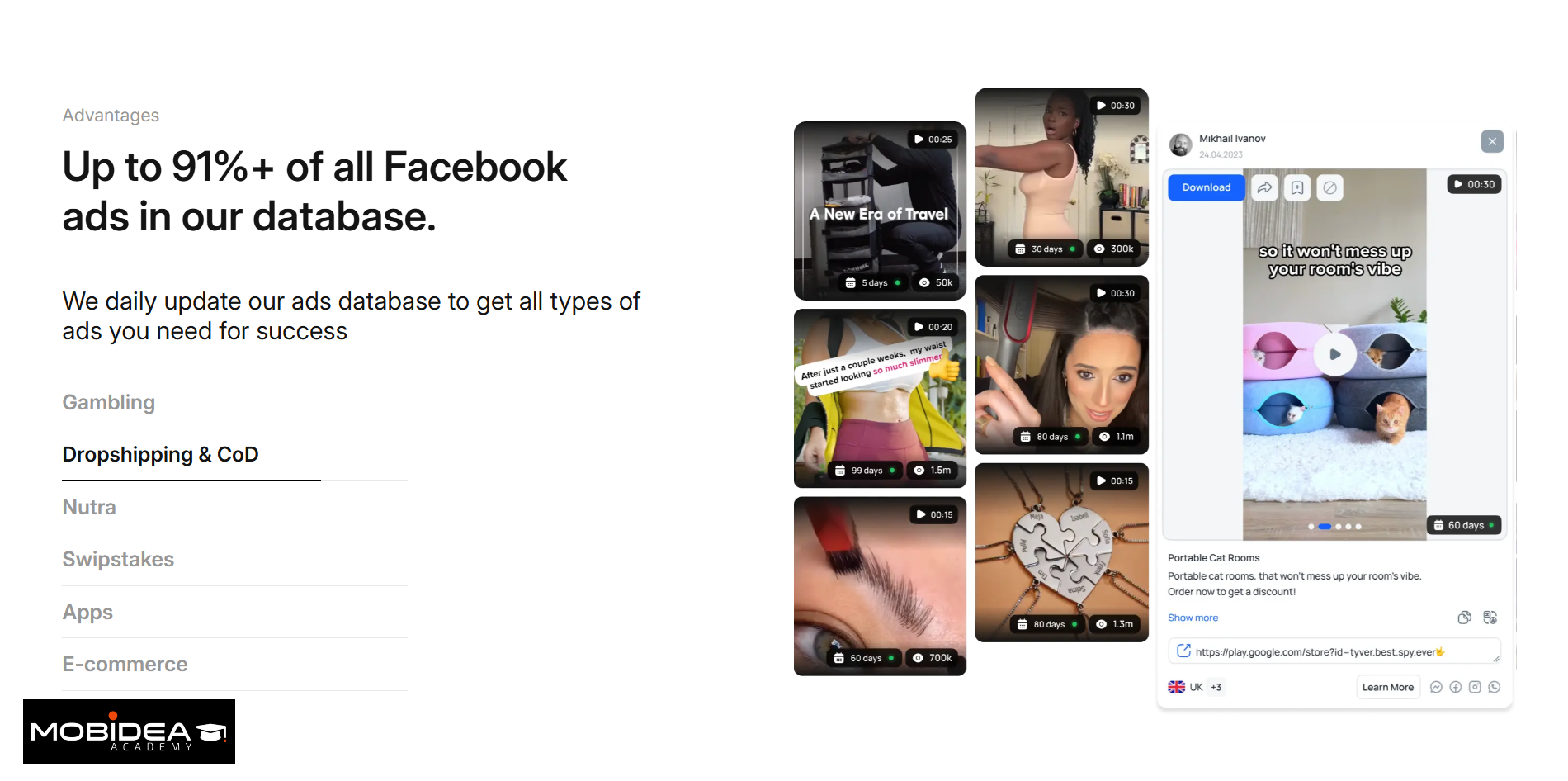
Advanced Filters
Tyver has 20+ filters, making it easy to find exactly the ads you need—these advanced filters are some of the most comprehensive in the ad spy space.
This includes keywords and phrases, GEO (country), creation date, activity period, ad format, CTA button, placement, and so on.
We’ll discuss more of this later.
For EU countries, you also get extra filters for gender, age range, and reach.
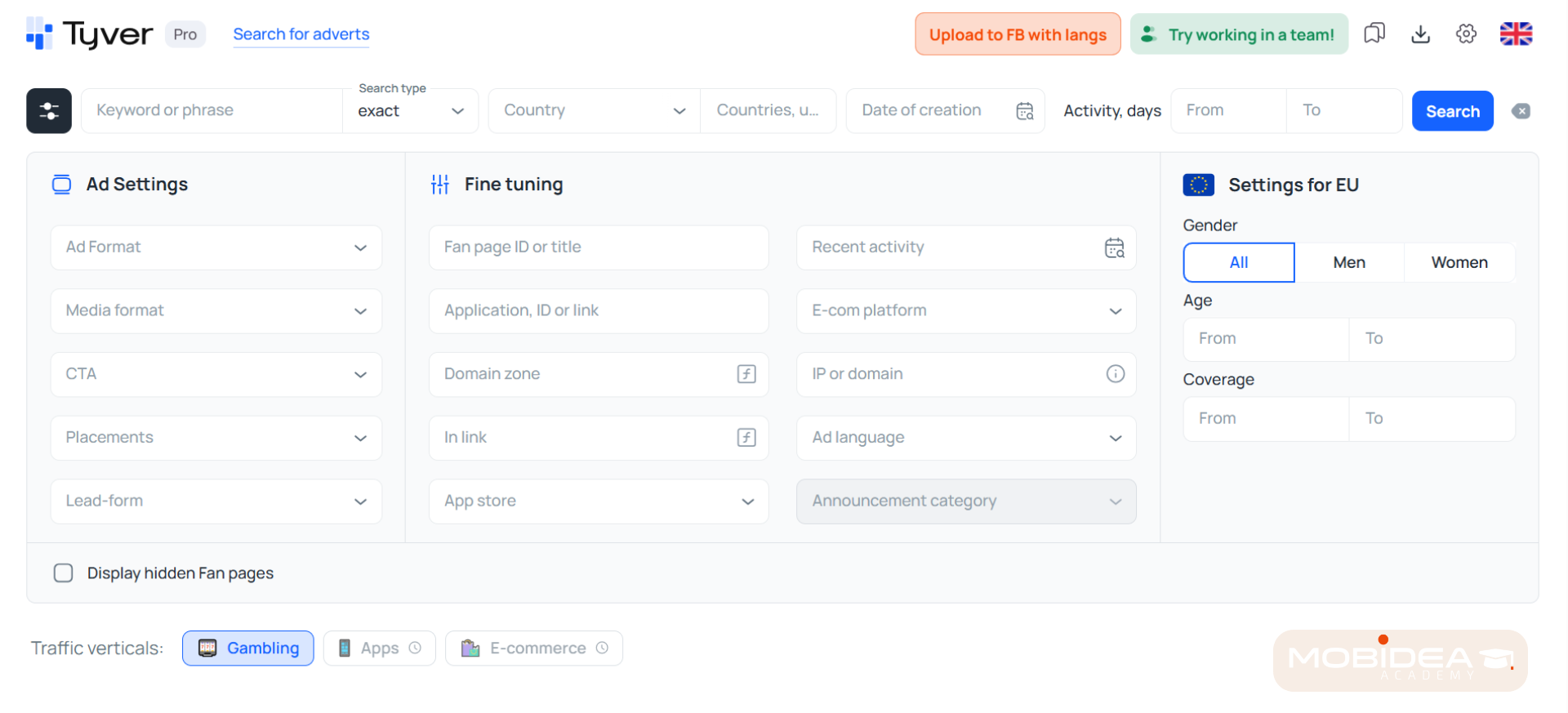
One unique filter here is “In link”, which filters ads based on text within the link itself.
For example, when you enter a UTM tag or pixel ID, you can find all ads whose URL contains that text string.
Again, I’ll show you how to do that later.
Ad Details Per Creative
Clicking on any ad opens a panel on the right side of the page.
It shows all the information tied to that creative:
- Ad copy and media: either video or image
- Target link: the full text and destination URL
- Dates: first and last time the ad was seen, and how many days it has been active
- Ad details: country, placements and CTA
- Ad Statistics: impressions, gender and age breakdown (for ads from EU countries only)
- Similar ads: grouped by Fan Page, domain, or IP address
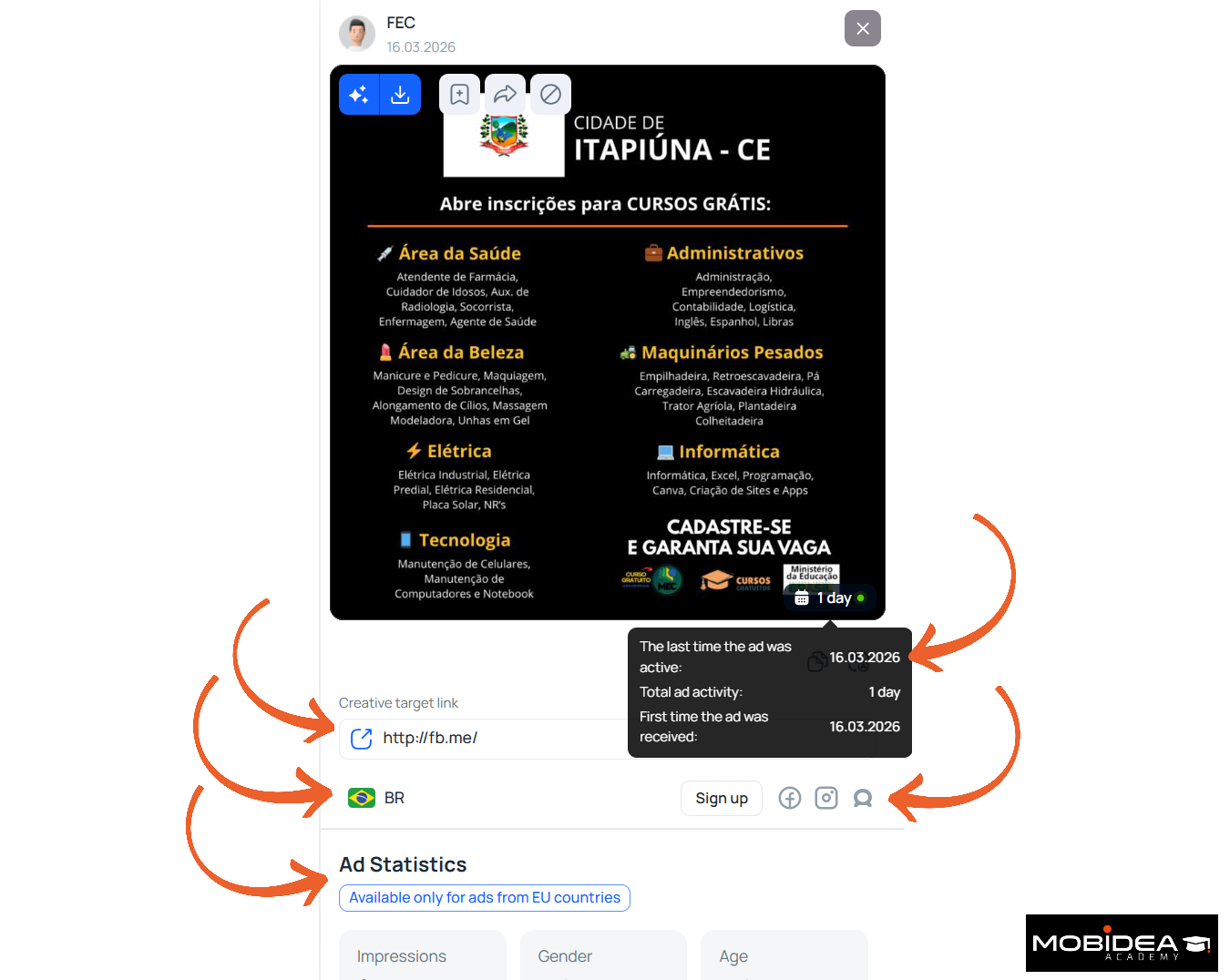
Built-In Media Processing and Translation
When looking at ads from foreign geos, you can translate the ad copy with one click, directly inside Tyver.
No need to open Google Translate or copy-paste anything.
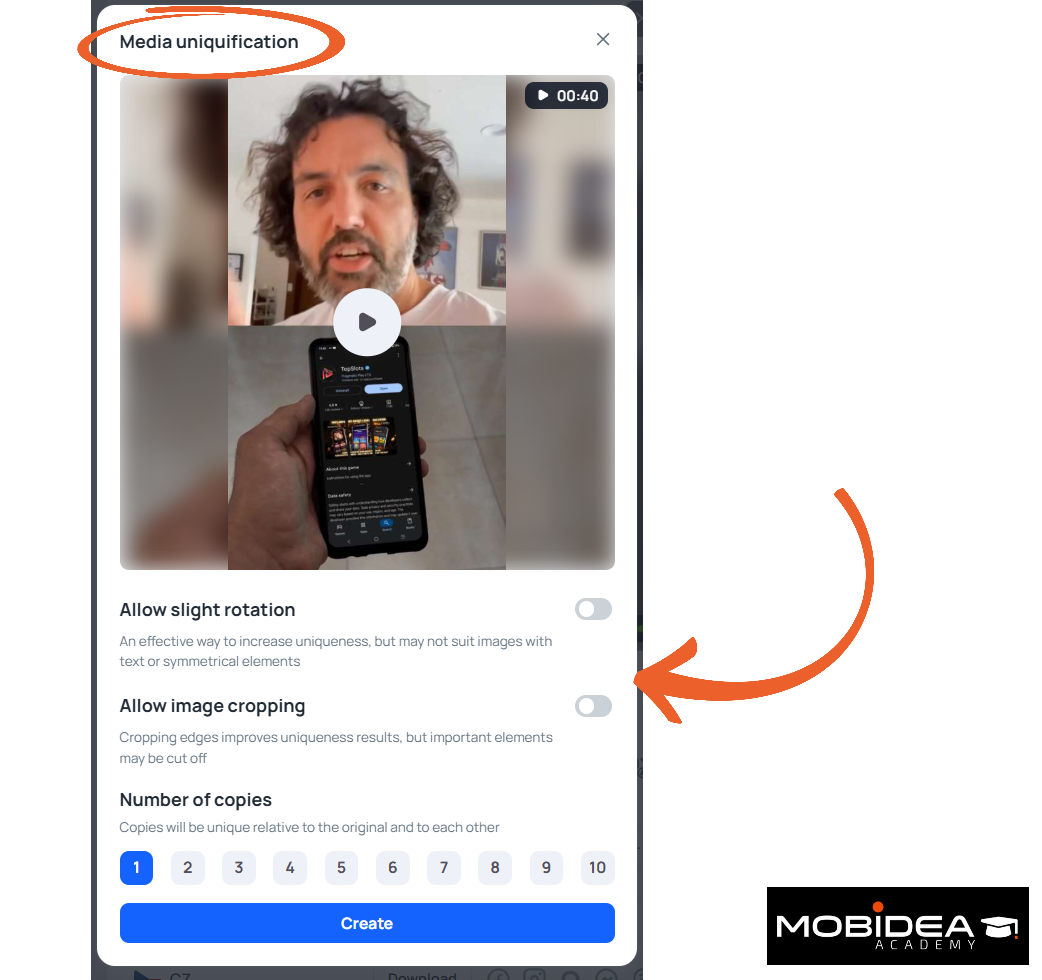
It also has Media Processing feature, which offers two processing types:
- Media Uniquification – produces slightly unique versions of the media and can create up to 10 copies at a time.
- AI Upscaling – adjusts the resolution of the image or video via AI. It is still under development at the time of this review.
These features save you a lot of time when you’re going through many ads across different markets.
This is especially true when finding ad creatives that need to be adapted for your own campaigns.
Favorites & Folder System
You can save any creative to a folder and organize them by offer, geo, angle, or any other way that works for you.
Over time, this becomes your own personal library of ads that have shown results.
One of Tyver’s best features is that these folders can be shared with your team via a link.
The person receiving it doesn’t need to log in to view it, though similar ads will not be shown to them unless they log in.
This makes it easy to share research with teammates or send creatives to a designer without any extra steps.
Team Management
The Team plan lets you manage user access. You can:
- Add team members with their own separate accounts
- Set viewing limits per user, with three options: strict (hard limit), soft (limit with a warning), or no limit (shared pool)
- Remove users without needing to reset passwords
For agencies or teams with multiple media buyers, being able to control how much each person can view each month is a useful feature.
It’s one of the reasons this spy service works well at the agency level.
Interface
Tyver’s interface is clean and easy to use.
Ads are shown the way they actually look on Facebook, including full-screen vertical video, so you always know exactly what the end user sees.
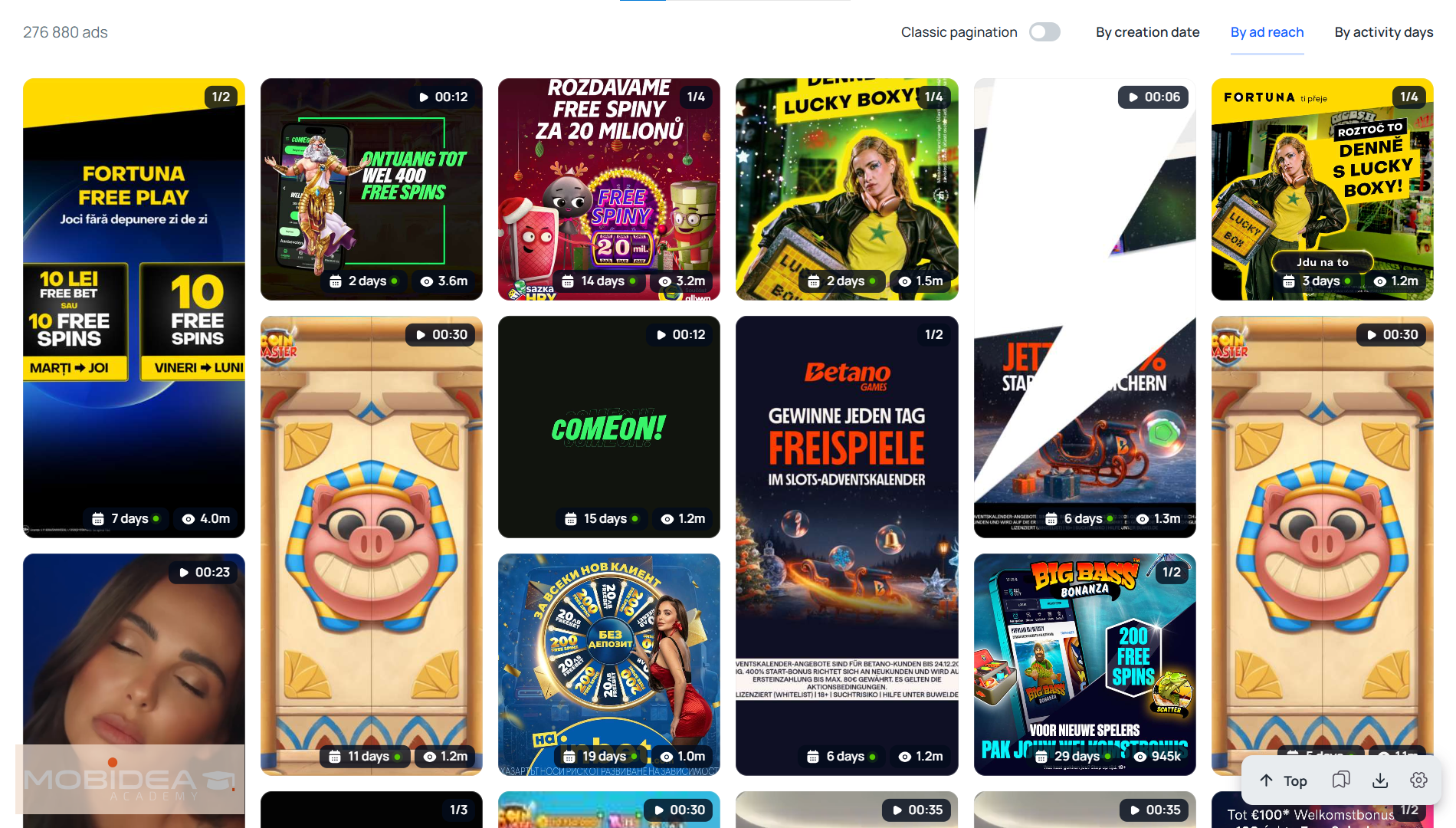
The platform is also available in English, Russian, and Ukrainian.
Tyver Plans and Pricing
Tyver has three plans, including a free option for those who want to try the platform first.
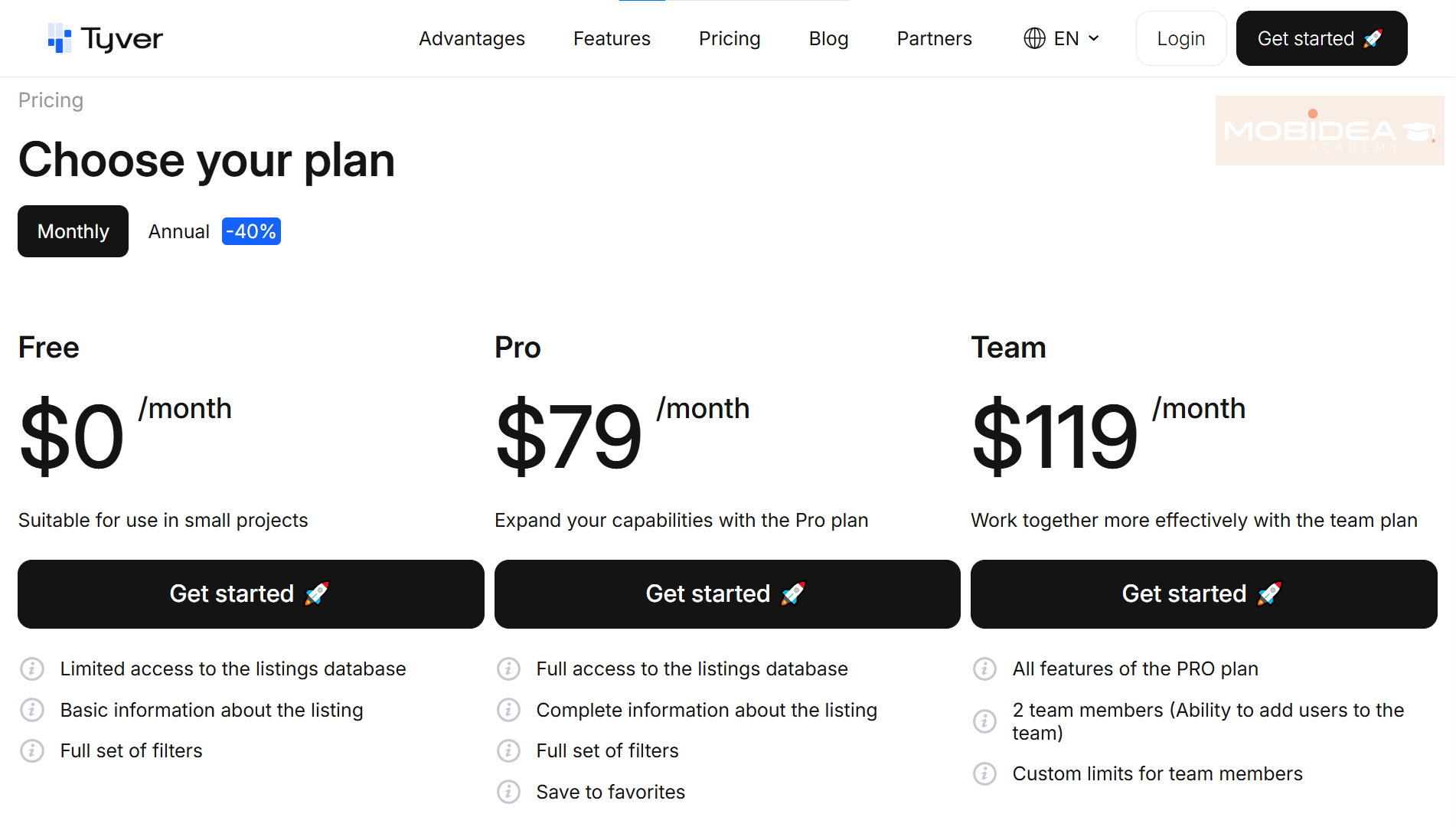
As you can see, there are three plans:
Free Plan
Provides limited database access, basic ad info, full filter set.
Pro Plan
Costs $79 per month, or $379 for 6 months (20% discount), or $569 per year (40% discount).
It provides the full database, complete ad info, ability to create folders and add favorites.
The plan is limited to 30,000 ad views per month, which is sufficient enough when promoting campaigns under one vertical.
If you are the type who promotes offers under different niches, I suggest you get more views.
Additional ad view credits for the Pro Plan starts at $32 per 30,000 views.
Team Plan
Costs $119 per month, $571 for 6 months (20% discount), or $857 per year (40% discount).
It includes all Pro features, access for 3 team members, and has a limit of 60,000 ad views (in total across all users) per month.
An additional team member is worth $5 per month, and additional ad views start at $47 for additional 30,000 views.
If you pay for a 6 month subscription, you’ll get the 20% discount computed against all your plan extras.
A 9-month subscription has a 30% discount and the annual subscription gets a 40% discount.
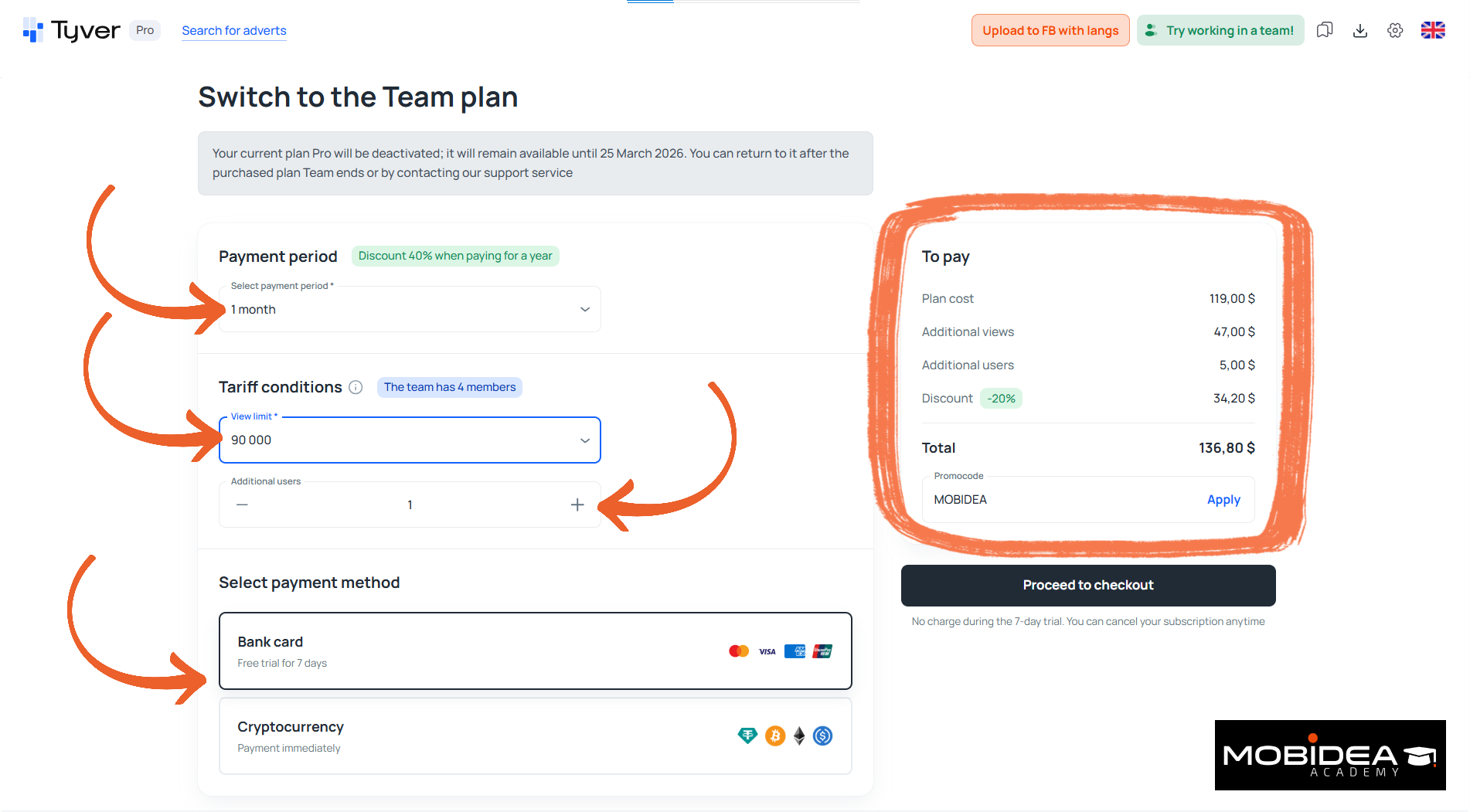
Get 20% off your first payment for any plan when you use our exclusive promo code MOBIDEA upon registration or payment of your subscription.
Tyver’s payment options include bank cards and cryptocurrency.
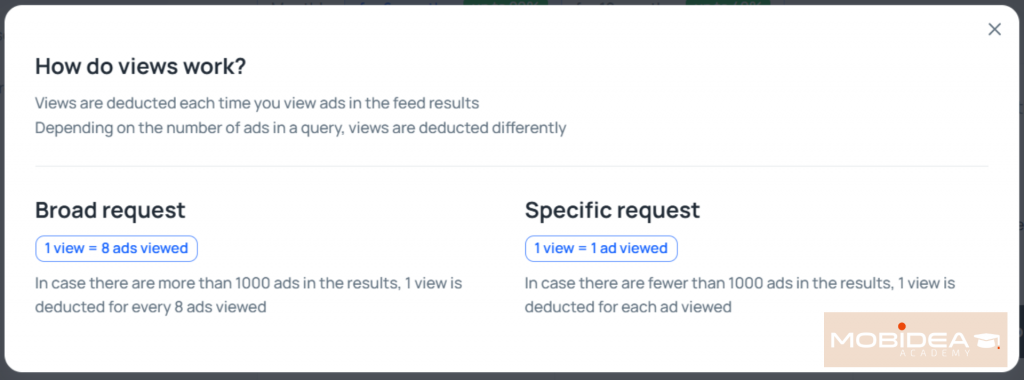
How do you count ad views?
Tyver explains this plainly:
- 1 ad view is counted for every 8 ads you see during a broad search
- 1 ad view is counted for every ad you see during a specific search request
A specific search request is counted as such when you get less than 1000 ad results.
How to Use Tyver App
Now on to the juicy part!
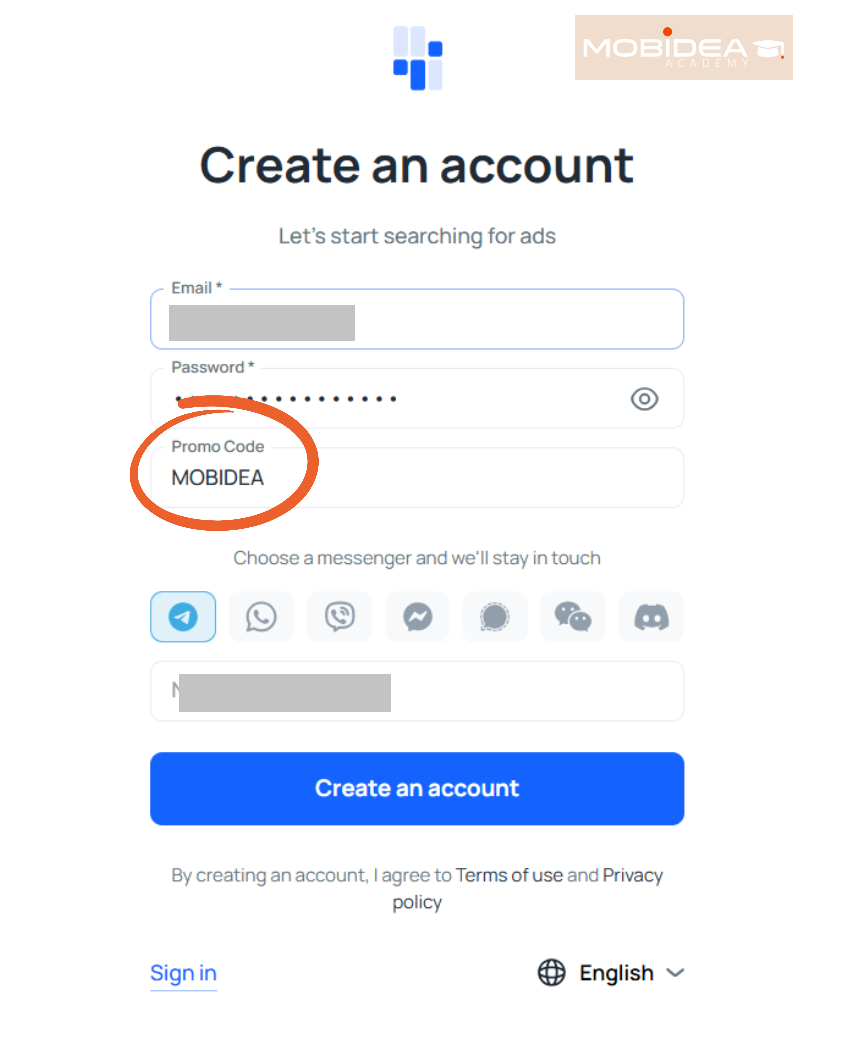
Let’s start with signing up for an account. Don’t forget to use the MOBIDEA coupon code!
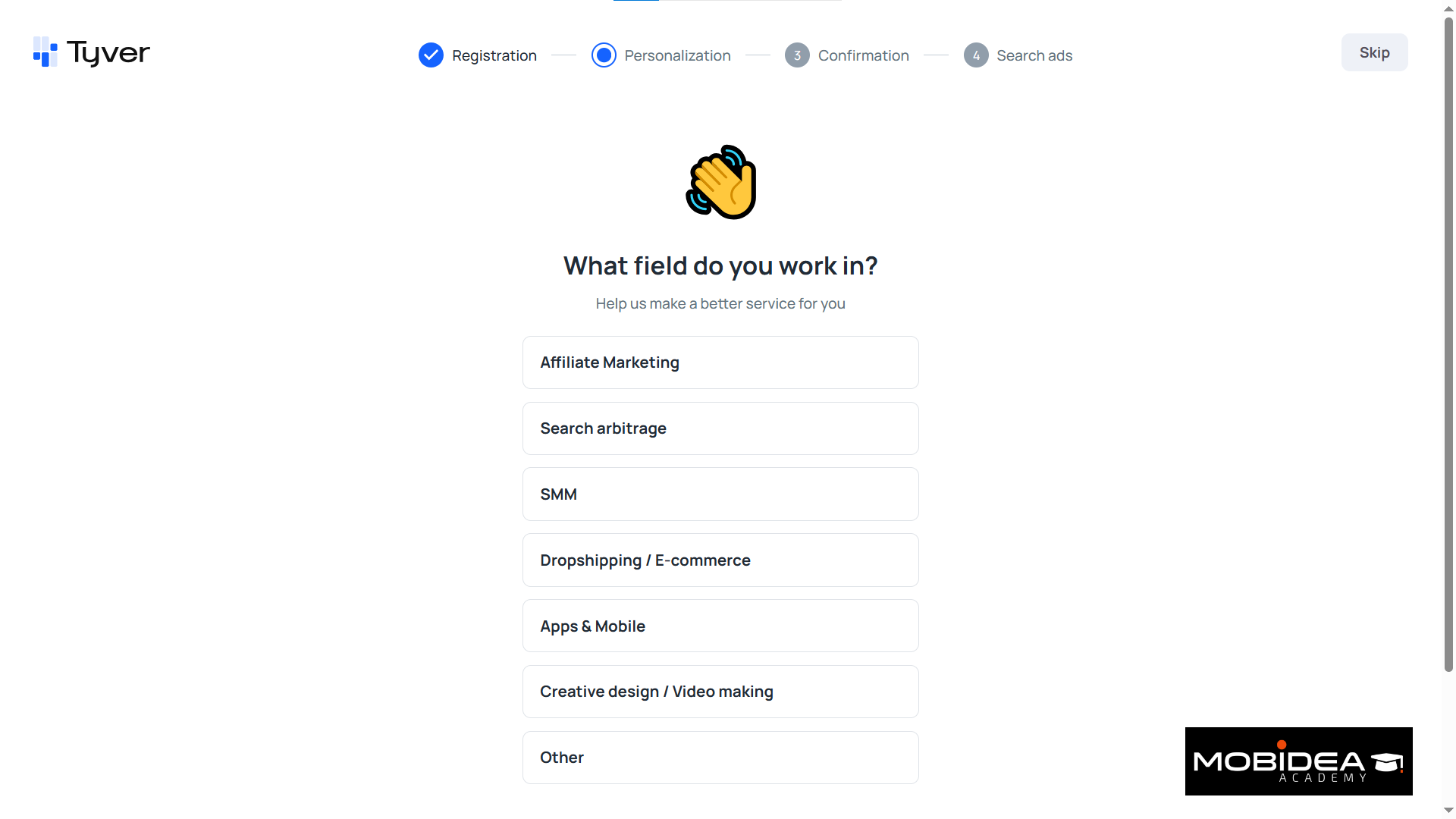
You’ll be asked a few questions about how you’ll be using this ad copy spy tool, though you can skip this part.
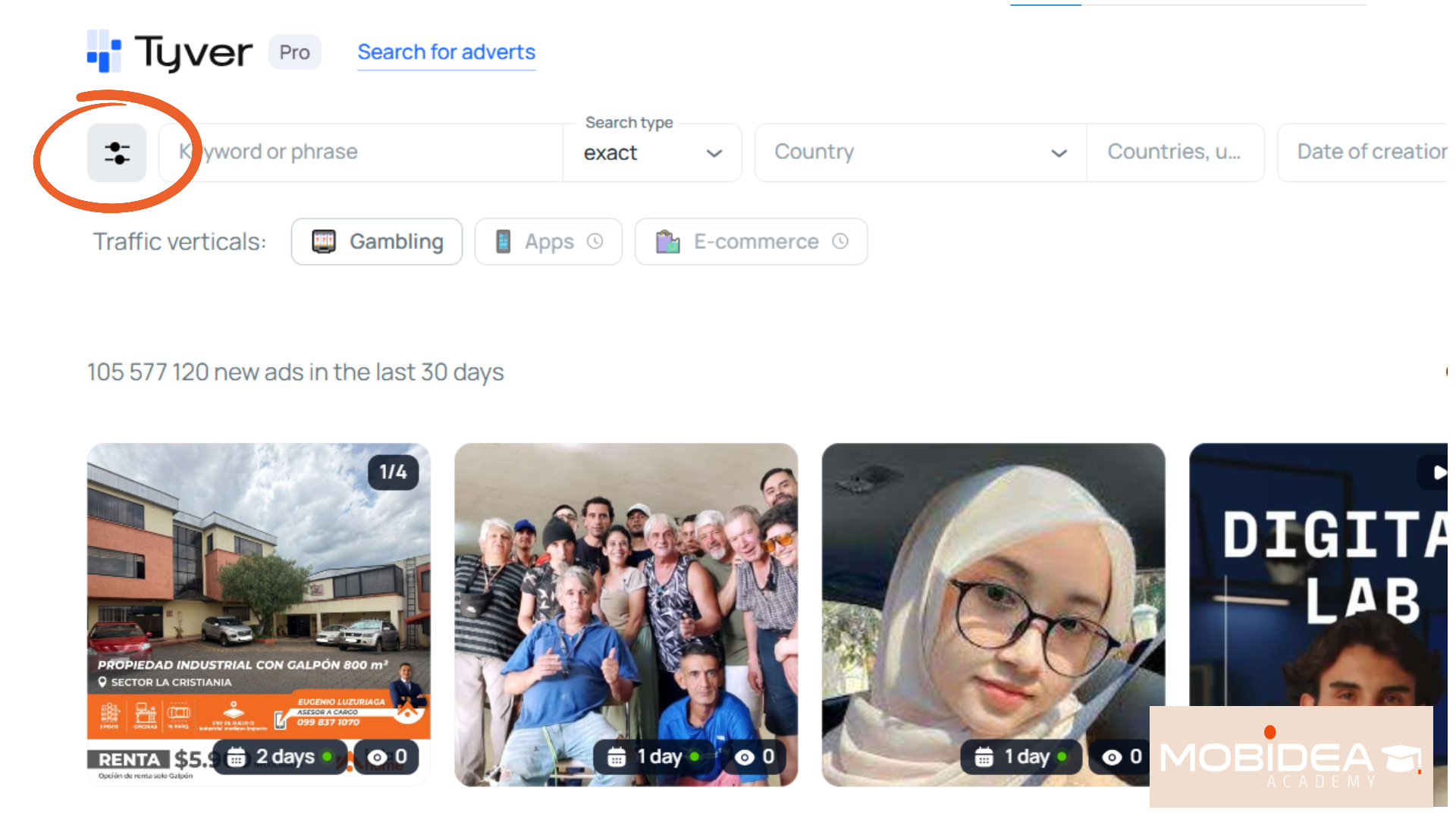
Tyver Dashboard
Here’s how the dashboard looks like:
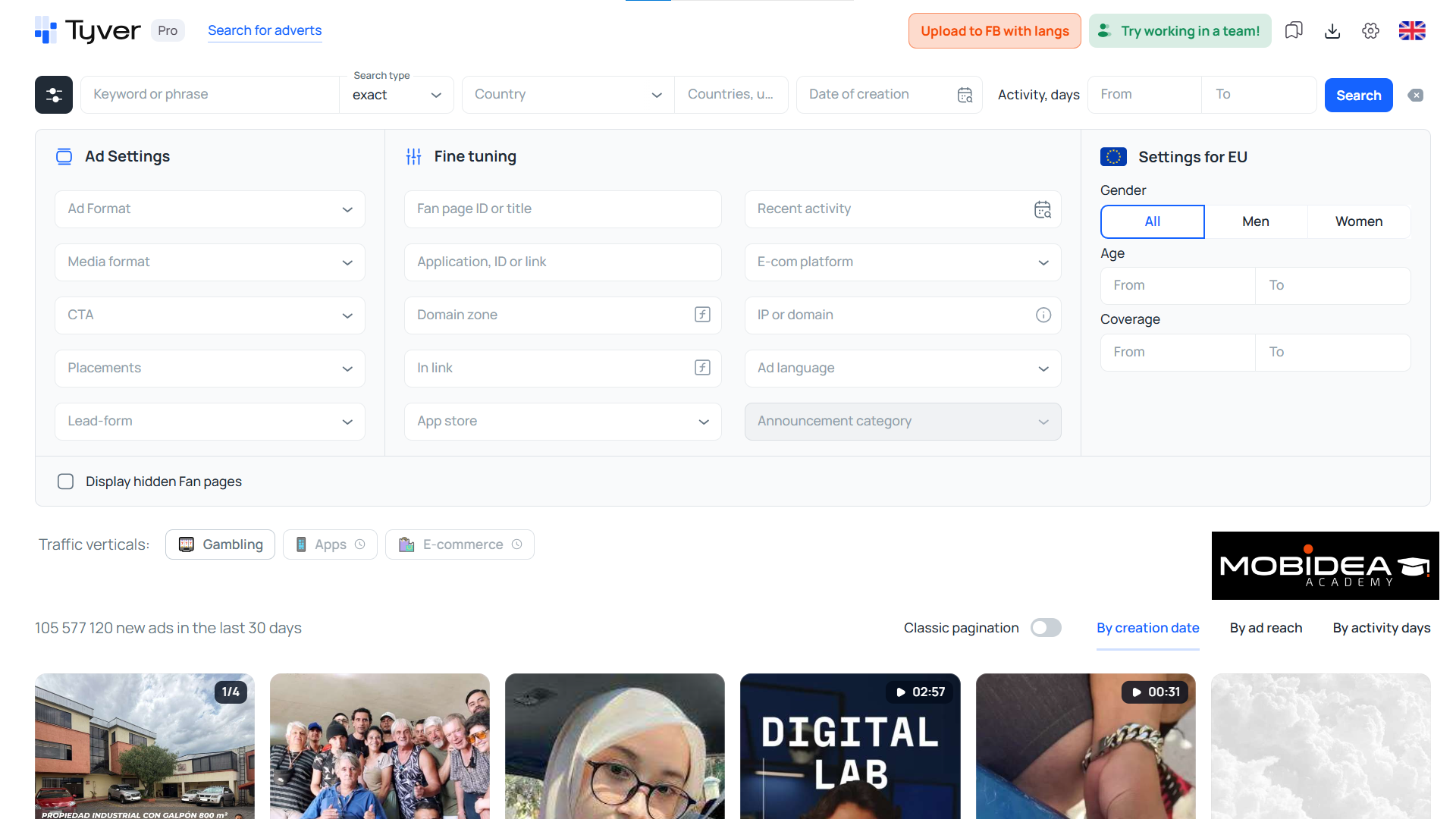
The upper portion shows all available filters, and the lower portion shows the ad results.
As you can see, my dashboard is showing more than 105 million ad results in the last 30 days.
Impressive number, I must say.
Let’s break the dashboard down a bit.
Ad Filter Options
Clicking on the filter icon at the upper left corner hides or shows the various filter options.
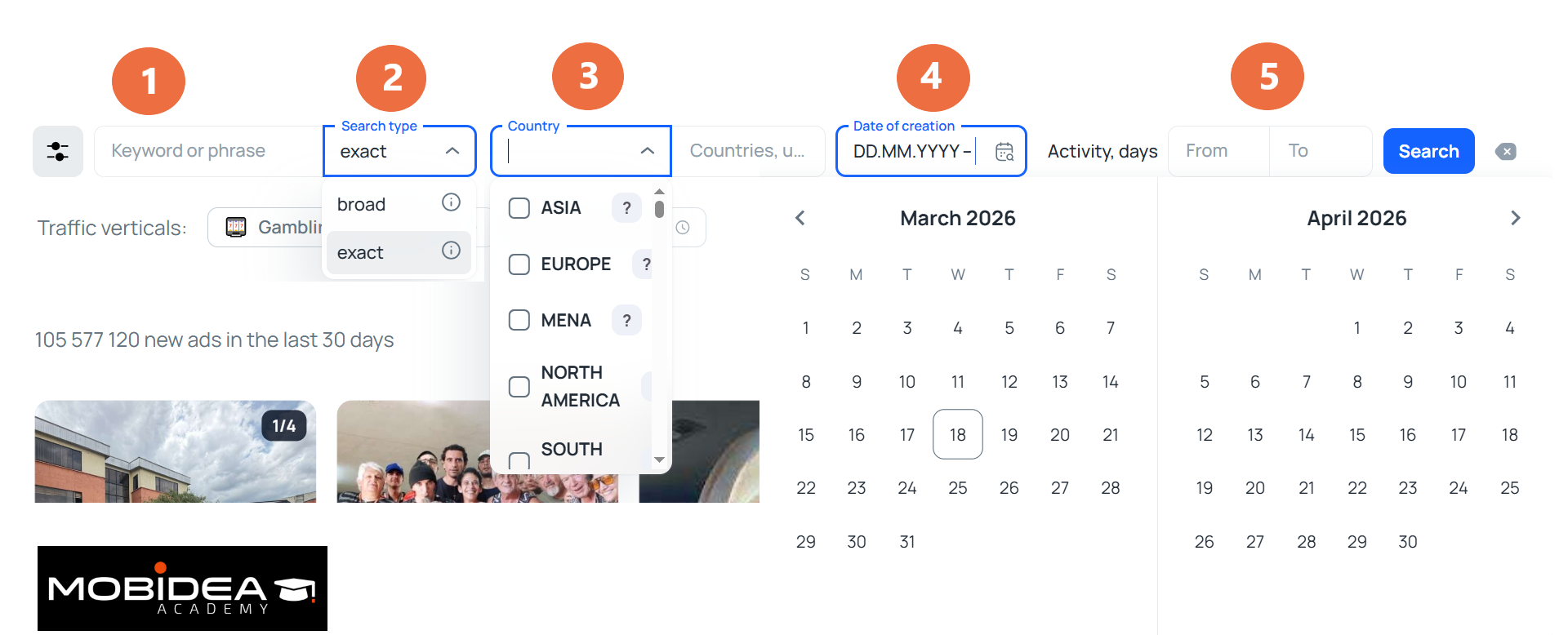
The top row shows the basic filters.
To narrow down your search based on the ad copy, use the keyword or phrase field ①.
You can choose either of the following search types ②:
- Broad search – shows ads that contain your keywords in various order in the ad text
- Exact search – shows ads that contain your exact keyword phrase.
Next option is the geolocation, which includes countries and continents ③.
Not all countries are available though.
Tyver added a note to send a message to support if you are interested in a specific country so they will know if there’s enough interest for it.
Then there’s the option to choose the Date of Creation ④ and the number of days the ad has been active (in range) ⑤.
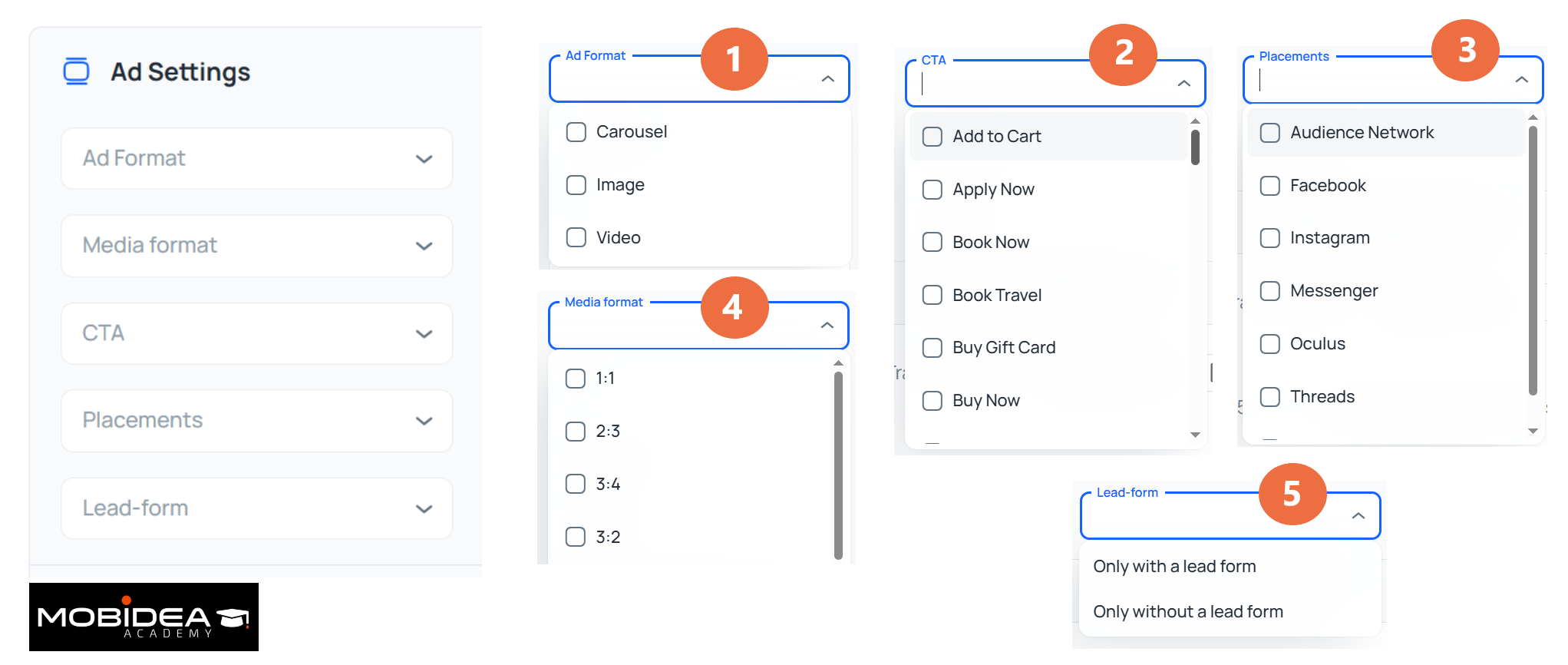
Under Ad Settings group, we have:
- Ad Format – Carousel, Image, or Video
- Media Format – this is the aspect ratio, such as 1:1 or 3:4
- Call to Action – such as Add to Cart, Buy Now, Learn More
- Placements – Facebook, Instagram, Audience Network, Messenger, Oculus, Threads, and Whatsapp
- Lead form – with or without
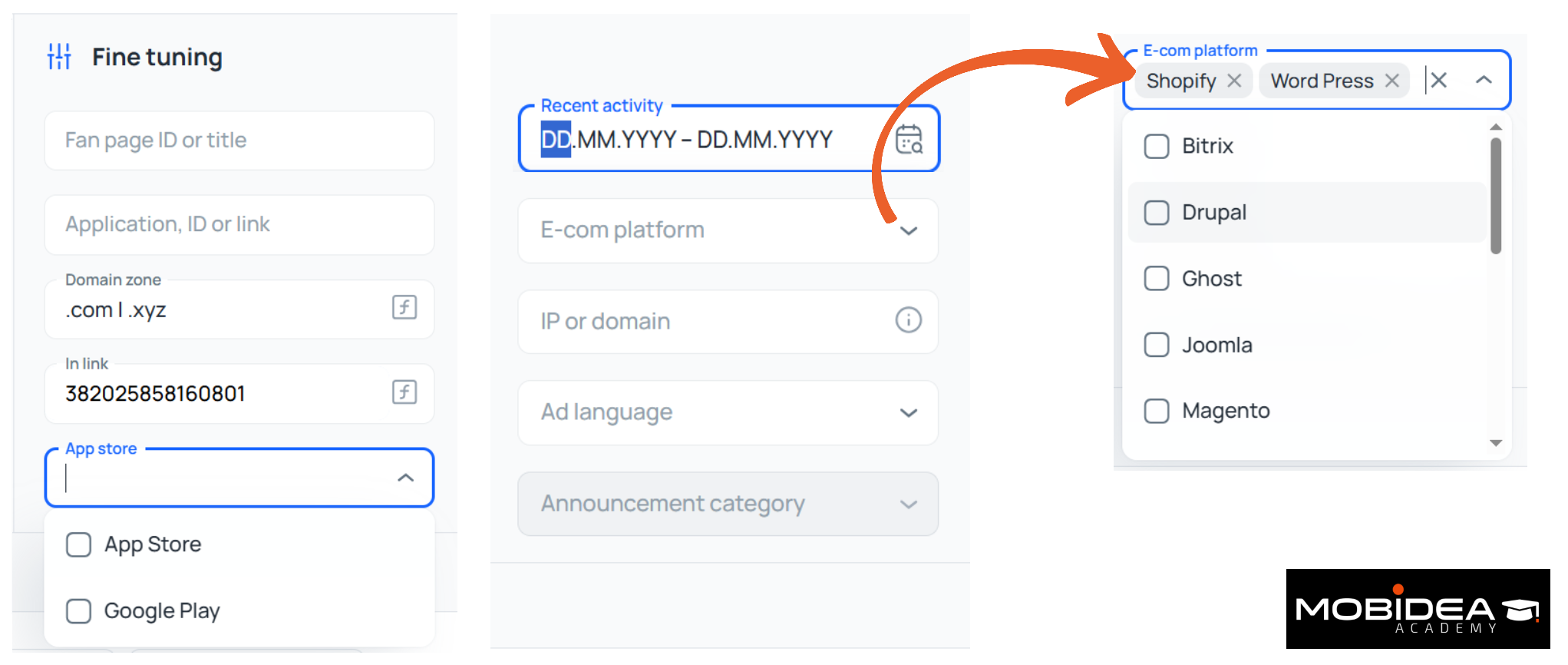
Under Fine Tuning group:
- Fan page ID or title – if you know this already, you can add them here. Through later search, you may be able to find the Fan Page ID which is a string of numbers—you can use those here as well.
- Application ID or link – if you want to check the ads of your competition who are promoting the same apps as you, this is a good way to narrow them down. If you have even just a part of a brand name, this can also work.
- Domain zone – Can be .com, .net, and so on. You can add multiple zones separated by a vertical bar | which works as the OR function.
- In link – You can add anything that you’ll typically find in a link. To make it worth your while, though, we suggest placing either pixel IDs or UTM tags to narrow down to specific ads or advertisers. Can use the vertical bar as well.
- App store – Use this if you want to narrow down to ads that send users to the App Store or Playstore.
- Recent activity – Show only ads active in specific dates you mentioned.
- E-com platform – Any CMS or e-commerce platform, includes WordPress, Shopify, Woocommerce, Wix, and so on.
- IP or domain – IP or domain name of your competitor. If domain name, can be full or part.
- Ad language
Finally, there’s the EU Settings.
This one I actually like, and I’m crossing my fingers that one day Tyver will have this filter available for all countries, not just EU.
There’s Gender: All, Men, or Women.
Then there’s the Age range.
And finally, there’s Coverage, which simply means ad reach or impressions.
For example, if I place 1,000 to 5,000 here, the search results will only show ads that have been viewed this much.
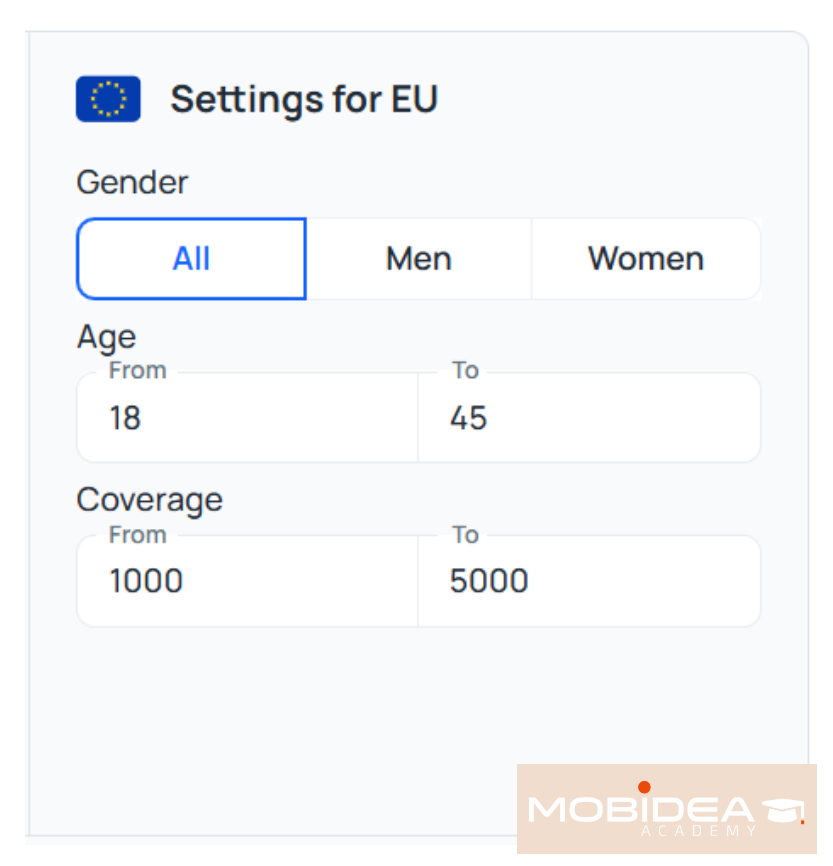
You can also choose to display hidden pages and select traffic verticals.
At the time of this review, only Gambling vertical button is available for use; Apps and Ecommerce filters will be available soon, according to the Tyver team.
Understanding Ad Results
Here’s a quick overview of the results section.
At the upper left corner is a number that depicts the number of ads available based on your filters.
At the upper right corner, you’ll find three options to arrange the ad results:
- By creation date
- By ad reach
- By activity days
Then there’s the toggle for Classic Pagination, which splits search results into several pages, or auto loads the rest of the ad results when you scroll to the bottom of the page.
At the bottom right corner of the page is a sticky toolbar that allows you to quickly scroll to the top, view your favorites, view your media downloads, and view your settings.
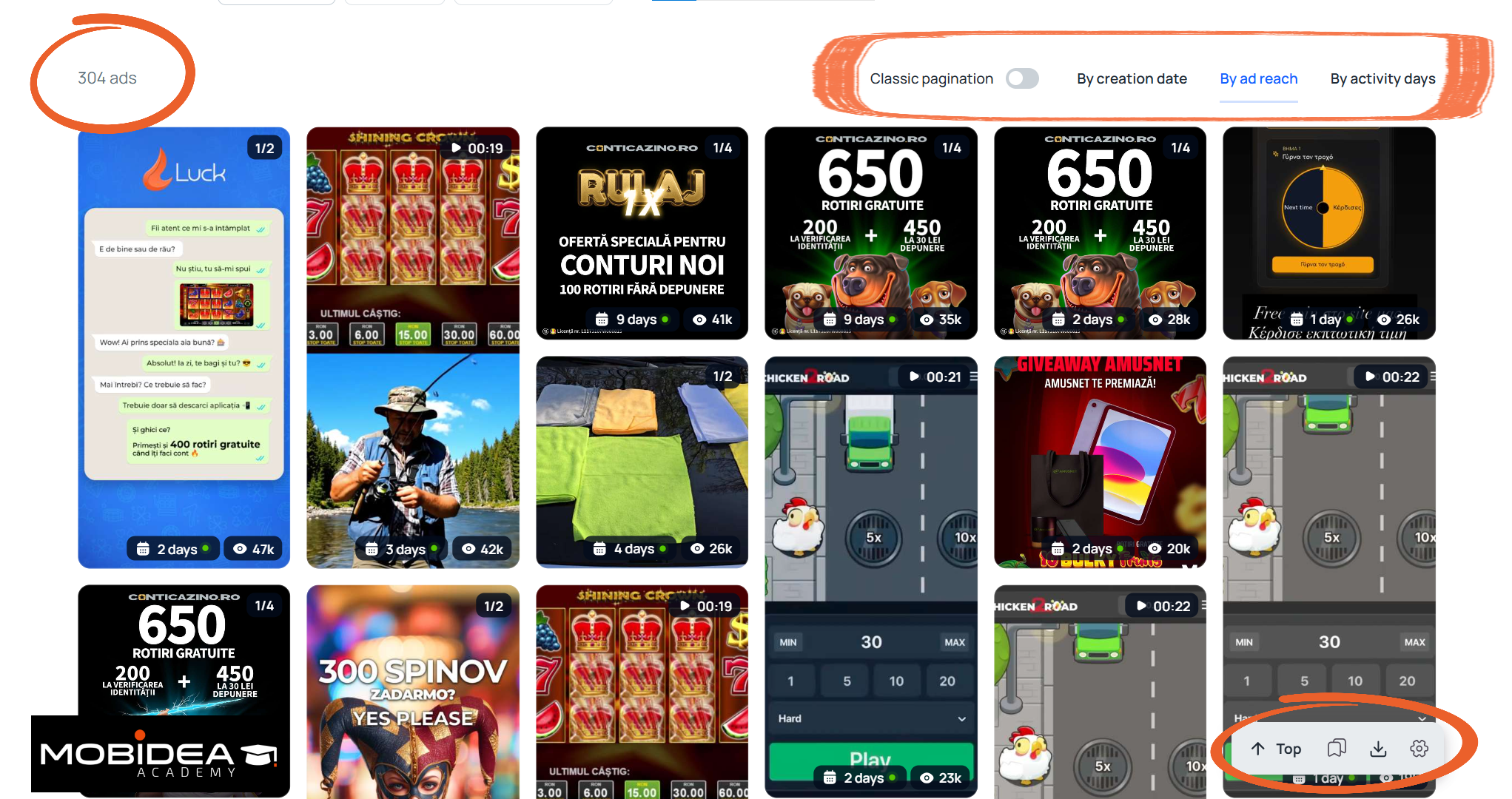
You can find the same options at the upper right corner of the dashboard.
Important note: the account settings lets you see how many ad credits you have remaining.
If you’re budgeting your ad views, it’s a good practice to check this from time to time to see how many you have left.
Now let’s try checking more ad details.
Simply click on any ad you find interesting and a window pane on the right side will appear.
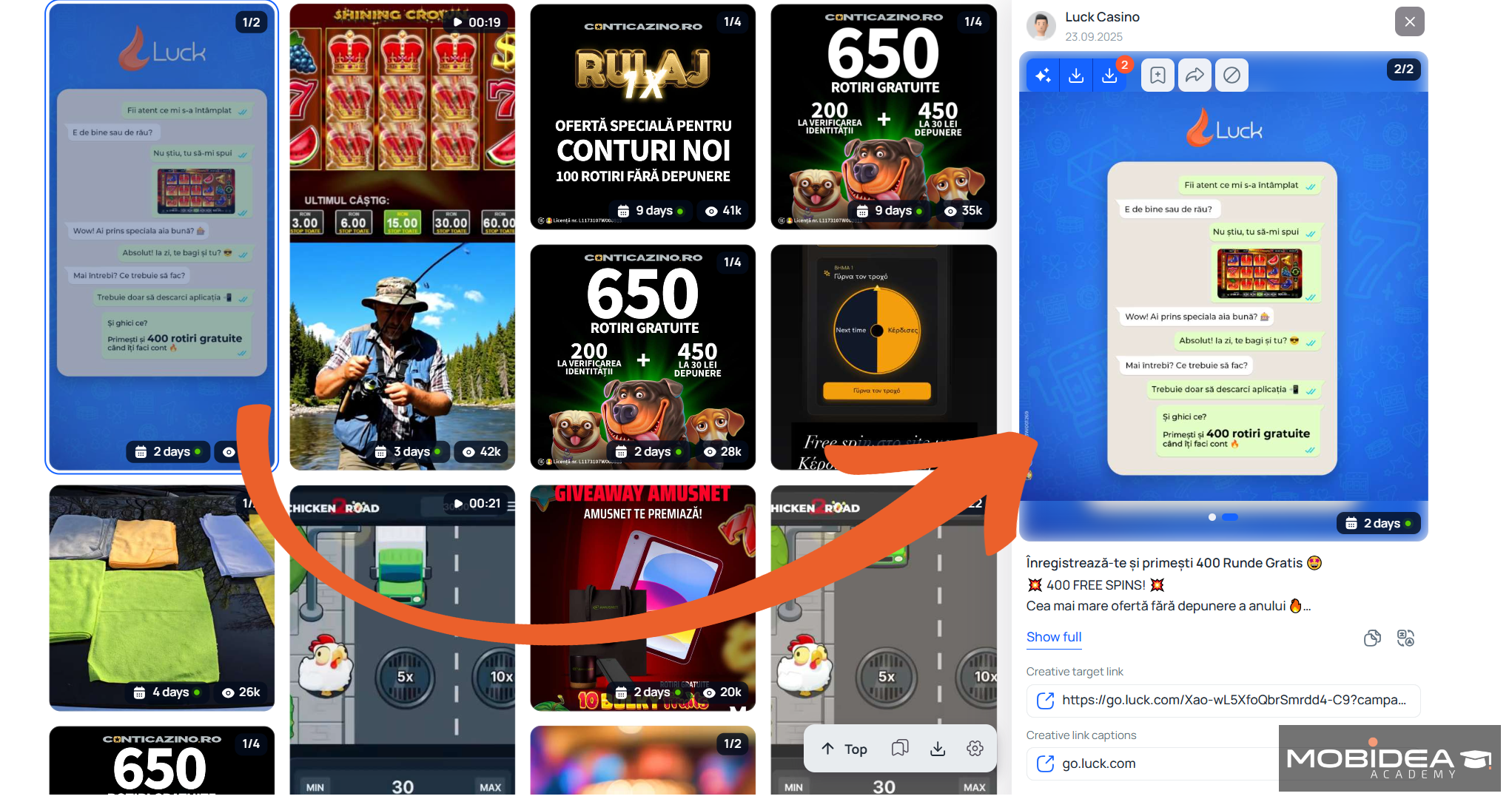
Frankly, I was hoping it’ll open in a new tab or a pop-up window would appear on top of the ad results because at the moment, placing the ad details into a small area on the right looks cramped for me.
But is not a dealbreaker; what’s important is the content.
Here’s what you’ll get with each ad result.
At the very top is the Fan Page name and the date the ad was created.
Clicking on the Fan Page name will open up the Facebook Ads Library and will show all ads run by that page.
The stars button is for Media Processing ①, which is one of the features we mentioned above.
Click on this to open the options to create your own version of the media.
Next are the download buttons ②.
There’s usually only just one button, but since this ad shows an image carousel which contains more than one media, there’s a second button that allows you to download all media in one go.
Following that is the Favorites button ③.
When you click on this, you’ll have the option to send the ad to the default Favorites page, or you can create and add it to a specific folder.
I’ve tested this feature a lot and so far, I have not hit a limit on the number of folders that can be created, which is great.
Then there’s the arrow button ④, which allows you to open the entire ad library of this advertiser in another tab.
Mind you that it doesn’t open just the ad you want, but the entire library they have for this advertiser (with the fan page filter pre-filled).
The last button at the top ⑤ allows you to block this fan page, so you won’t be seeing them in the results in future searches.
It’s a good way to avoid getting your ad views used up unnecessarily.
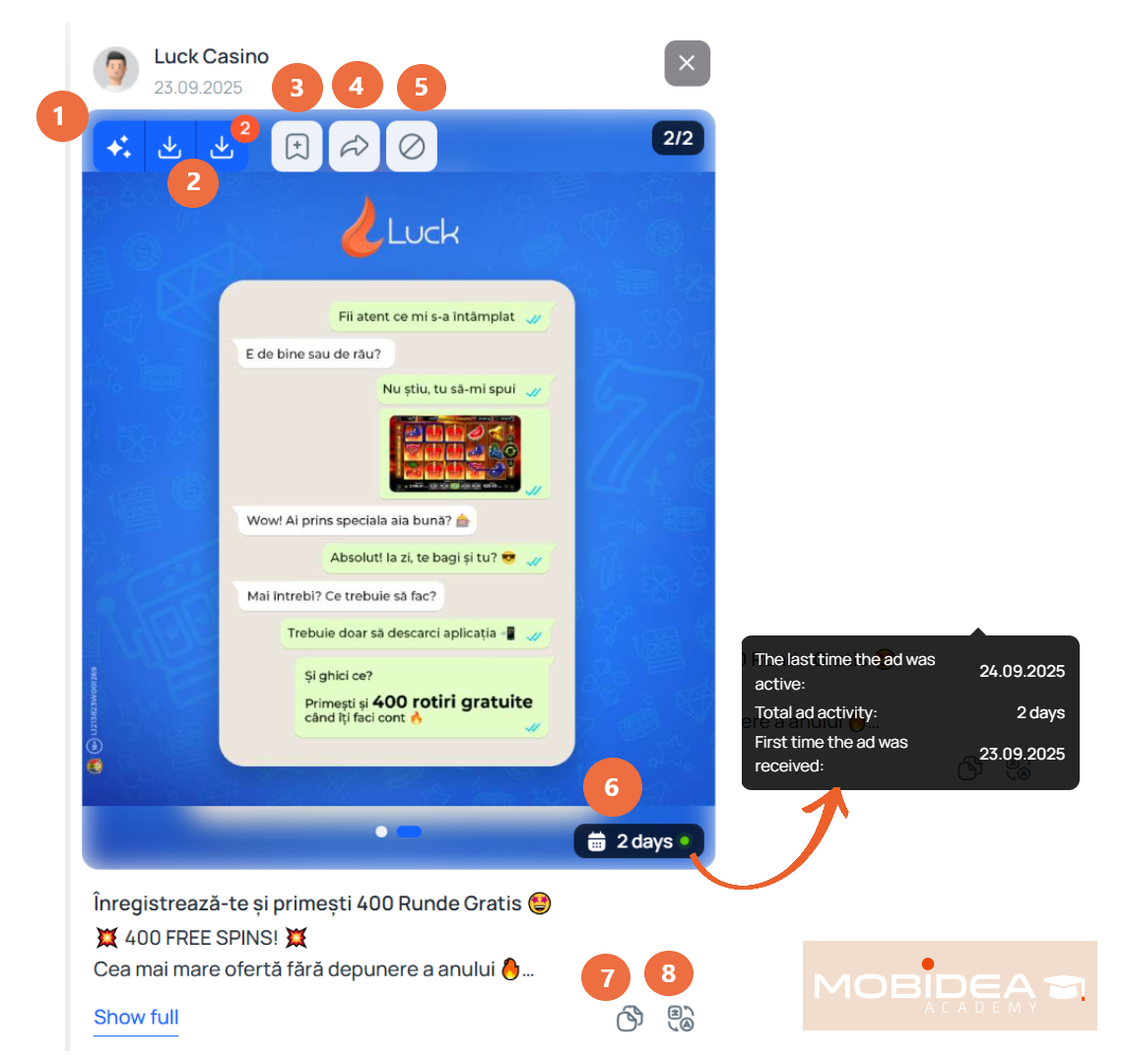
After the ad image/video, you’ll find the ad copy (text) below.
Right over the media, at its lower right corner, shows the number of days the ad has been active ⑥.
If you hover over the calendar and active days, a small pop-up will open up, showing the following details:
- Last time ad was active
- Total ad activity (in days)
- Date the ad was received for the first time.
Then there’s the copy button ⑦ (for copying ad text) and the translate button ⑧.
The creative target link is placed just underneath ⑨, followed by the Creative link caption ⑩, if available for the particular ad.
Country flags ⑪ depict where the ad is being shown.
The CTA button ⑫ being used is shown, followed by the Meta placements ⑬.
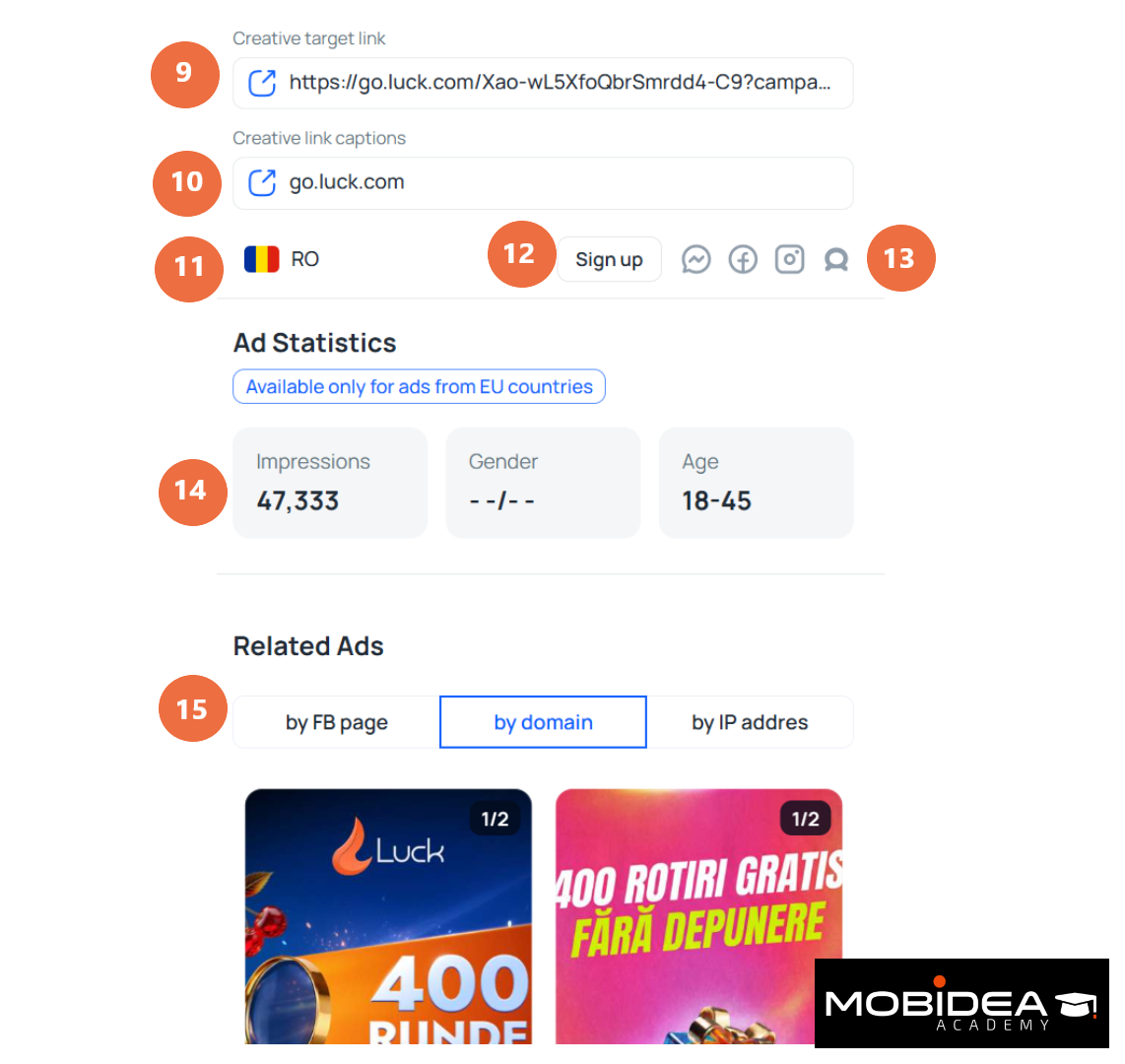
We’re lucky that this ad is being run in Europe (Romania, to be exact), which is why we’re seeing some ad data ⑭ (impressions, gender, and age range).
At the very bottom of this pane are Related Ads ⑮ by FB page, domain, or IP address.
Media Unification
We mentioned this in passing above, let’s talk more about media unification now.
If you click on the Media Processing button, a window that shows you a couple of options, although only Media Unification is available right now.
A few more options are available to create unique versions of the image for you:
- Slight rotation
- Image cropping
- Number of copies
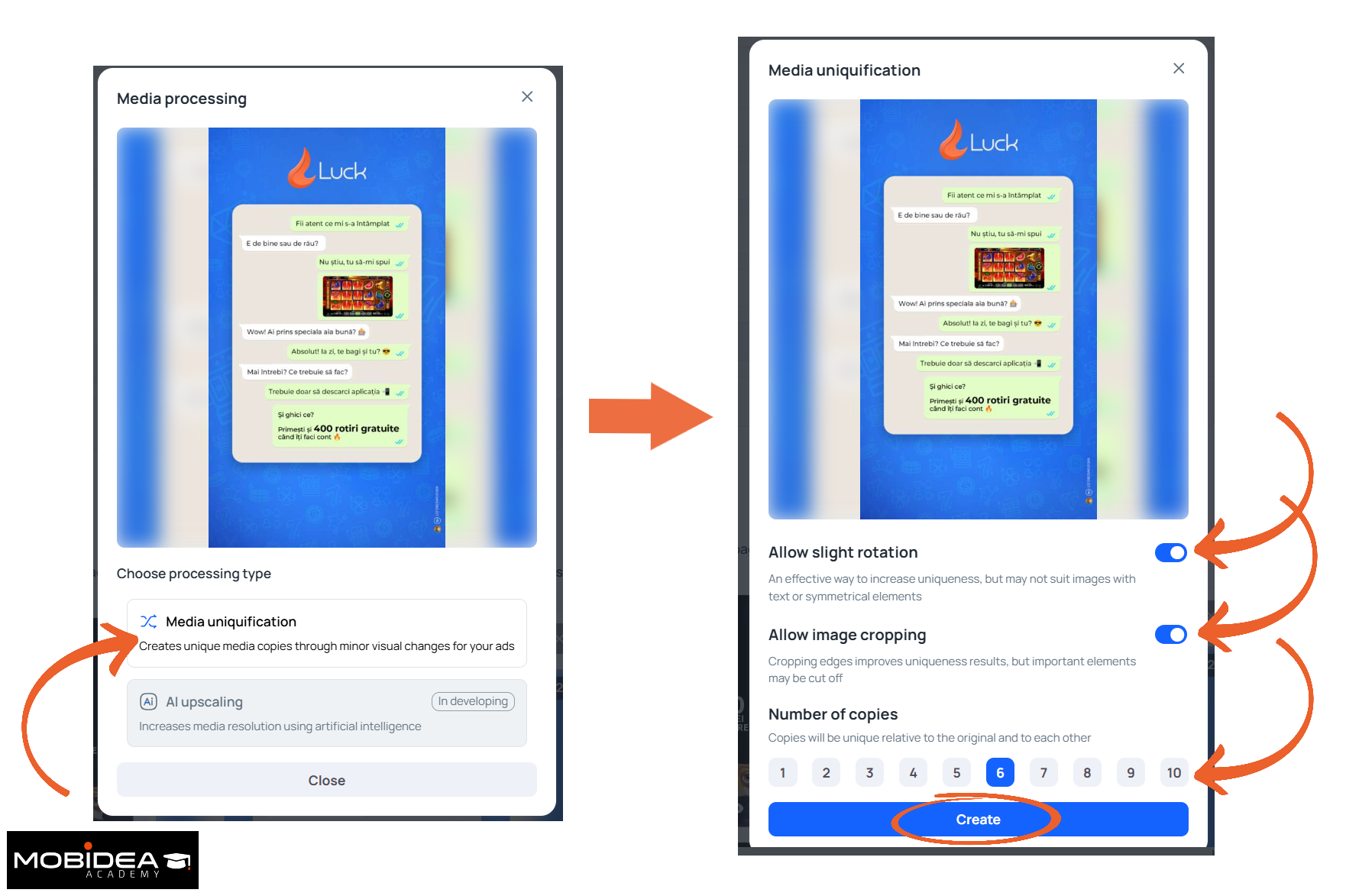
Once you click create, Tyver will start processing the changes for you. It only takes about a minute.
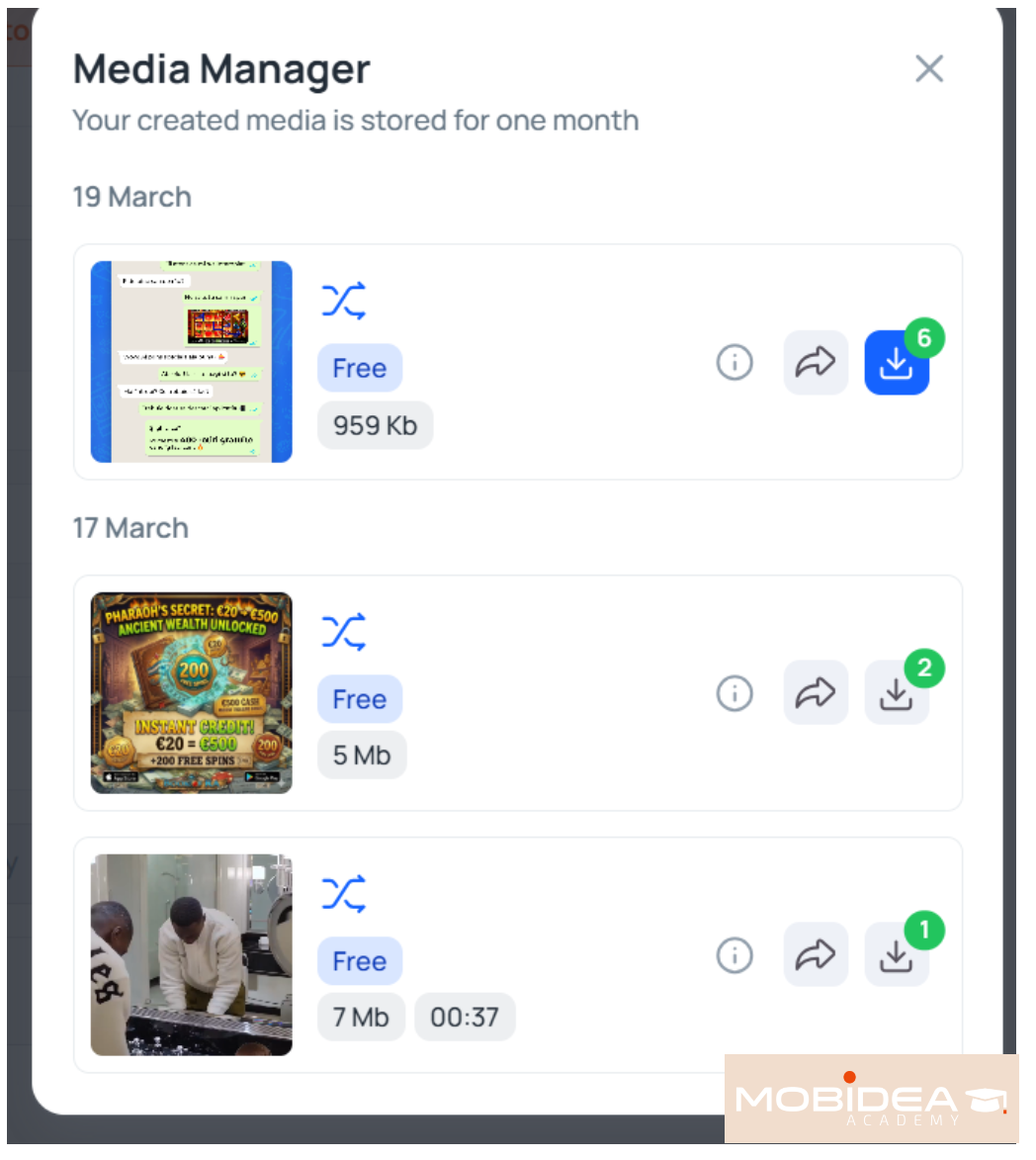
Click on the download button (either at the upper right corner or at the bottom right corner of the page).
Your Media Manager will open up, showing the various media you have available to download.
They are stored only for a month so I suggest downloading them immediately after processing.
Tips to Narrowing Down to Specific Verticals or Niches
Knowing the filters is one thing. But knowing how to use them for each vertical is another.
Here’s how to get good results from Tyver across four of the most popular niches in today’s market on Meta.
Gambling
Use Tyver’s dedicated Gambling filter (which has over 3.5 million creatives).
Start there, then narrow down using the CTA filter.
The most common CTAs for gambling ads are:
- Download
- Install App
- Install Now
- Play Game
From there, sort by active days and reach.
Ads that have been running the longest with the most reach are the ones affiliates are actively spending on.
These are your best reference for winning ads and what’s working right now.
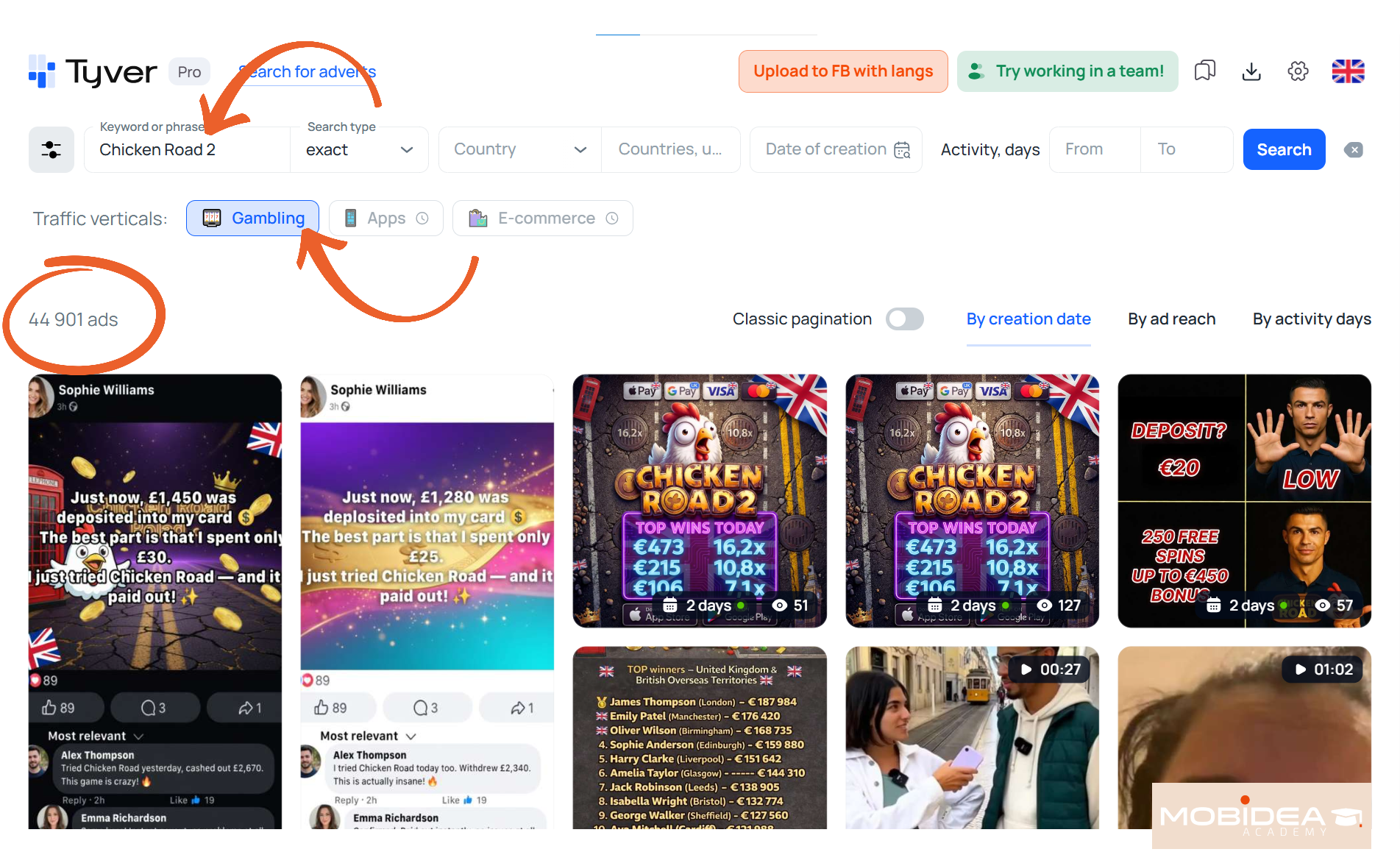
You can also search by a specific game or offer name.
A search for “Chicken Road 2,” for example, returns over 44,000 results.
That’s enough to see exactly what strategies and angles competitors are using: bonuses, free spins, big win moments, luxury lifestyle visuals, or strong promise-based hooks.
Nutra
For Nutra, the best approach is to search by audience pain points instead of product names.
This is closer to how affiliates actually write their ad copy. Good starting keywords include:
- “joint pain” / “knee pain” / “back pain”
- “weight loss” / “burn fat”
- “vision” / “hearing”
A search like “joint pain” can return 600,000+ results, so you’ll need to narrow it down.
Adding a CTA filter or entering “pixel” in the “In link” field helps reduce the search results and makes them more relevant.
Once you have a smaller set, look at which creative formats come up most often: doctor or expert endorsements, before/after visuals, medical-style ads, native news formats.
These patterns show you effective ad combinations and which angles are working in the market right now.
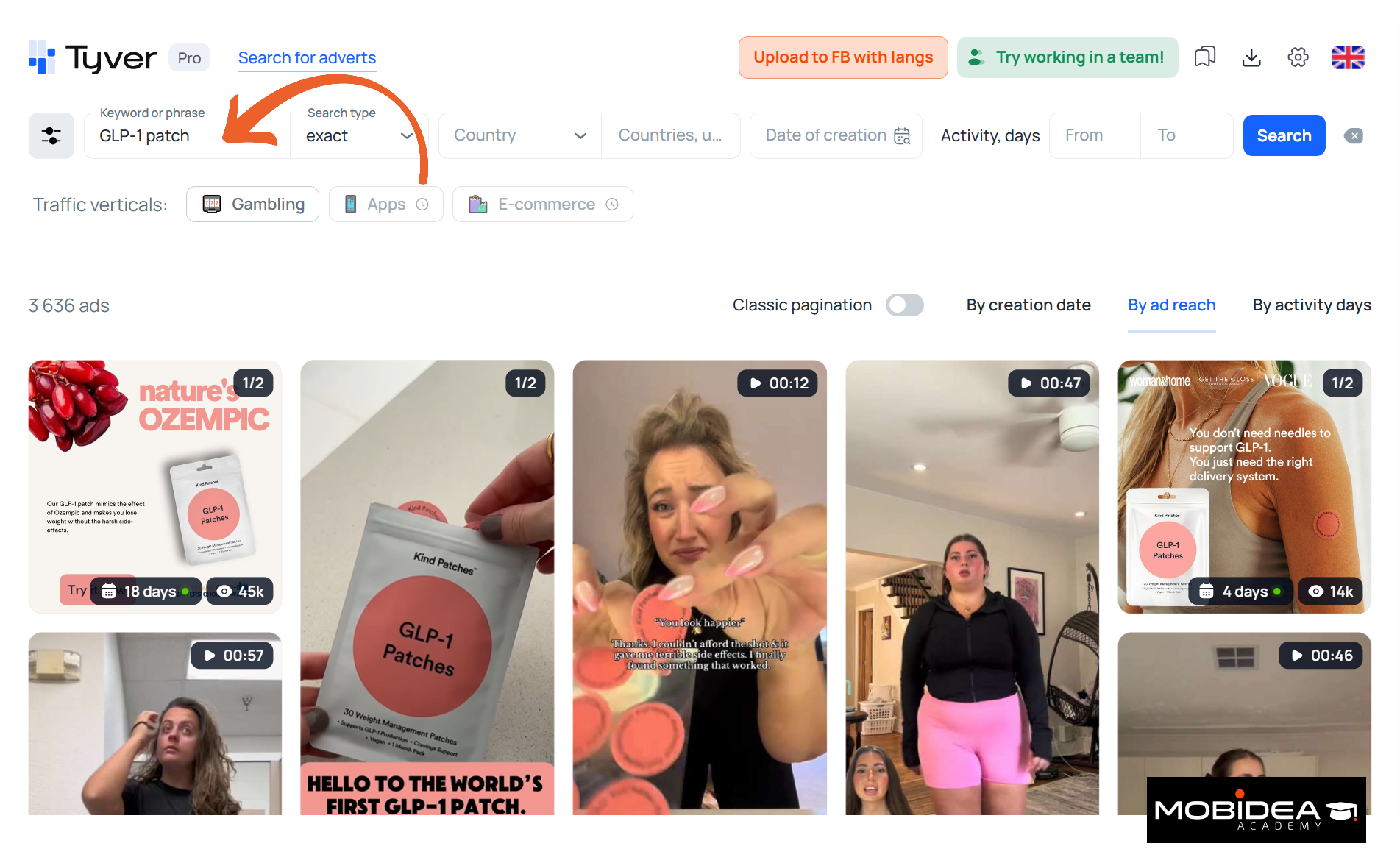
If you’re looking at a specific product or niche like for Nutra Patches for example, you can also search by keyword.
“Ozempic,” “GLP-1 patch,” and similar terms all return useful results.
E-Commerce / Dropshipping
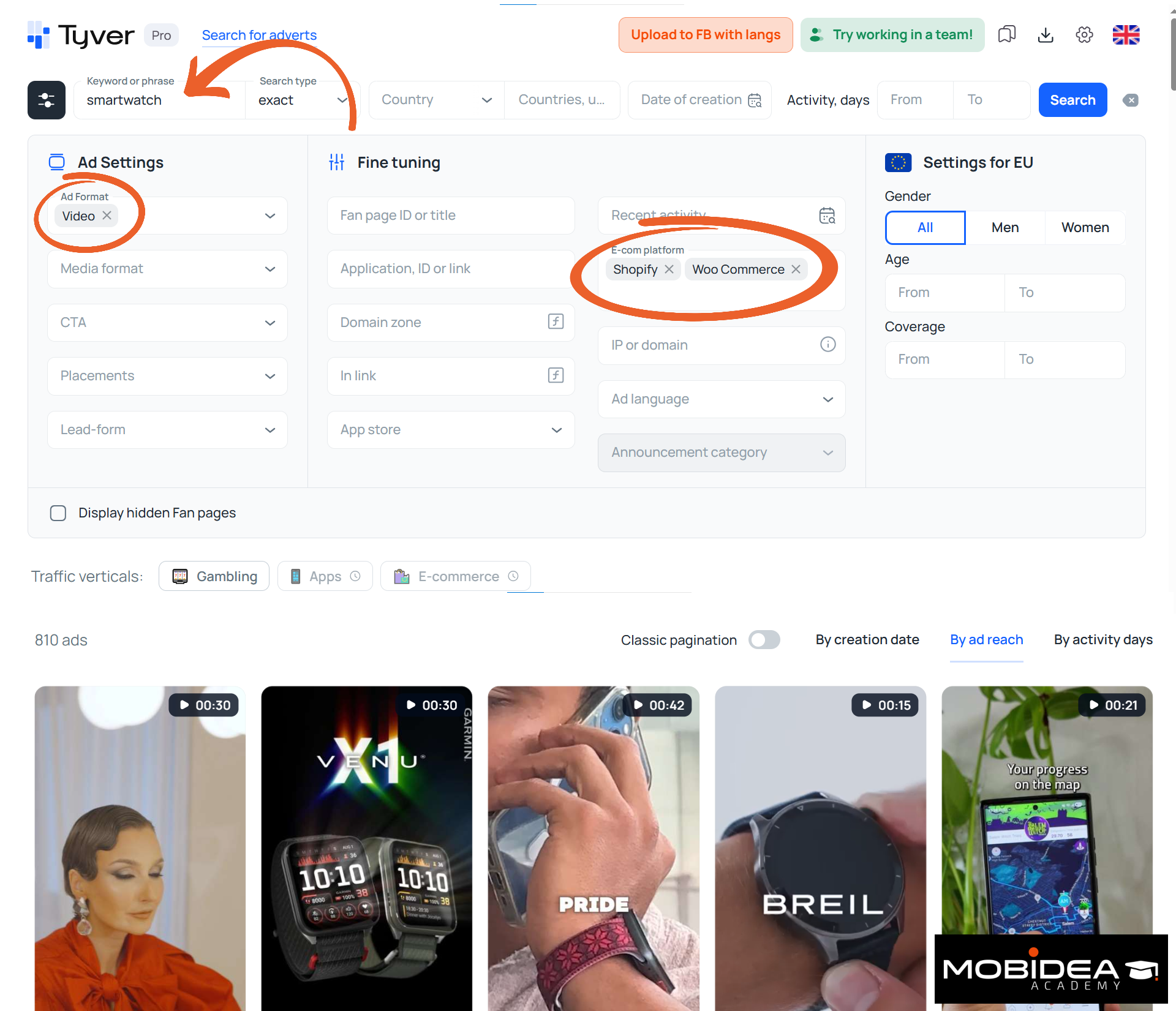
For e-commerce, start with a product name or category, pick a GEO or media format, and use the E-com platform filter to limit results to stores on Shopify, Woocommerce, or other platforms.
The main thing to look for is repetition.
When the same ad format shows up across many different ads, that’s a sign it’s working.
Finding ad creatives that repeat at scale is how you find combinations of format, hook, and offer that convert.
This could be a specific camera angle, a problem-solution setup, or a discount hook.
You don’t need to copy the creative directly. You just need to understand what makes it work.
Finance
Finance ads need to feel trustworthy, so they tend to be calmer and more straightforward than Gambling or Nutra ads.
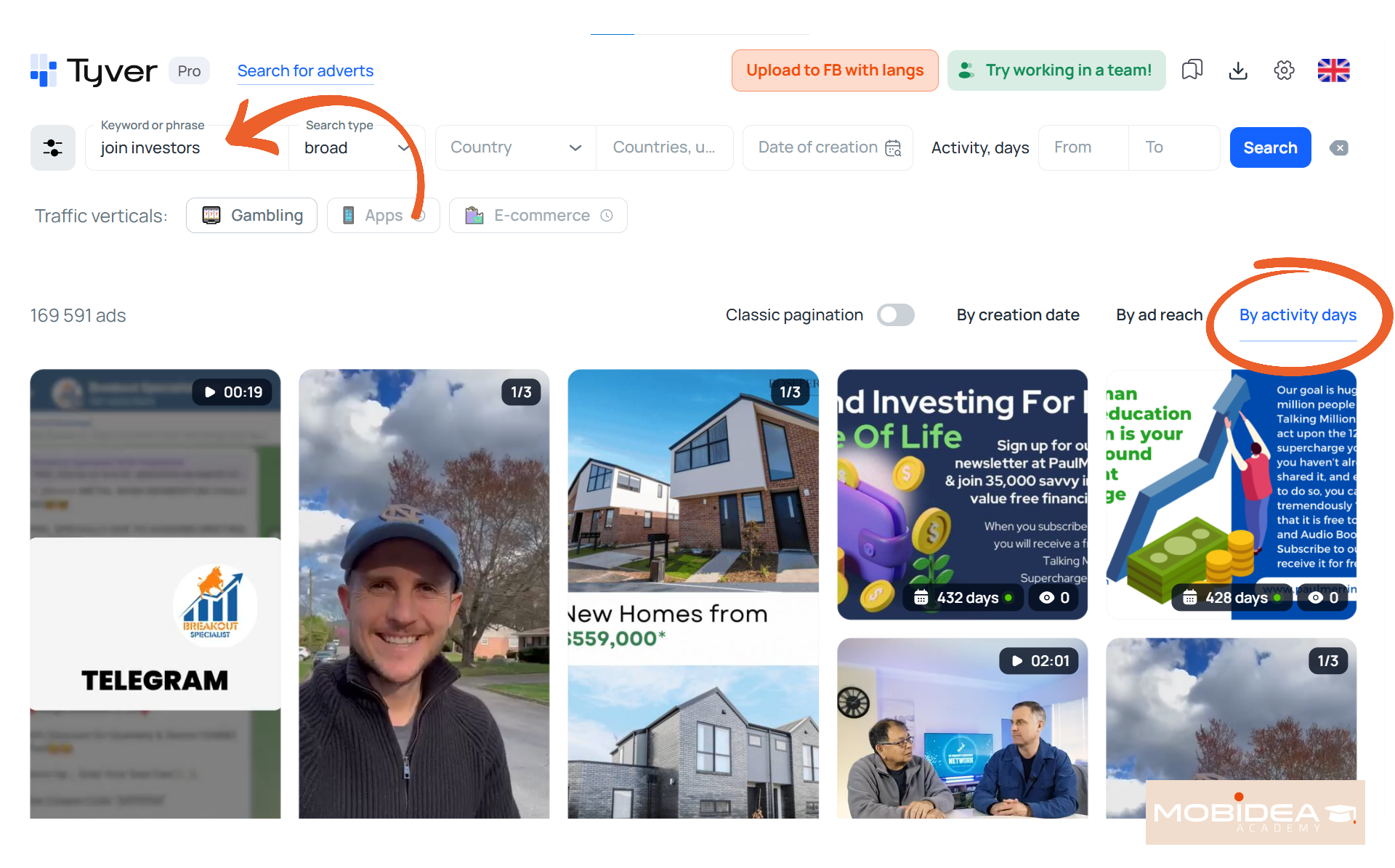
The ads that stay in the feed the longest in finance usually use social proof: customer reviews, charts showing returns, copy like “join X million investors,” or clear and simple terms.
Use the keyword filter and location filter to match the locality you’re trying to promote in.
Then arrange the results by Activity Days to show those running longest first.
The longer they’ve been running, the better chance that it’s been printing dollars for the advertiser.
It’s a reliable signal when analyzing Meta advertising strategies across finance offers.
Tyver Pros and Cons
After testing the app across multiple verticals and use cases, here is a straightforward breakdown of where Tyver delivers and where it has room to grow.
Here’s an overview:
  | VERY GOOD | ||
Ease Of Use 92% Features 90% Data Coverage 90% Value for Money 85% Support 80% Overall Quality 88% | Pros
Cons
| ||
Now for more details:
Pros
- Large and Fresh Database: Over 2 million new creatives are added every day from 100+ countries, so the data you’re working with is always up to date.
- Deep Filtering Options: With 20+ filters including the “in link” search for UTM tags and pixel IDs, you can find creatives exactly as needed without wading through irrelevant results.
- Quickly Find Related Ads: By searching via Fan Page, domain, or IP address, you can see all ads connected to a specific competitor, not just individual creatives.
- Built-In Ad Translation: You can translate ad copy in one click directly inside the platform, which saves a lot of time when researching ads from foreign geos.
- Easy Team Sharing: Folders can be shared via link without requiring the recipient to log in, making it simple to pass research to teammates or designers.
- EU Demographic Filters and Ad Details: Gender, age, and reach filters are available for EU countries, which is useful for anyone running campaigns in European markets.
- Media Processing for Ad Variations: Tyver can create slight variations of any ad creative by applying small adjustments like cropping, rotation, and brightness or contrast changes, which is handy when you want to adapt a reference creative for your own use.
- Easy Media Downloads and Text Copying: Any ad creative, whether image or video, can be downloaded directly from the platform with minimal steps. Ad copy can also be copied in a single click.
- Organized Favorites System: You can create multiple Favorite Folders to keep ads sorted by category, vertical, offer, or any other grouping that fits your workflow.
Cons
- No Direct Link to the Live Ad: There is no ad ID provided and no way to view the ad directly on Facebook or any other Meta property to see how it actually appears in the feed.
- Ad Statistics Are EU Only: Impression and demographic data is only available for ads running in EU countries.
- No FAQ or Knowledge Base: There is currently no help center or documentation inside the platform, which can make it harder for first-time users to figure out how everything works.
- Meta Only: Tyver only covers Facebook ads and Instagram, so if you run traffic on TikTok, Google, push, or native networks, you will need a separate tool for those.
- No Landing Page Tools: Unlike some other ad spy services, Tyver does not offer a landing page spy feature, so you cannot download or deploy landing pages directly from the platform.
Tyver Verdict: Yey or Nay?
Tyver does what it sets out to do, so it definitely deserves a Yey!
If your traffic runs on Meta and you need a fast way to research what competitors are running, this next generation spy service gets the job done.
The database is large, the filters are genuinely useful, and the per-ad details go well beyond what the native Facebook Ads Library gives you.
As a spy service, it punches well above its price point.
The “in link” filter alone is worth the Pro subscription for anyone running affiliate campaigns at scale.
Being able to find creatives connected to a competitor team via a UTM tag or pixel ID is something other social image and video ad spy tools don’t offer—making Tyver one of the more indispensable tools for serious meta ads research.
The free plan makes it easy to try before paying, and the Pro plan at $79/month is a fair price for what you get.
Give it a try today! Once you decide it’s worth a paid subscription, don’t forget to use our exclusive coupon code MOBIDEA to get a 20% off!
Tyver FAQ
What is Tyver?
Tyver is an ad spy tool for Meta platforms.
It collects and organizes ads running across Facebook, Instagram, Threads, Audience Network, and Messenger, giving affiliates and media buyers access to competitor creatives, performance data, and funnel information.
How do I spy on competitors’ Facebook ads with Tyver?
Search by keyword, product name, or niche, then use Tyver’s advanced filters to narrow results by GEO, CTA, format, or Fan Page.
You can also enter a UTM tag or pixel ID in the “In link” field to find all ads connected to a specific affiliate team or advertiser.
How do I find winning Facebook ad creatives?
Sort search results by active days and reach.
Ads that have been running for more than a week and are still getting reach are a good sign of a profitable funnel.
Look for ad creative formats that show up across many different advertisers.
When the same approach repeats at scale, it usually means it’s converting.
Does Tyver have a free plan?
Yes. Tyver has a free plan with limited database access and basic ad information, but with access to the full filter set.
It’s a good way to try the platform before upgrading.
How often is Tyver’s database updated?
The database is up to date at all times—updated every day, with more than 2 million new creatives added daily.
What verticals does Tyver support?
Tyver works for any vertical running ads on Meta.
It has a dedicated filter for Gambling, though with the right filters, you can find ads for Nutra, E-commerce, Finance, Dating, Betting, Crypto, and App Install campaigns.
Can I share saved ads with my team?
Yes. Saved creatives can be organized into folders and shared via a link.
The person receiving the link does not need to log in to view the folder.
What countries are covered?
Tyver covers 100+ countries, and the list keeps growing.
Is Tyver a good Facebook Ads Library alternative?
It depends on what specific needs you have.
The Facebook Ads Library shows you that an ad exists, but Tyver shows you how long it has been running, how much ad reach it has, who the audience is, and what other ads are connected to the same funnel.
For affiliates and media buyers doing serious competitor research, Tyver gives you much more to work with. This makes it one of the indispensable tools in a media buyer’s arsenal.
Do you have a Tyver promo code?
You’re in luck!
Tyver has generously given Mobidea Academy readers an exclusive 20% discount on your first monthly payment.
Just use the coupon code MOBIDEA to get that discount!


Explore our full CrakRevenue review — a top CPA network with 500+ exclusive offers in cam, dating, AI, and OnlyFans verticals.
Thinking of jumping into the world of fintech? Kingfin might just be the best place to start! Learn more in this in-depth Kingfin review.